

Connect your company's Microsoft Entra ID (formerly Azure Active Directory) accounts so your team can sign in to InfraNest with the credentials they already use, and this is for InfraNest administrators setting up sign-in for their organization.
Overview
- Lets your team sign in to InfraNest using their existing Microsoft 365 or Azure accounts.
- Entra ID controls access: once you require assignment, only the people and groups you choose can get in, and removing someone in Entra ID stops them signing in to InfraNest.
- Available on Enterprise plans. Setup takes about fifteen minutes, split between the Microsoft Entra admin center and InfraNest.
- In Entra ID you need a role that can register applications and assign users, such as Cloud Application Administrator. In InfraNest you need to be an administrator.
NoteInfraNest uses the email address (or sign-in name) in each person's Entra account. That address must be on the email domain you verify during setup. Addresses ending in
onmicrosoft.comcannot be used for single sign-on, since that domain belongs to Microsoft and can't be verified.
Connect in one click (if you can approve apps tenant-wide)
If your account can approve apps for your whole tenant (for example Global Administrator, Privileged Role Administrator, or Cloud Application Administrator), you can skip registering an app:
- Go to Settings → Sign-in and choose Set up single sign-on, then Microsoft Entra ID.
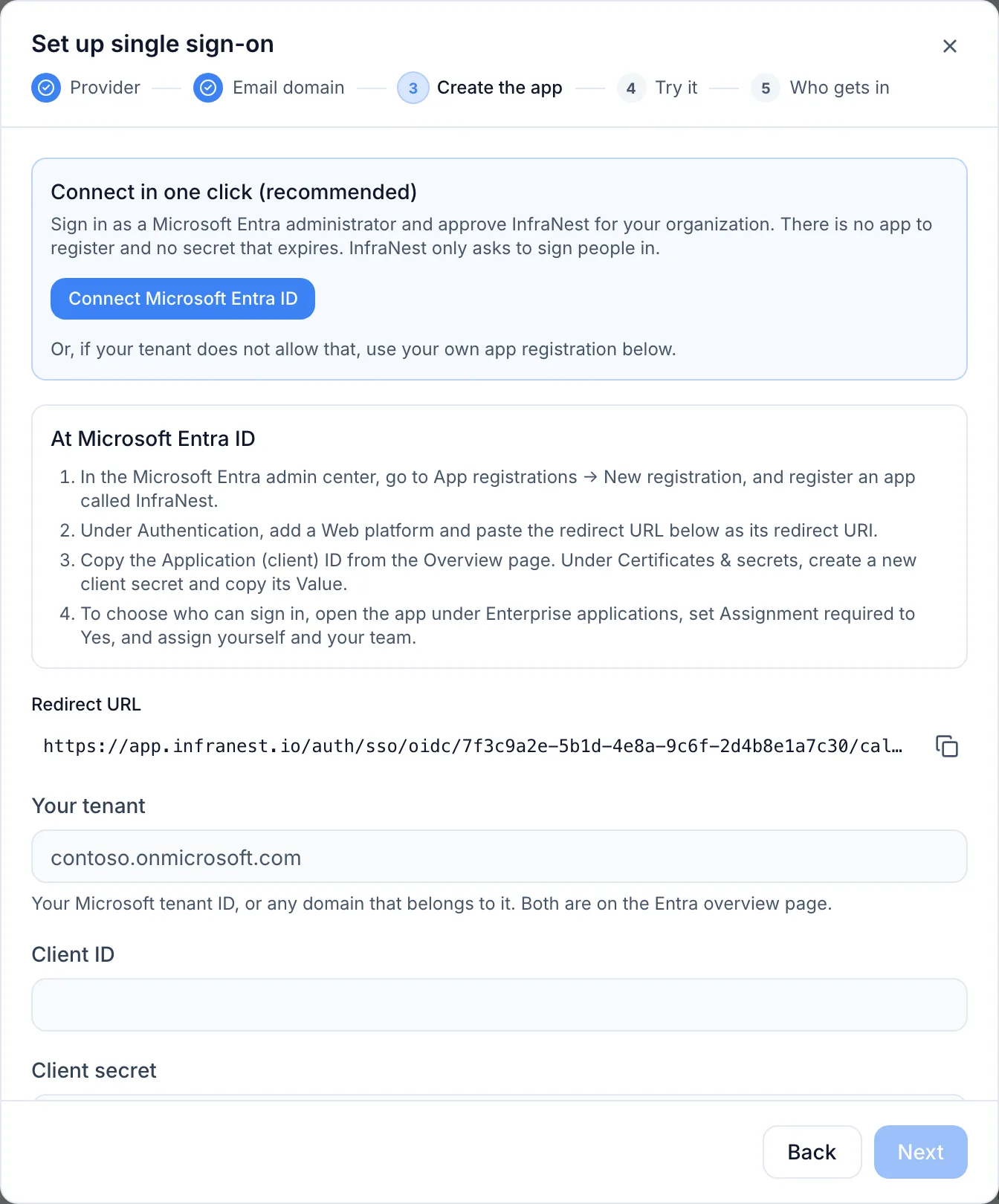
- On the app-creation step, choose Connect Microsoft Entra ID.
- Microsoft asks you to approve InfraNest for your organization — it only asks to sign people in (their name and email), nothing else. Choose Accept.
- You return to InfraNest at the testing step. Continue from Try it.
After approving, InfraNest appears under Enterprise applications in the Entra admin center, where you choose who may sign in (see Choose who may sign in). There's no client secret to renew this way.
If your tenant doesn't allow approving outside apps, or you want to assign roles from Entra groups, register your own app instead — the steps below cover it.
Start in InfraNest
- Go to Settings → Sign-in and choose Set up single sign-on.
- Choose Microsoft Entra ID.
- Check the suggested Email domain. Verifying it is recommended, so people can type their work address on the sign-in page and new people can join automatically; you can skip it, in which case your team uses your organization's sign-in link and joins by invitation. If it isn't verified, InfraNest shows the DNS record to add — choose Add it for me if InfraNest manages that DNS zone, or add the record yourself and choose Check now.
- On the app-creation step, copy the Redirect URL at the top. Keep this tab open — you'll come back to it shortly.
Register the app in Entra ID
In a second tab, sign in to the Microsoft Entra admin center.
- Go to Entra ID → App registrations and choose New registration.
- Fill in the form:
- Name:
InfraNest. Your people may see this name when they sign in. - Supported account types: choose the single-tenant option with your own organization's name.
- Name:
- Choose Register. The app's Overview page opens.
- Keep the Application (client) ID at hand. The Directory (tenant) ID on the same page is your tenant ID.
Add the redirect URL
- In the app, open Authentication.
- Choose Add Redirect URI.
- Choose the Web tile — not Single-page application, since InfraNest finishes sign-in from its server and Microsoft refuses that for a single-page-application redirect URL.
- Paste the Redirect URL you copied from InfraNest, and choose Configure.
You do not need a front-channel logout URL.
Create a client secret
- In the app, open Certificates & secrets, then the Client secrets tab, and choose New client secret.
- Enter a description, such as
InfraNest, and choose when it expires (Microsoft allows at most 24 months, and recommends less than 12). - Choose Add, and copy the secret's Value immediately — not the Secret ID, which is only a label. Microsoft shows the value once.
WarningPut the expiry date in your calendar. When the secret expires, nobody can sign in to InfraNest through Entra ID until you create a new one and update it in InfraNest.
Allow the sign-in permissions
- In the app, open API permissions and choose Add a permission → Microsoft Graph → Delegated permissions.
- Select
openid,emailandprofile, and choose Add permissions. - Choose Grant admin consent for your organization, and confirm.
Send the sign-in time
If your organization asks people to confirm sensitive actions by signing in again, add this claim so InfraNest can check the sign-in time:
- In the app, open Token configuration and choose Add optional claim.
- Choose token type ID, select
auth_time, and choose Add.
Without it, people can still sign in, but confirming a sensitive action through Microsoft will be refused with a message about this missing claim.
Finish the connection in InfraNest
Back in the InfraNest tab, on the app-creation step:
- Under Your tenant, paste the Directory (tenant) ID, or type a domain in your tenant.
- Under Client ID, paste the Application (client) ID.
- Under Client secret, paste the secret's Value.
InfraNest reads everything else from Microsoft. If it can't find your tenant, nothing is saved, and the message explains what went wrong.
Choose who may sign in
By default, every account in your tenant can sign in to an app you register. To limit InfraNest to the right people:
- In the Entra admin center, go to Entra ID → Enterprise apps and open InfraNest.
- Open Properties, set Assignment required? to Yes, and choose Save.
- Open Users and groups, choose Add user/group, select the people or groups, and choose Assign.
Assign yourself too, or the test in the next step will stop at Microsoft. Assigning a whole group needs a Microsoft Entra ID P1 or P2 licence; without one, assign people individually. Members of a group inside an assigned group are not included. Global Administrators can always sign in regardless of this setting.
Try it
- On the testing step, choose Sign in with Microsoft Entra ID to test.
- A new tab opens at Microsoft — sign in with your own work account.
- When it works, the step turns green.
A test is required before you can switch the connection on. If it fails, see If it does not work.
Decide who gets in, and switch on
- On the Who gets in step, choose what happens when somebody new signs in:
- Add them straight away — pre-selected, and safe once Assignment required? is Yes. New people join with the role under Role for new members, starting at Member (read-only).
- Ask an admin — turns each newcomer's sign-in into a join request an administrator approves.
- Do nothing — people still need an invitation.
- Choose Switch on.
The connection's status should now read: Connected to Microsoft Entra ID · Email domain verified · Test sign-in passed · Switched on.
Your team signs in from the normal InfraNest sign-in page by typing their work address and choosing Continue with ….
Optional: give people roles from Entra ID
InfraNest can set each person's role from app roles you create in Entra ID, which arrive with every sign-in.
In Entra ID:
- Go to Entra ID → App registrations, open InfraNest, then App roles, and choose Create app role.
- Fill in the form, including a Display name you recognise, Allowed member types set to Users/Groups, a short Value without spaces (such as
infranest.admins), and a Description. Leave Do you want to enable this app role? ticked. - Choose Apply. Repeat for each role you need.
- Go to Entra ID → Enterprise apps → InfraNest → Users and groups. Choose Add user/group, select people or groups, pick the app role, and choose Assign.
In InfraNest: open the connection, then Credentials and claim names. Set Groups claim to roles, and add a row for each app role, matching its exact Value (not display name) to a role. Roles that can change or delete things cannot be mapped — assign those people manually.
Tips
TipYou can require single sign-on for your whole organization once it's working, under Settings → Sign-in. InfraNest asks for at least one owner with a passkey first, so a Microsoft outage can never lock you out.
- Starting from My Apps: paste your organization's sign-in link into the app registration's Home page URL under Branding & properties, and make the app visible to users, so people can launch InfraNest from the Microsoft My Apps portal.
- Client secrets expire: before the expiry date, create a new secret, paste it into the connection, choose Replace, then delete the old secret in Entra ID.
- Moving to another tenant needs a new connection, since the existing one is tied to the tenant it was set up with.
Troubleshooting
- Microsoft says you need admin approval when choosing Connect Microsoft Entra ID: your account can't approve apps tenant-wide. Ask an administrator, or use your own app registration.
- AADSTS50011 (redirect URI mismatch): copy the Redirect URL again from InfraNest and add it under Authentication as a Web redirect URI.
- Sign-in at Microsoft succeeds but the test still fails: check the redirect URL is listed under Web, not Single-page application.
- AADSTS90094 (admin consent required): grant admin consent under API permissions and try again.
- AADSTS50105 (user not assigned): assign that person, or a group they're directly in, under Enterprise apps → InfraNest → Users and groups.
- AADSTS7000215 (invalid client secret): make sure you pasted the secret's Value, not its Secret ID. Create a new secret if needed.
- AADSTS7000222 (client secret expired): create a new secret and update it in InfraNest.
- AADSTS700016 (application not found): check that the client ID and tenant belong together on the app's Overview page.
- AADSTS90002 (tenant not found): check the tenant ID or domain for typos.
- Someone signs in at Microsoft but InfraNest doesn't let them in: their email address (or sign-in name) isn't on a domain you've verified in InfraNest.
- An existing InfraNest user is asked for their password first: this happens when their Entra email differs from their sign-in name. They can sign in with their password once and connect Microsoft Entra ID from their profile; after that, sign-in works directly.
- Everyone lands on the default role despite mapped app roles: check that Groups claim is
roles, that you mapped each role's Value (not display name), and that the person was assigned the app role, not just the app. - Administrators can see every failed attempt, with the reason, in Settings → Audit Log.
Was this article helpful?