

Connect your company's Google Workspace to InfraNest so your team can sign in with their everyday work accounts — built for InfraNest administrators on an Enterprise plan.
Overview
- Lets everyone in your Google Workspace sign in to InfraNest with their existing Workspace account.
- This is your own connection, set up in your own Google Cloud project — only accounts in your Workspace can use it.
- If someone is suspended or deleted in Google Workspace, they immediately lose access to InfraNest too.
- Different from the everyday Continue with … Google sign-in available to everyone, which works with any Google account. For that option, see Single sign-on and sign-in connections.
- Takes about ten minutes, split between the Google Cloud console and InfraNest's Settings → Sign-in.
NoteGoogle does not send group information, so this connection cannot assign roles based on someone's Google groups. Everyone who joins gets the role you choose during setup, and you can change roles afterwards in InfraNest.
Before you start
- Use a Google Cloud project that belongs to your Workspace organization. The setting that keeps outside Google accounts out (Internal) only appears for projects inside your company's Google Cloud organization. A project created while signed in with your Workspace account normally lands there; one created with a personal Google account does not.
- Make sure you can create a project in your company's Google Cloud organization, and that you're an administrator in InfraNest.
Start in InfraNest
- Go to Settings → Sign-in and choose Set up single sign-on.
- Choose Google Workspace.
- Under Email domain, check the domain InfraNest suggests. Verifying it is recommended — people can then type their work address on the sign-in page, and new people can join automatically. You can skip verification; your team then uses your organization's sign-in link instead, and new people join by invitation. If it isn't verified yet, InfraNest shows the DNS record to add — choose Add it for me if InfraNest already manages that DNS zone, or add the record yourself and choose Check now.
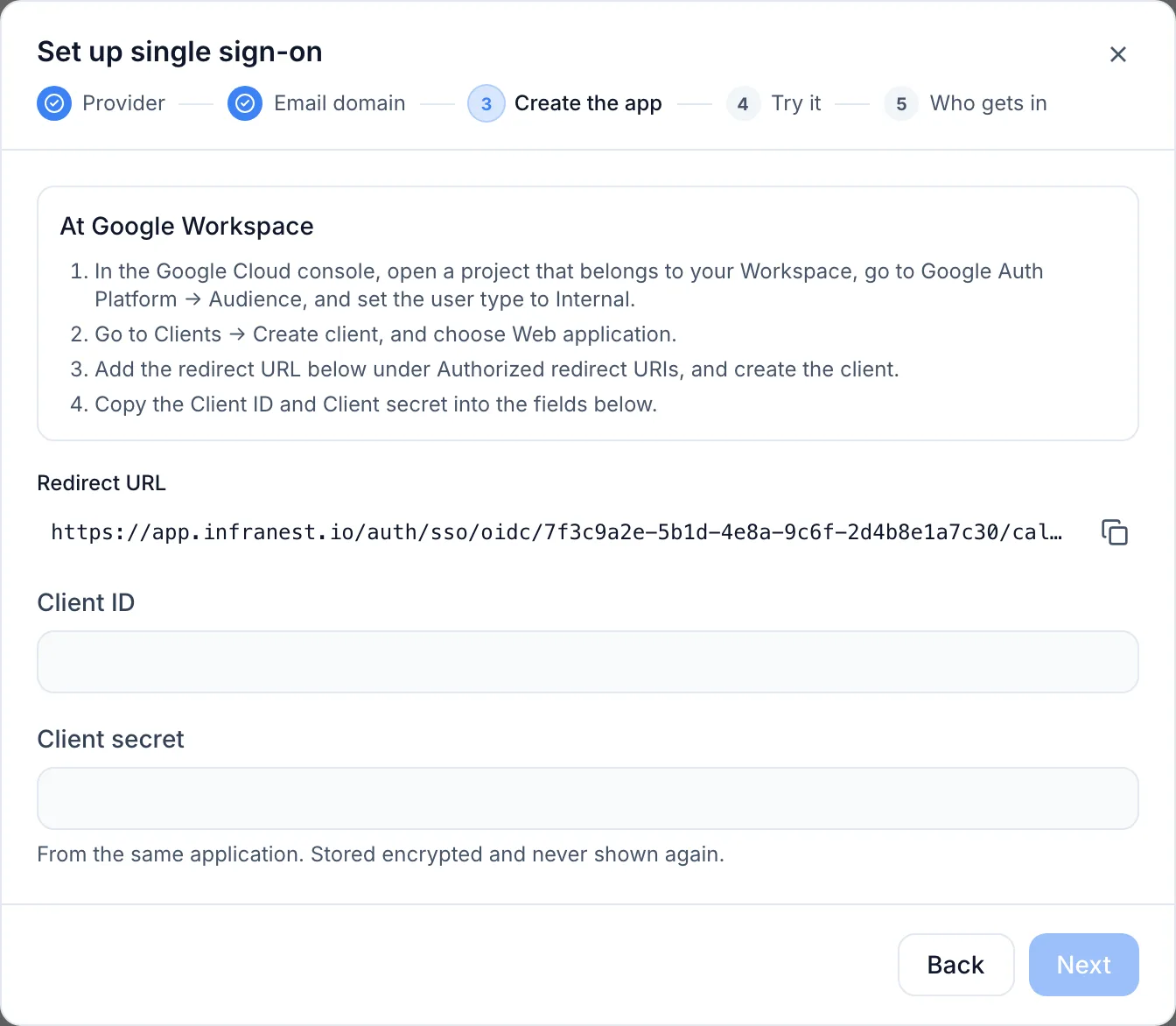
- On the Create the app step, copy the Redirect URL at the top. Keep this tab open — you'll come back to it shortly.
Set up the sign-in screen in Google Cloud
- In a second tab, open the Google Cloud console and pick your project, or create one for InfraNest, inside your company's organization.
- Open the menu and go to Google Auth Platform → Branding. If Google hasn't been set up for this project yet, choose Get started.
- Fill in the form:
- App name:
InfraNest— your people see this name when they sign in. - User support email: an address your people can write to, such as your IT team's.
- Audience: Internal — only accounts in your Workspace can then sign in.
- Contact information: an address Google can write to about this project.
- App name:
- Agree to the Google API Services User Data Policy, and choose Create.
WarningIf Internal isn't offered, the project is not inside your Workspace organization. Create the project again from your Workspace account rather than choosing External — an external app lets any Google account reach the sign-in.
You don't need to add scopes under Data Access. InfraNest only asks Google for a person's name and email address, which every app may request.
Create the OAuth client
- Go to Google Auth Platform → Clients and choose Create client.
- Fill in the form:
- Application type: Web application.
- Name:
InfraNest— only you see this name. - Authorized JavaScript origins: leave empty.
- Authorized redirect URIs: choose Add URI and paste the Redirect URL you copied from InfraNest.
- Choose Create.
- Copy the Client ID and the Client secret straight away. Google shows the full secret only now; afterwards it shows only its last few characters.
Finish the connection in InfraNest
- Back in the InfraNest tab, on the Create the app step, paste the Client ID and Client secret.
- There's nothing else to fill in — InfraNest reads everything else from Google itself.
Try it, decide who gets in, and switch on
- On the Try it step, choose Sign in with Google Workspace to test. A new tab opens at Google — sign in with your own Workspace account. When it works, the step turns green. A test is required before you can switch the connection on.
- On the Who gets in step, choose what happens When somebody new signs in:
- Add them straight away is pre-selected. New people join with the role under Role for new members, which starts at Member (read-only).
- Ask an admin turns each newcomer's sign-in into a join request that an administrator approves.
- Do nothing means people still need an invitation.
- Choose Switch on. The connection's status list should now read: Connected to Google Workspace · Email domain verified · Test sign-in passed · Switched on.
WarningUnlike Okta or Entra ID, a Google Workspace connection has no list of people assigned to the app — every active account in your Workspace can sign in, including shared accounts and contractors with a Workspace account. If that's broader than who should see your infrastructure, choose Ask an admin instead.
Your Workspace admin may be able to narrow this further in the Google Admin console, under Security → Access and data control → API controls, which can limit an app to certain organizational units. We have not checked how that setting treats an app that only signs people in.
Your team signs in from the normal InfraNest sign-in page: they type their work address and choose Continue with ….
Good to know
- Start from InfraNest. People sign in from the InfraNest sign-in page with their work address. There is no InfraNest tile to launch from Google.
- Rotating the client secret. If you create a new secret for the client in Google Cloud, paste it into the connection under Credentials and claim names and choose Replace. Until you do, nobody can sign in through Google Workspace.
- More than one email domain. People can sign in with any address on a domain you've verified in InfraNest. If your Workspace has several domains, verify each one people sign in with.
- Confirming sensitive actions. When your organization asks people to confirm deletions by signing in again, Google Workspace is not one of the ways to do it. Google offers no way to force a fresh sign-in, so people confirm with a passkey, an authenticator app, or their password instead.
- Requiring Google Workspace for everyone. Once sign-in works, you can require single sign-on for your whole organization under Settings → Sign-in. InfraNest asks for at least one owner with a passkey first, so a problem at Google can never lock you out. See Single sign-on and sign-in connections.
We have written these steps from Google's current documentation, but not yet walked through them in a live Google Workspace. If a screen in your console looks different, the names above are what Google calls these settings today.
Troubleshooting
- Google shows "Error 400: redirect_uri_mismatch": the address under Authorized redirect URIs doesn't match the Redirect URL in InfraNest. Copy it again — it must match exactly, including
https://and any trailing slash. A change to the client can take a few minutes, sometimes longer, to apply at Google. - Google shows "Error 403: org_internal": the account used to sign in is not in your Workspace. Sign in with a Workspace account, or check that the project belongs to the right organization.
- Google shows "Error 401: invalid_client": the Client ID in InfraNest is mistyped, or the client was deleted in Google Cloud.
- Someone signs in at Google but InfraNest doesn't let them in: their address is not on a domain you verified in InfraNest.
- Your administrators can see every failed attempt, with the reason, in Settings → Audit Log.
Was this article helpful?