

This article is for anyone who needs infrastructure costs in InfraNest to show the right currency, the right tax rate, and the right tax treatment — for example, before sharing a cost report with finance.
Overview
- InfraNest reports what your infrastructure costs across providers and currencies, but every price needs a common currency and a clear tax treatment before it can be totalled or compared.
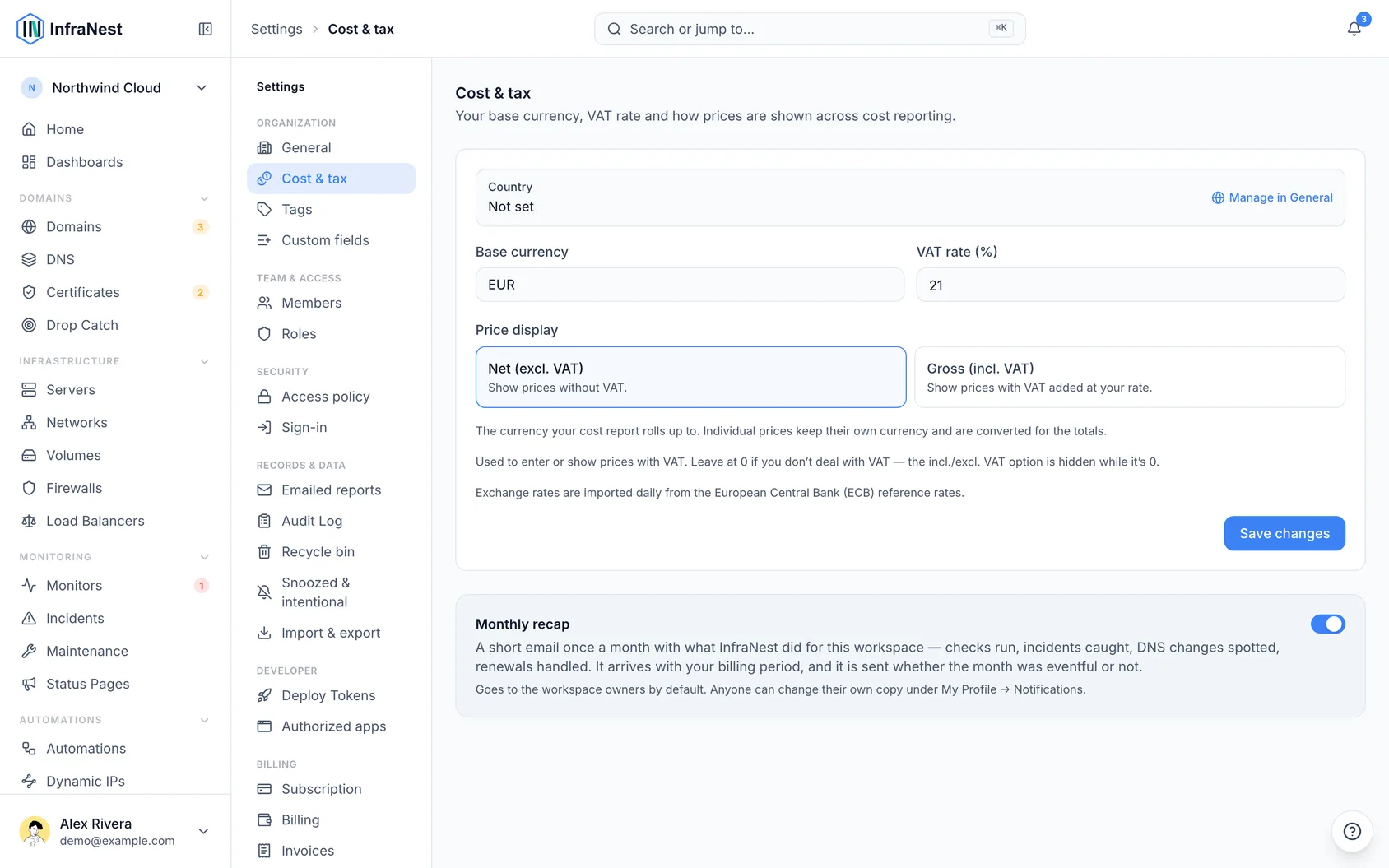
- Three settings control this everywhere money appears — the Spend report, itemised costs, renewals, and the cost shown on each resource:
- Base currency — the single currency everything is converted into.
- VAT rate — the rate applied when prices are shown with tax.
- Net or gross — whether figures exclude tax (net) or include it (gross).
- These live under Settings → Cost & tax.
Set your base currency
- Go to Settings → Cost & tax.
- Find Base currency.
- Choose the currency you want all costs converted into and reported in.
- Select Save changes.
NoteConverted totals use exchange rates, so a total in your base currency won't match a foreign-currency invoice to the cent.
Set your VAT rate
- Go to Settings → Cost & tax.
- Check the suggested VAT rate (%) — InfraNest suggests one based on your organization's country, set under Settings → General.
- Accept the suggestion, or enter your own rate.
- Select Save changes.
Switch between net and gross
- Go to Settings → Cost & tax.
- Choose whether prices should be shown net (before VAT) or gross (including VAT).
- Select Save changes.
WarningSwitching between net and gross changes every money figure you see immediately, including past totals you've already read. The underlying charges don't change — only how they're displayed.
Tips
- Use net if your organization is VAT-registered and reclaims tax — it matches what's on a supplier invoice.
- Use gross if you can't reclaim VAT, or if you want figures that match what actually leaves your bank account.
Troubleshooting
- My report total doesn't match a provider invoice — this is expected if the invoice is in a different currency, since conversions use exchange rates rather than matching exactly.
- The VAT rate looks wrong — it's only a suggestion based on your organization's country. Enter the correct rate by hand on the Cost & tax page.
- Remember: these settings control how prices are displayed and totalled in InfraNest. They don't file anything, they're not tax advice, and they don't change what any provider actually charges you.
Was this article helpful?
Related articles
Billing and plansManage your plan, see how much of each limit you're using, and view invoices.Refer another business and both of you saveShare your referral link with someone who runs infrastructure. When their workspace starts paying, they get their first month free and you get the same…Upgrade or change your planHow to move to another plan, what you pay when you switch mid-cycle, and what happens to anything over the new limits.