

Install InfraNest on your phone or computer so it opens in its own window from an icon, just like any other app — handy whether you're new to InfraNest or just want quicker access.
Overview
- You don't need an app store — you add InfraNest straight from your browser in a few taps.
- It gets its own icon and window, without browser tabs or an address bar.
- Notifications show the InfraNest logo instead of your browser's.
- The icon can show a count of what still needs your attention, matching the number on the bell.
- On iPhone and iPad, installing it is the only way to get notifications while InfraNest is closed.
- You stay signed in the same way as in your browser, and everything works the same.
Install on iPhone and iPad
You need iOS or iPadOS 16.4 or later.
Open InfraNest in Safari and sign in.
Tap Share (the square with an arrow pointing up).
Tap Add to Home Screen. If you see Open as Web App, leave it on, then tap Add.
Open InfraNest from the new icon on your Home Screen.
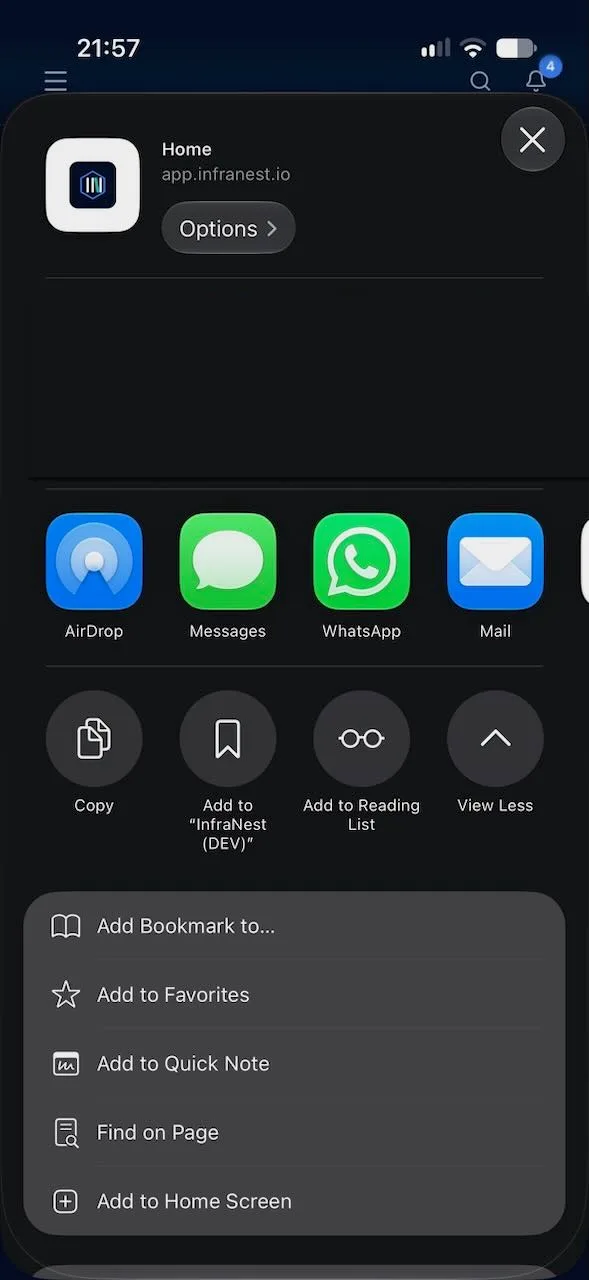
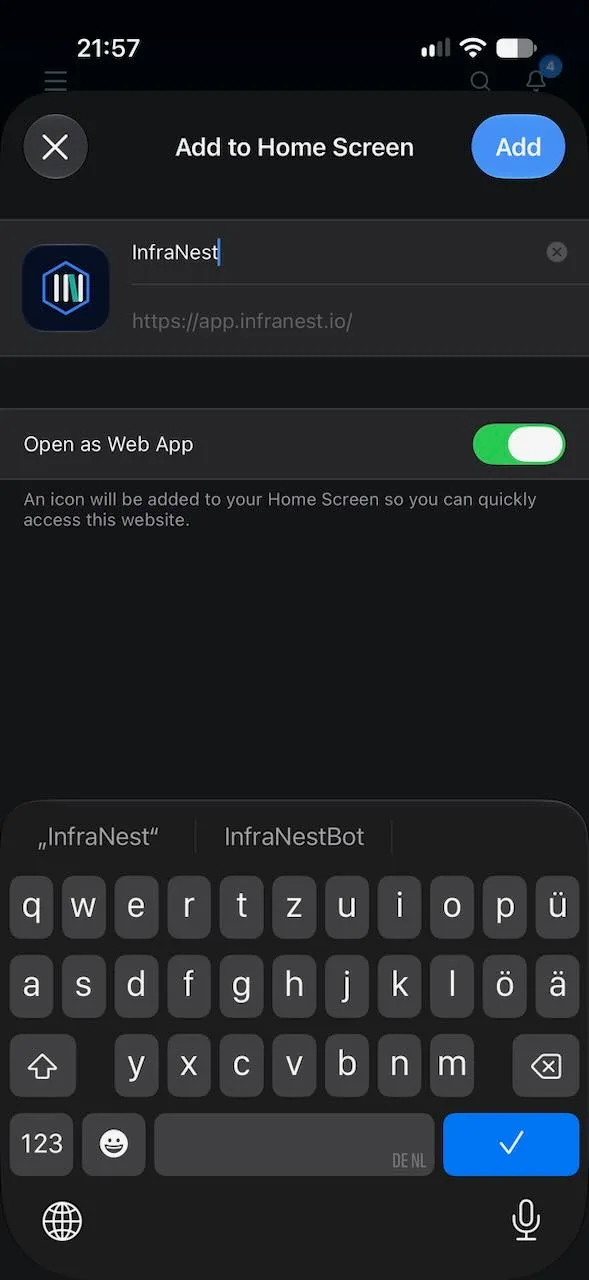
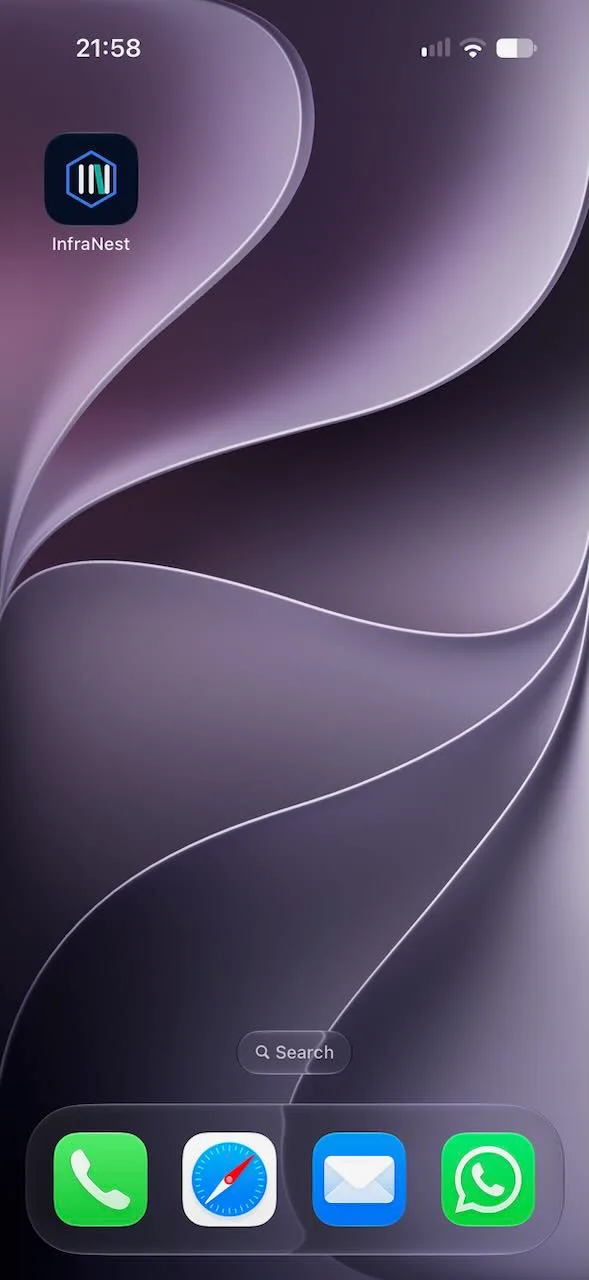
Whatever you name it here is how it's listed on your Home Screen and in Settings → Apps, where it has its own settings page with the InfraNest logo, separate from Safari.
Install on Android
Open InfraNest in Chrome and sign in.
Tap the ⋮ menu, then Add to Home screen or Install app (the wording depends on your phone).
Tap Install.
Open InfraNest from the new icon.
Install on Mac
With Safari (macOS Sonoma 14 or later):
Open InfraNest in Safari and sign in.
Choose File → Add to Dock, then Add.
With Chrome or Edge: click the install icon at the right of the address bar, then Install.
You can also use the browser's menu: in Chrome Cast, save and share → Install page as app, in Edge Apps → Install this site as an app.
Install on Windows, Linux and ChromeOS
- In Chrome or Edge, click the install icon at the right of the address bar.
- Click Install.
InfraNest gets its own entry in the Start menu or app launcher, and can be pinned to the taskbar.
Turn on notifications after installing
- Open InfraNest from the new icon.
- If notifications aren't on for that device yet, InfraNest suggests it with Get alerts on this device. Tap Turn on.
- Tap Allow.
NoteThe count on the icon updates automatically when a notification arrives and when you open the app.
Remove it
Remove it like any other app:
- On iPhone, press and hold the icon, then tap Remove App.
- On Android, press and hold the icon, then tap Uninstall.
- On a computer, right-click the icon in the Dock or Start menu and choose to remove it.
- To also stop its notifications on another device you no longer have, go to My account → Apps with access and click Revoke next to it.
TipIf you mainly want notifications on an iPhone or iPad while InfraNest is closed, installing it is required — see Get notifications on your phone for more.
Was this article helpful?