

Set the notification defaults that your team starts with, so new members get sensible behavior until they decide for themselves. This is for organization owners and admins.
Overview
- Lets you choose what members receive for Monitoring, Domains, DNS, Servers, Billing, Account, and System notifications before they set their own preferences.
- Useful for giving a new team a sensible start — for example, no monitoring pop-ups for the finance team, domain email once a week, and urgent problems always by email.
- Defaults never override anyone: a member's own choice always wins, and their own Telegram or Slack, quiet hours and summary time stay theirs to set.
Before you start
You need permission to manage members in the organisation — the same permission owners and admins have. If you don't have it, you won't see the link described below.
Set the defaults
- Go to My account → Notifications.
- Under the summary at the top, click Set team defaults.
- The dialog Team notification defaults opens for the organisation you're in.
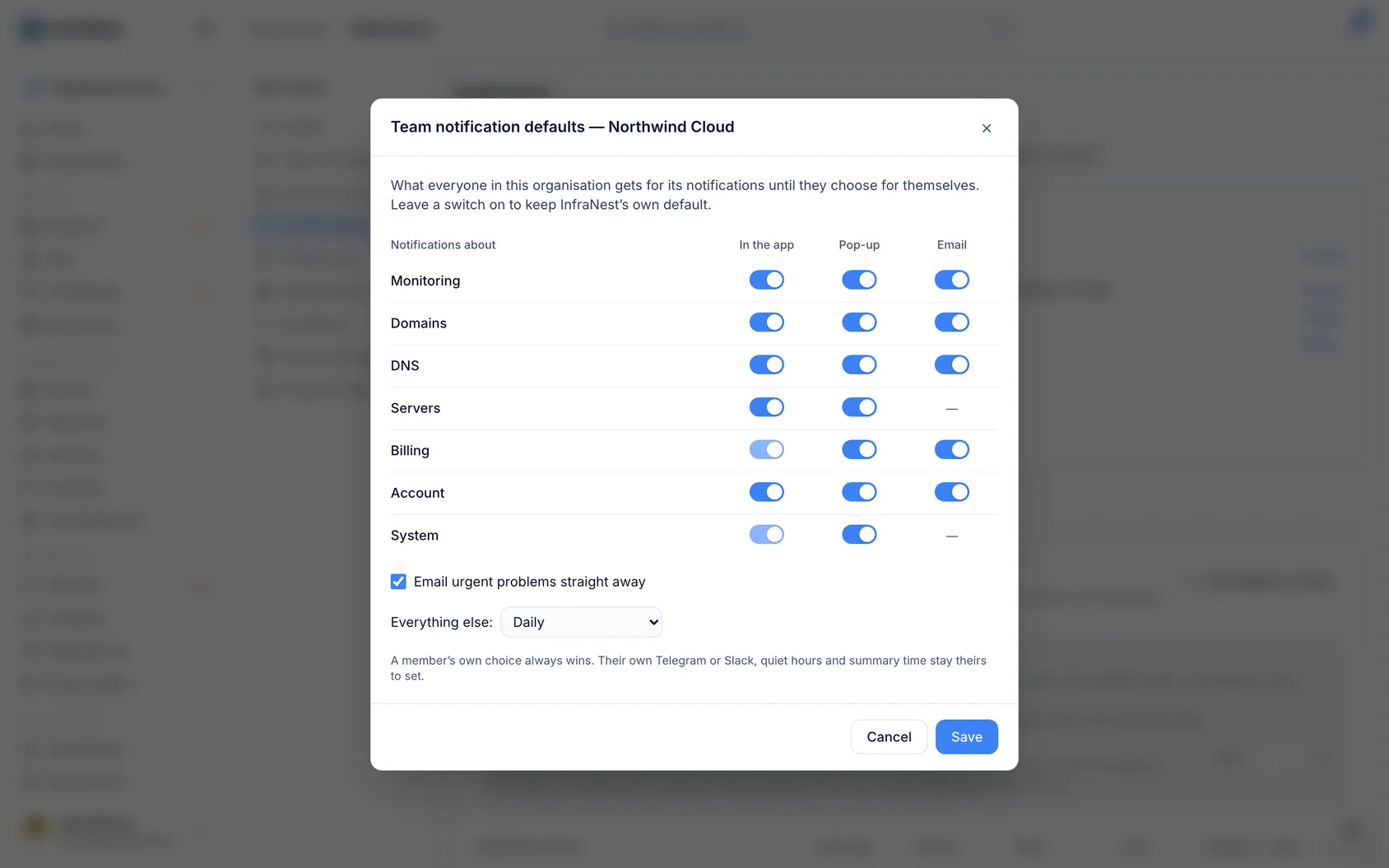
Set the table: one row per kind of notification — Monitoring, Domains, DNS, Servers, Billing, Account, System — with three switches:
- In the app: whether it appears in the bell. Locked on for Billing and System.
- Pop-up: whether an urgent one pops up while InfraNest is open.
- Email: whether that kind is emailed. A dash means that kind sends no email.
Leave a switch on to keep InfraNest's own default. Only what you switch off becomes a team default.
Choose Email urgent problems straight away — on, unless your team only wants them in the app.
Choose Everything else: Daily, Weekly, on Monday or Immediately. These are the problems that can wait, gathered into the "needs you" summary.
Save.
NoteEvery change you make here is recorded in the audit log.
What members see
On their own notification settings, members see a message explaining that the organisation has set team defaults: anything they haven't chosen themselves follows those defaults. Their table shows the team's choice wherever they haven't made their own.
How defaults and personal choices combine
| A member… | What they get |
|---|---|
| …hasn't touched a setting | The team default |
| …changed that setting themselves | Their own choice, whatever the team default says |
| …is in several organisations | Each organisation's defaults for its own notifications |
Always theirs, never set by the team:
- their own Telegram or Slack, and what it receives;
- quiet hours, do not disturb and away;
- the hour their summary arrives, and whether it comes by email or Telegram;
- "only while I'm on call".
TipSince a member's own choice always wins, team defaults work best as a starting point for new members rather than a way to control an entire team's notifications long-term.
Was this article helpful?