

Tags are small labels you create and attach to the things you manage in InfraNest — helpful for anyone who wants to group, filter, or report on resources that don't otherwise have anything in common.
Overview
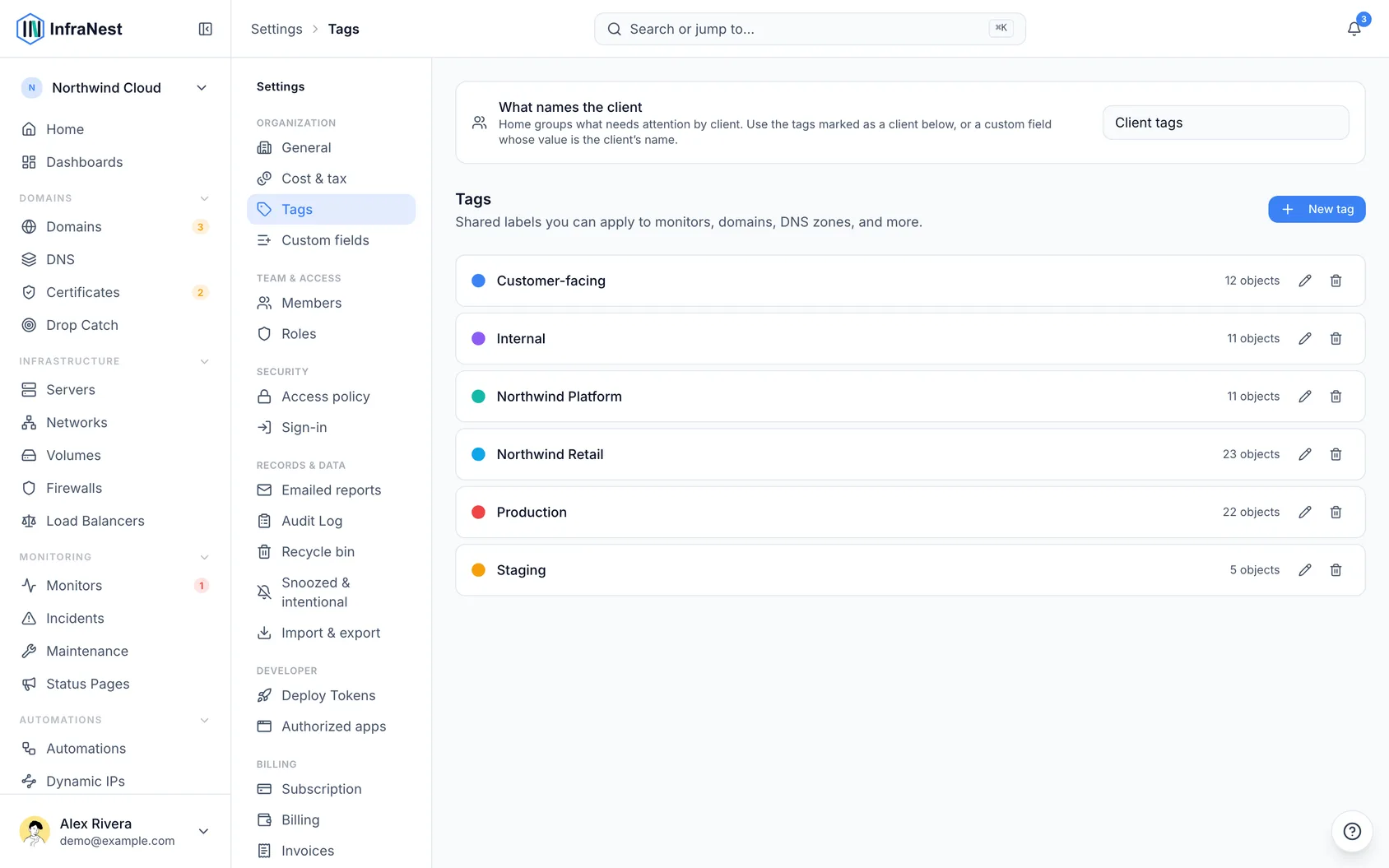
- A tag is a name and a colour you attach to an object — servers, domains, DNS zones, certificates, monitors, volumes, firewalls, load balancers, networks, IP addresses, contacts, watched domains, maintenance windows, dynamic IPs, automations and incidents can all carry one.
- Tags exist to describe groups that nothing else in InfraNest can — like "Production" or "Customer-facing" — since those aren't a provider, type, or location.
- Once applied, a tag can filter lists, group reports, and narrow a dashboard to one slice of your estate.
- You manage tags under Settings → Tags, and apply them from any object's own page.
What a tag does once it exists
- Filters every list — each list has a tag filter, so viewing everything tagged "Customer-facing" is one click away on Servers, Domains, Monitors, and more.
- Groups every report — spend, renewals, uptime, and other reports can be grouped by tag, so you can see what a particular group of resources costs without keeping a separate inventory.
- Scopes a dashboard — a dashboard can be pointed at a single tag, so the same widgets report on just that slice of your estate.
Create a tag
- Go to Settings → Tags.
- Select New tag.
- Give the tag a name and choose a Custom color.
- If the resources this tag will describe have an availability commitment, set an Availability target (optional).
- Select Save.
Apply a tag
- Open the object you want to tag — for example, a server, domain, or monitor.
- Find the Tags field on its page.
- Select the tag you want to apply, or select Add to apply it.
- To tag several items at once, select the relevant rows in a list and apply the tag in bulk.
Set an uptime target on a tag
- Go to Settings → Tags.
- Select Edit tag on the tag you want to set a target for.
- Enter a percentage in Availability target (optional).
- Select Save.
NoteAn uptime target is the only setting on a tag that does something on its own. The account review compares the measured uptime of everything wearing that tag against the target and reports whether it was met. Tags without a target are skipped in that comparison.
Find everything with a tag
- Open any list — for example, Servers, Domains, or Monitors.
- Select Filter.
- Choose the tag you want to view.
Report by tag
- Open a report that supports grouping — for example, under Reports.
- Choose Tags as the grouping option.
- Review the results grouped by tag.
Tips
- Tag what you'll actually want to filter by later, not everything that happens to be true about a resource — a tag applied to everything filters nothing.
- Keep your tag vocabulary small and consistent. Two people inventing
prodandproductionseparately will split one group into two, and neither list will be complete. - Let type, provider, and location stay as they are — a tag earns its place by capturing what those can't, like team, customer, or environment.
TipPrefer tags that describe what a resource is for rather than what it is — that's the information no other field captures.
Was this article helpful?
Related articles
Put your own brand on what we sendAlerts, domain notices and status-page updates can carry your logo, your colour and your name instead of ours — so the people you look after see your…Manage your organizationEverything in InfraNest — domains, servers, members, billing — belongs to an organisation. You can belong to more than one and switch between them.Invite your teamInvite teammates to your organisation and give each the right level of access.The monthly recap emailOnce a month InfraNest emails your workspace a short summary of what it did for you — and it sends whether the month was busy or quiet.