

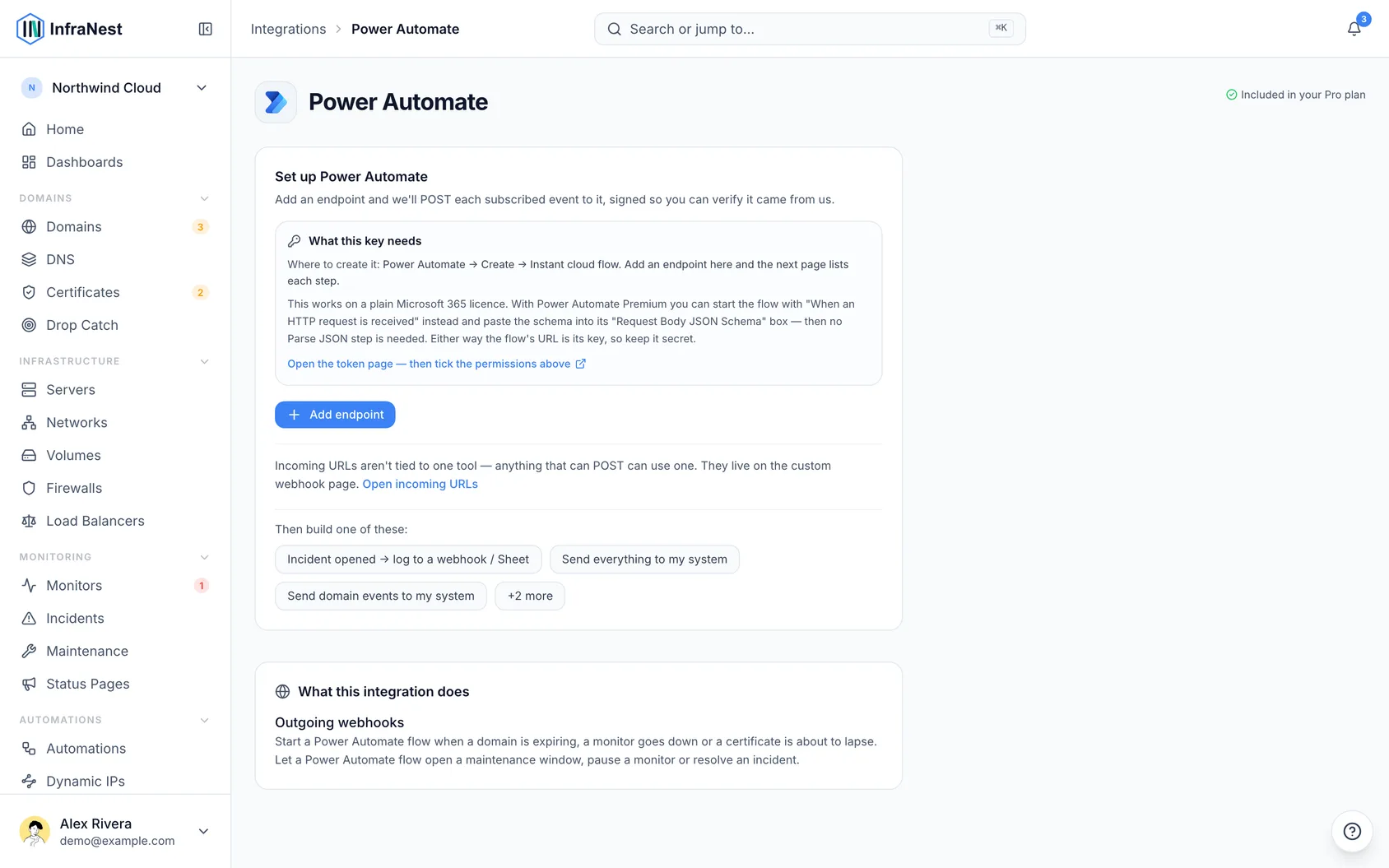
Connect Power Automate to start flows from InfraNest events, and let flows control InfraNest in return — for anyone who wants alerts to trigger tickets, SharePoint updates, runbooks or other automated work.
Overview
- Start a Power Automate flow when a domain is expiring, a monitor goes down or a certificate is about to lapse.
- Let a flow act on InfraNest in return: open a maintenance window, pause a monitor or resolve an incident.
- Which trigger you use in Power Automate depends on your Microsoft licence.
Before you start
Decide which trigger your flow starts with:
- When a Teams webhook request is received — included with Microsoft 365, but needs a Parse JSON step after it.
- When an HTTP request is received — needs Power Automate Premium, but needs nothing extra since the schema goes straight into the trigger.
TipIf you're not sure which licence you have, use the Teams trigger. Despite its name, it accepts any event we send, not only Teams messages.
Send InfraNest events to a flow
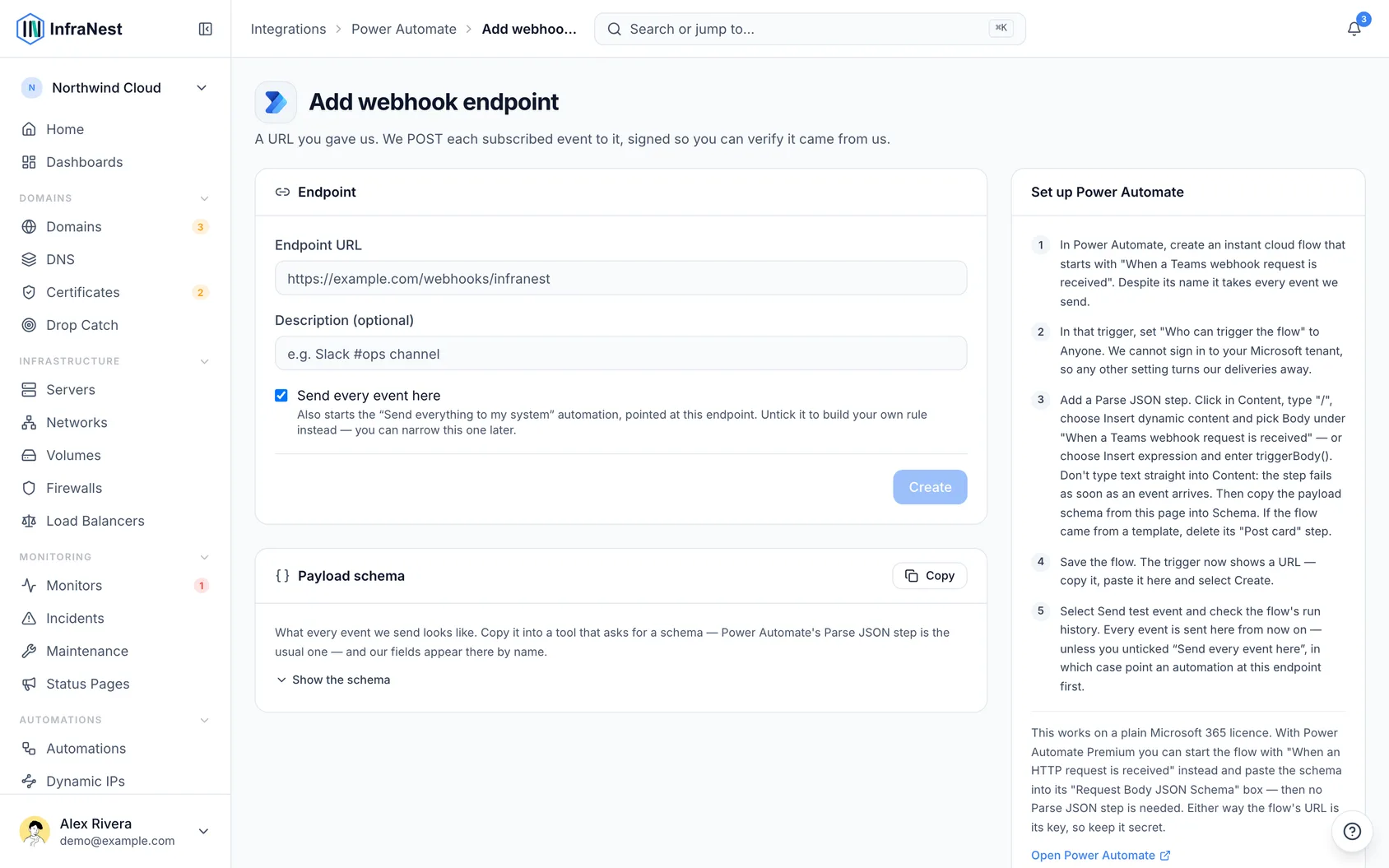
In InfraNest, go to Integrations → Power Automate and select Add endpoint. Leave this page open — it lists these same steps beside the form, and you'll need its Payload schema in step 4.
In Power Automate, create an Instant cloud flow and choose your trigger.
In the trigger, set Who can trigger the flow to Anyone. We cannot sign in to your Microsoft tenant, so any other setting refuses our deliveries.
In InfraNest, select Copy on Payload schema, then:
- Teams trigger: add a Parse JSON step. Click in its Content box, type
/, choose Insert dynamic content and pick Body under When a Teams webhook request is received. If you prefer the mouse, select the lightning-bolt icon beside the box and pick Body there. You can also choose Insert expression and entertriggerBody()— it does the same. Don't type text straight into Content. Then paste the schema into Schema. - HTTP trigger (Premium): paste the schema into the trigger's Request Body JSON Schema box.
If this flow only handles one kind of event, select Show the schema and pick that event under Events this flow will receive before you copy — the flow then only offers that event's fields.
- Teams trigger: add a Parse JSON step. Click in its Content box, type
If you used the Teams trigger from a template, delete the Post card step unless you also want a message in a channel.
Select Save on the flow. The trigger now shows its URL — copy it.
Back in InfraNest, paste the URL, leave Send every event here ticked so every event is sent from the start, and select Create.
Select Send test event and check the flow's run history.
Choose what gets sent: the endpoint page lists the Send everything to … automation it started. Open it to narrow it to the events you care about — or, if you unticked the box, pick a starting point under Start an automation that posts to Power Automate or build your own rule.
Let a flow trigger InfraNest
This direction needs the HTTP action, which is part of Power Automate Premium.
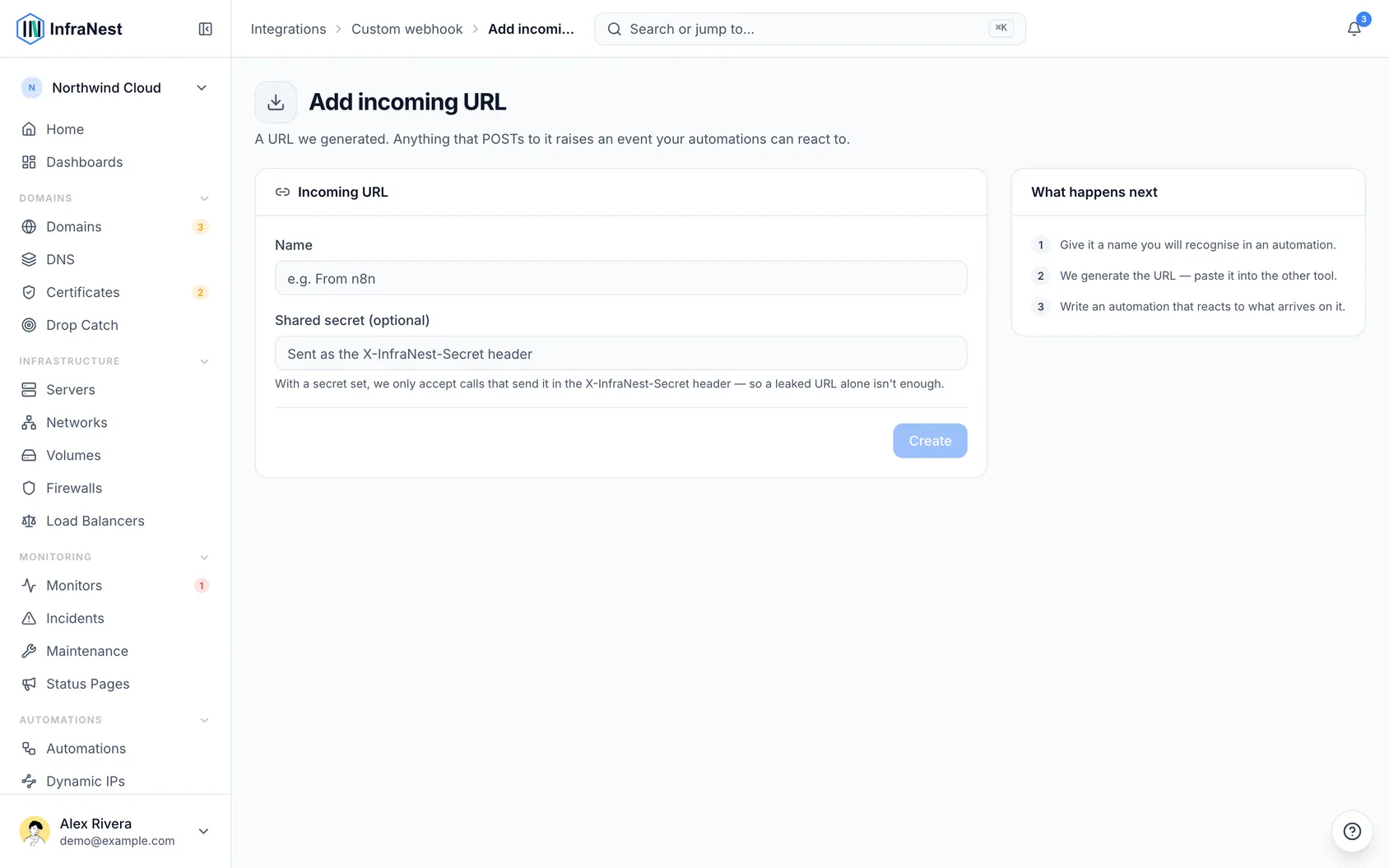
- Go to Integrations → Custom webhook → URLs we give you and select Add incoming URL.
- Give it a name you'll recognise later — you pick it by name when writing the rule.
- Optionally set a shared secret, so a leaked URL on its own isn't enough to trigger anything.
- In your flow, add an HTTP action with method POST and Your URL as the URI. If you set a secret, add a header
X-InfraNest-Secretwith it. - Back in InfraNest, use Start an automation Power Automate can trigger and add what should happen — open a maintenance window, pause a monitor, resolve an incident.
Good to know
- The flow's URL is its key. Anyone holding it can start your flow, so treat it like a password. If it leaks, delete the trigger in Power Automate to get a new URL and update the endpoint in InfraNest.
- Every event carries the same three parts:
event(what happened, likedomain.expiring),created_at, anddatawith that event's details. - Every field in
datacan be empty, and each event only sends its own fields. In a flow that handles several events, check a field has a value before you use it. - Each delivery is also signed with a secret we show once, but Power Automate cannot check that signature — the URL is what protects the flow.
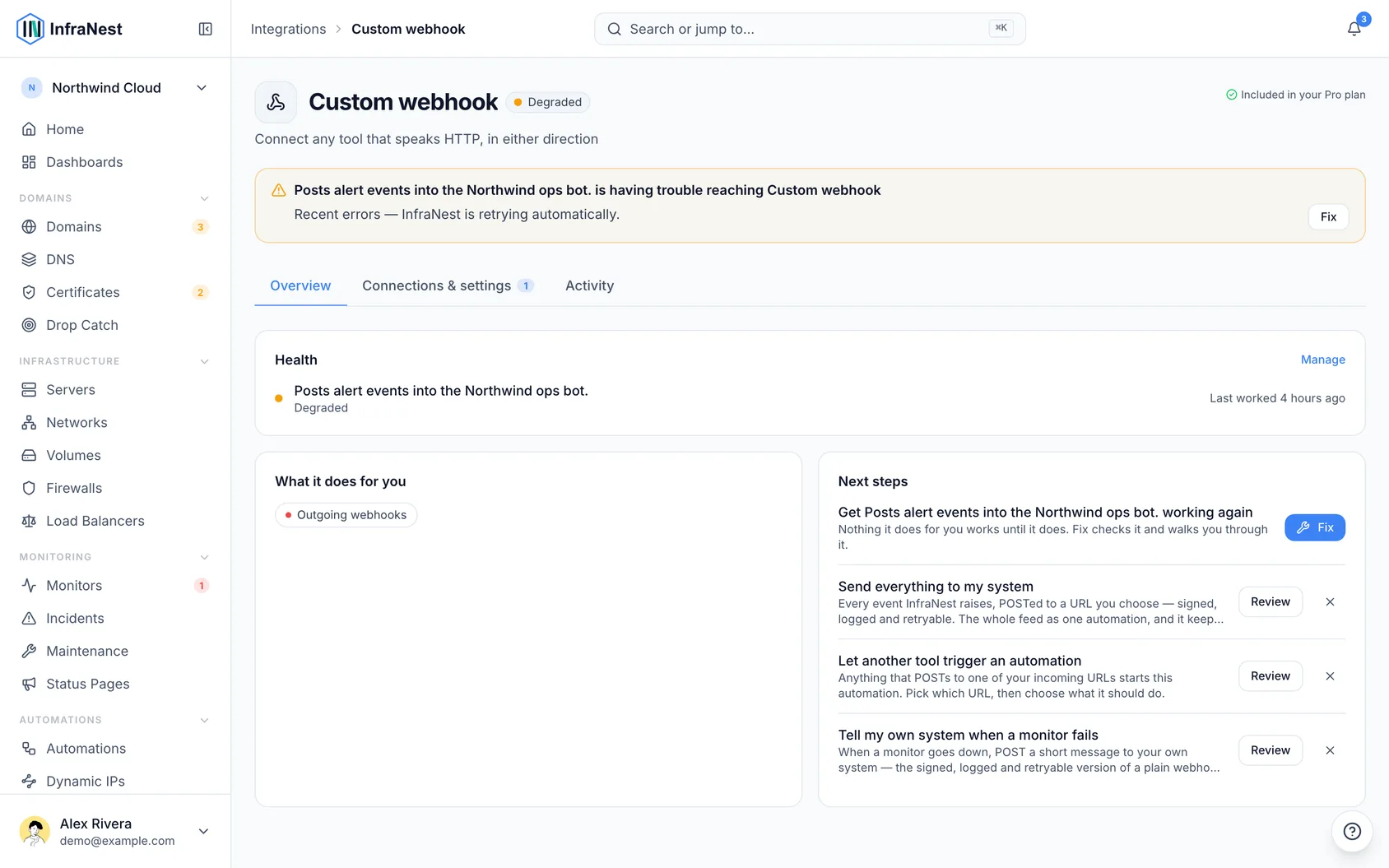
- The delivery log on the endpoint's page shows every delivery and what Power Automate answered.
WarningTreat the flow's trigger URL like a password. Anyone who has it can start your flow or send it fake events.
Troubleshooting
Deliveries fail with 401 or 403. The flow is not letting us in, and the endpoint's page says so at the top and on the failed delivery. The trigger's Who can trigger the flow is not set to Anyone — change it and save the flow. If it already is, the URL in InfraNest no longer matches the one the trigger shows: copy it again and update the endpoint. Then select Retry on the failed delivery, or Send test event.
Deliveries fail with 404. Power Automate has no flow at that URL any more — it was deleted, or re-created with a new URL. Copy the URL from the flow's trigger and update the endpoint.
The flow runs but shows no InfraNest fields. The schema is missing. Paste the Payload schema into the Parse JSON step (or the HTTP trigger). In the Parse JSON Content box, pick the trigger's Body: type /, choose Insert dynamic content and select Body.
Parse JSON fails with "Unexpected character encountered while parsing value". The event reached your flow — the delivery log in InfraNest shows it as Delivered — but the Parse JSON Content box holds typed text instead of the trigger's Body. The character right after parsing value: in the error is the first letter of that text — a P is usually the word Payload, from the heading above the schema on the InfraNest page. Open the Parse JSON step, clear Content, type /, choose Insert dynamic content and pick Body under When a Teams webhook request is received. Save the flow, then select Send test event in InfraNest.
If the error says Error parsing boolean value instead, Content most likely holds triggerBody() typed in as words. An expression only works when you add it through Insert expression, so clear Content and fix it the same way.
Parse JSON fails on a real event. The schema was generated from a sample rather than copied from InfraNest. A generated schema marks every field as required, so the first event without one of them fails. Replace it with the schema from the endpoint's page.
The HTTP trigger is greyed out or asks you to upgrade. It needs Power Automate Premium. Use the Teams trigger with a Parse JSON step instead.
Was this article helpful?