

Send InfraNest alerts straight into a Microsoft Teams channel, so the whole team sees incidents and expiries as they happen.
Overview
- Alerts like Monitor down, SSL expiry critical, and Domain expiry warning can be posted directly to a Teams channel.
- Setup requires creating a workflow in Teams first, then connecting it in InfraNest as a destination.
- Once connected, you can choose Microsoft Teams any time you decide which alerts go where.
WarningThe old Incoming Webhook connector in Teams no longer works — Microsoft switched it off on 22 May 2026. A URL containing
webhook.office.comwill not be accepted by InfraNest. Use the Workflows steps below instead; they are the current way to connect a channel.
Get a workflow URL from Teams
- In Teams, open the channel you want alerts in and select ⋯ → Workflows.
- Choose the Post to a channel when a webhook request is received template and create it.
- Copy the URL the workflow shows when you save it. You'll paste this into InfraNest next.
Connect Microsoft Teams in InfraNest
- Go to Alerts → Destinations.
- Select Add a destination and choose Microsoft Teams.
- Paste the Slack webhook URL field's Teams equivalent — the workflow URL you copied — into the Incoming webhook URL field.
- Select Send test to send a test message and confirm it appears in the channel.
- Select Save.
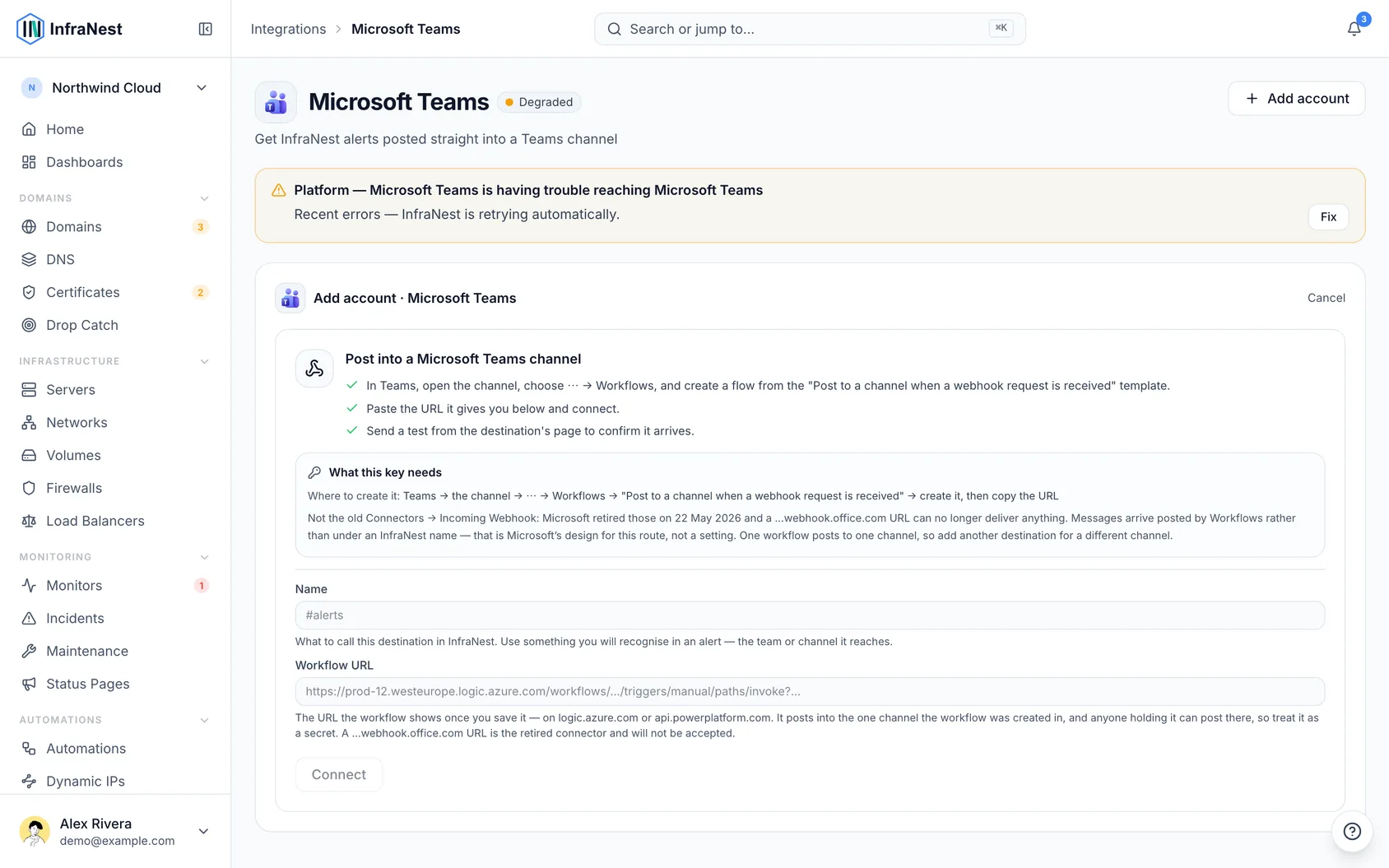
Send alerts to Teams
- Once the destination is saved, open the alert or monitor you want to route.
- Under Decide, choose Microsoft Teams as a destination for that alert.
- Confirm the change is saved.
Tips
TipNeed alerts in more than one channel? Create a separate workflow for each channel in Teams, then add each one as its own destination in InfraNest — one workflow only posts to one channel.
Troubleshooting
- Alerts aren't arriving: Check that the destination shows Webhook configured and run Send test again. If it shows Test failed, the workflow URL may be wrong or expired — recreate the workflow in Teams and paste the new URL.
- Messages show as posted by "Workflows," not InfraNest: This is expected. It's how Microsoft's replacement for connectors works, and it isn't something either side can change.
- Can't create the workflow template: If your organisation restricts Power Platform, ask an admin to allow the Workflows app before trying again.
- Lost the workflow URL: InfraNest stores it securely and never displays it again after saving. If you need to change it, use Edit destination and paste a new URL.
Was this article helpful?