

Link your own Telegram to InfraNest so urgent problems — a monitor down, a domain about to lapse, a security alert — reach your phone the moment they happen. This is for anyone in the organisation who wants their own alerts on Telegram.
Overview
- You get the same notifications as your bell, delivered to your own Telegram.
- You can acknowledge, silence or add a note for your team right from the message.
- Ask what needs you with /status, and pause everything with /pause.
- Nothing to copy or configure — you press Start in the InfraNest bot and it's linked.
NoteThis links your own Telegram. For a group your whole team shares, see Telegram for your team.
Before you start
- The Telegram app on your phone (or Telegram Desktop or Telegram Web).
- The InfraNest bot must already be set up for your organisation. If the Telegram tile says Not available yet: an admin has to set up the InfraNest bot first, ask your InfraNest administrator.
- No special role is needed — linking your own Telegram only affects your own notifications.
Link your Telegram
- Go to Settings → Notifications and click Add next to Urgent problems (or go through Integrations and choose the Telegram option for getting alerts on your phone).
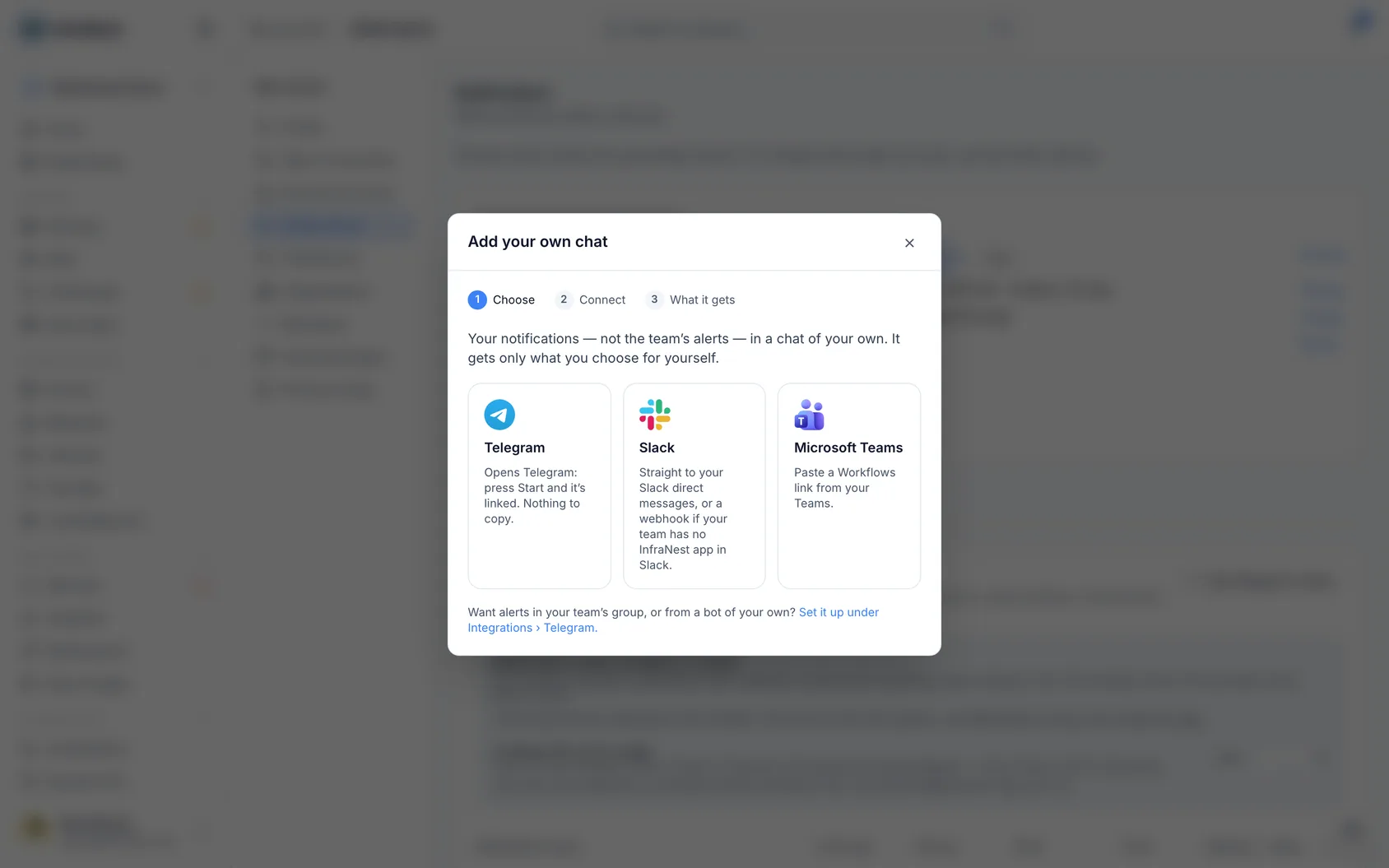
Choose Telegram.
Open the InfraNest bot and press Start:
- On this computer: click OpenClickInTelegram (the open-in-Telegram button).
- On your phone: scan the QR code with your phone's camera.
The link works once, only for you, for 15 minutes. While you wait, the dialog shows it's waiting for you to press Start. If the link expires, click to get a new one.
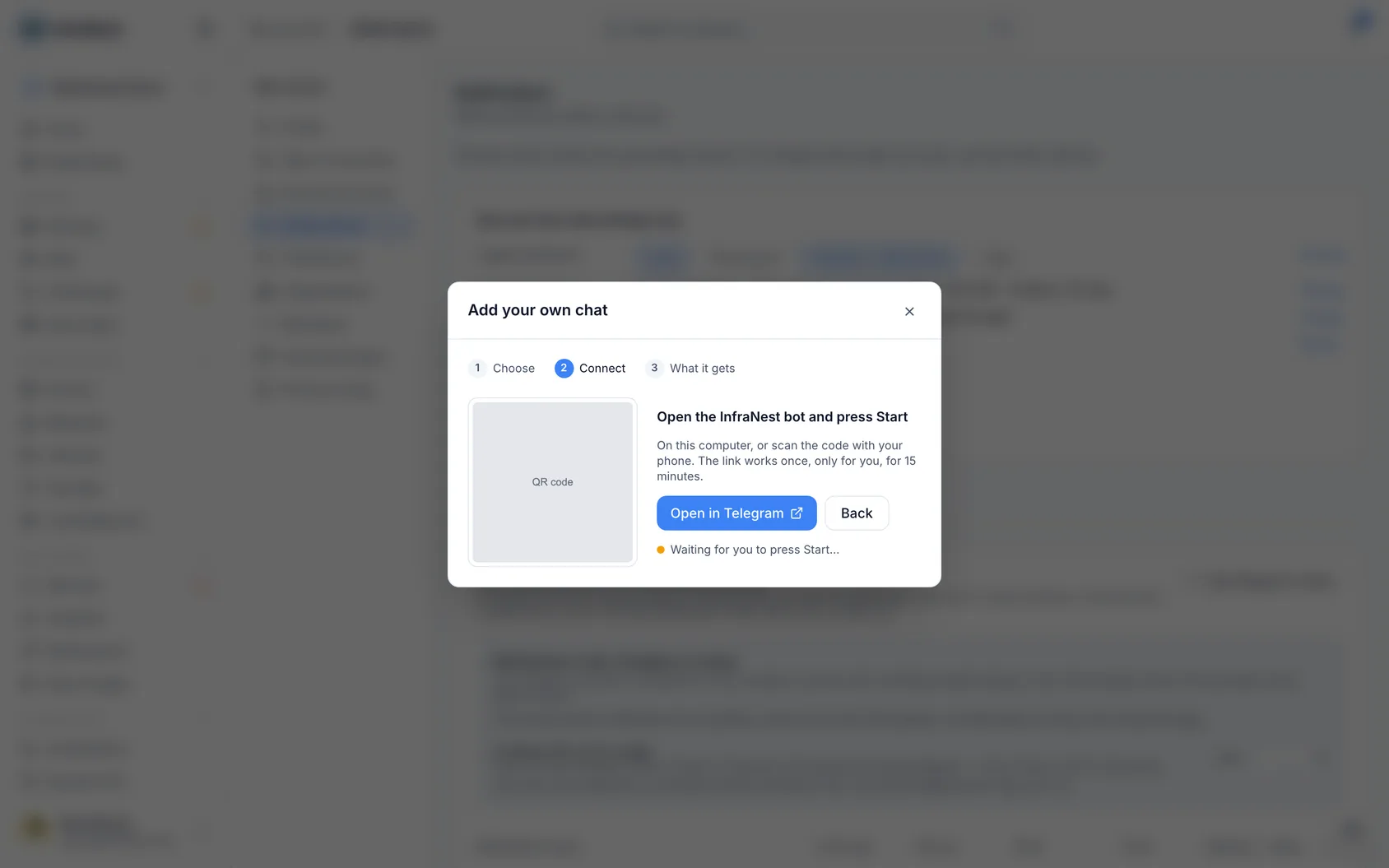
In Telegram, the bot's chat opens and explains what it's for. Press Start.
The bot replies Linked to InfraNest, with an example of what an alert looks like. If you see that reply, messages can reach you.
Back in InfraNest, the dialog moves on by itself. Choose:
- Which organisations should it serve? One Telegram can serve every organisation you tick; each message names its organisation. On a first link, all are ticked.
- What should it send you?
- Urgent problems only (Recommended): a monitor down, a domain about to lapse, security alerts.
- Everything: every notification you'd see in the bell.
- I'll choose per kind: appears as a column in the table, all off until you switch on what you want.
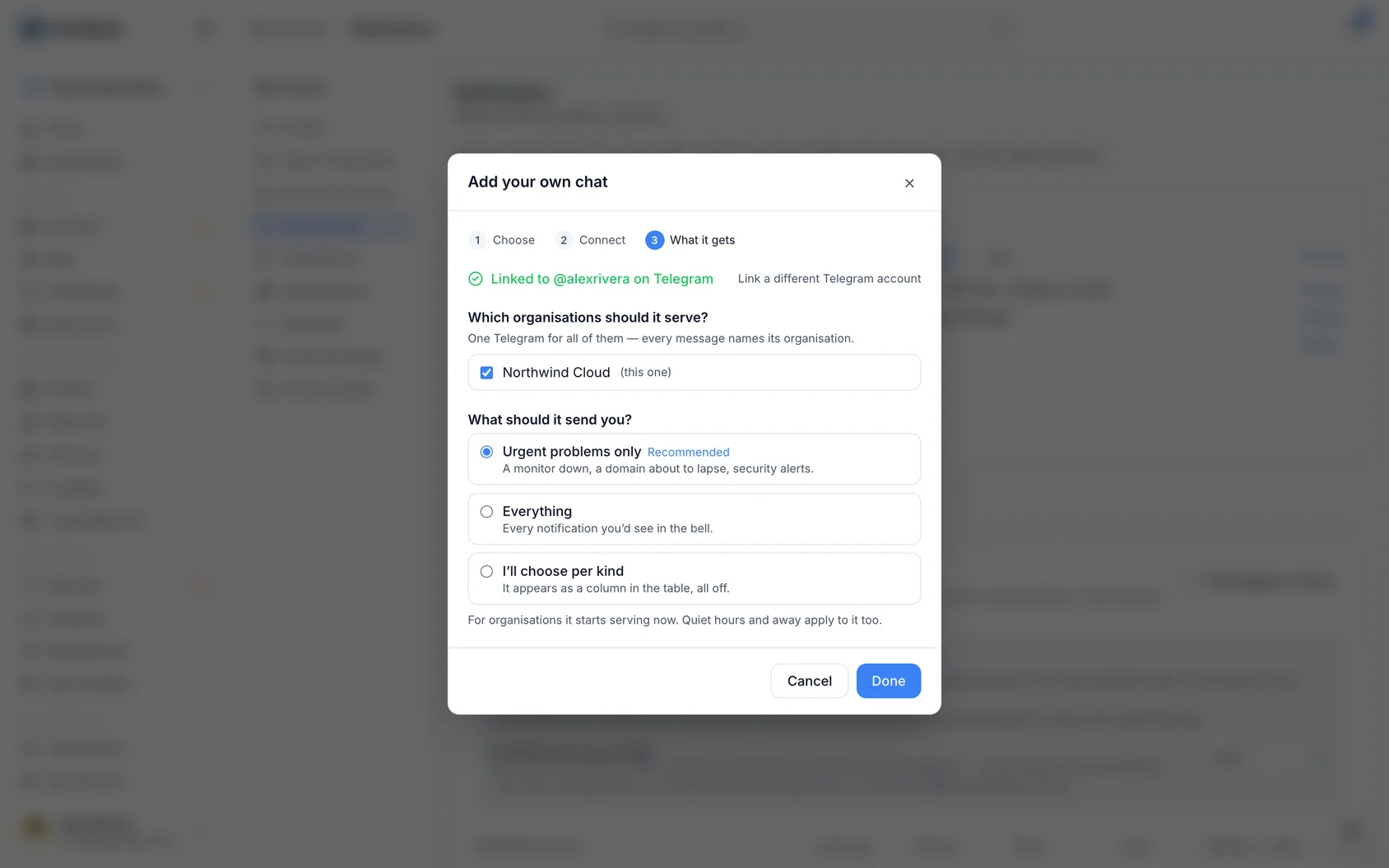
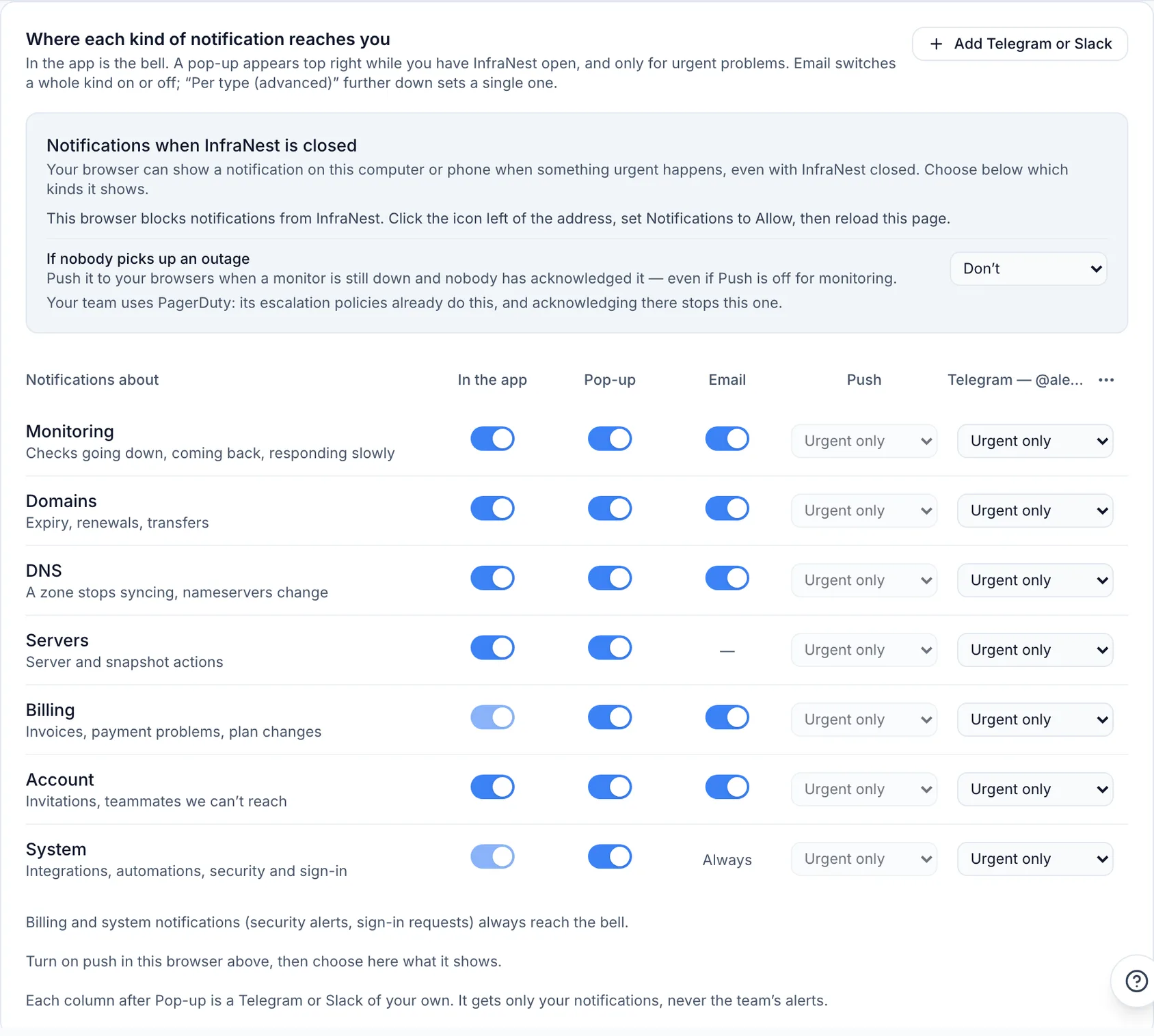
- Click Done. Your Telegram now has a column in the table on the Where tab, and a chip next to Urgent problems.
Or link it from Telegram
Already in Telegram? Open the InfraNest bot and press Start (or send /start). The bot replies with a link to Link this Telegram: open it, sign in to InfraNest if asked, and the link is made. That link also works once, for 15 minutes.
What arrives
Each message says what happened in one line, then why, with buttons underneath. If you're in more than one organisation, the first line starts with the organisation's name.
- The same message is updated, not repeated. If a monitor goes down again within the hour, the message gets a line like 3× in the last hour — latest just now instead of sending again.
- When the problem is over, the message says so, edited to show it's resolved and how long it lasted, with its buttons removed.
- It doesn't ring twice. If your team's Telegram group already rang for the same problem and you're in it, your own message arrives silently.
- Quiet hours, do not disturb and away apply. Your Telegram stays quiet during those times, except for urgent problems if you've let those through.
- Already read it in the app? Then it isn't sent again.
- Lots at once? After a few messages about the same thing in an hour, the rest wait in the bell, under Held back for you.
Act from the message
The buttons under a message are the same actions the bell offers, for the same person: you.
| Button | When you see it | What it does |
|---|---|---|
| Acknowledge | A monitor is down and nobody is on it | Tells your team you're on it, stops repeat alerts, and acknowledges it in PagerDuty if you use it |
| Silence 1 h | A monitor is down | No more alerts about it for an hour |
| Snooze 1 h | A server stopped reporting | No more alerts about it for an hour |
| Remind me in 7 days | A certificate is expiring | Snoozes it for a week |
| Approve | Someone asks to join, or an automation run is waiting | Approves it |
| Open in InfraNest | Always | Opens the problem in the app |
After you tap, a small notice confirms it, and the message changes to say what you did, with only the buttons that still make sense.
Things that can't be undone, like denying someone or rejecting a run, are never a one-tap button — do those in the app.
NoteEvery tap is checked when you make it. If someone else was quicker, or the problem is over, the button will say it can't be done any more. If your role doesn't allow an action, the button isn't there at all, and buttons only appear for what your plan includes.
Tell the team what you're doing
Once an incident is acknowledged, its message gets 📝 Add a note, and — if the monitor is on one of your status pages — Post a status update ↗.
Add a note
- Tap 📝 Add a note. The bot asks you to reply to the message with your note for the team. Telegram opens the keyboard.
- Type what you're doing and send it.
- The bot confirms the note was added, and the alert now shows your note underneath.
You can also simply reply to the alert itself (swipe it, or long-press and choose Reply): your reply becomes the note.
Notes are for your team only: they show on the incident in InfraNest, in the bell, and in PagerDuty, and never on your status page.
Post a status update opens the incident in InfraNest with the cursor in the box for a public status update, where you can preview it and choose whether subscribers are emailed.
Commands
Send these to the InfraNest bot. They're also in its command menu next to the message box.
| Command | What it does |
|---|---|
| /status | What needs you right now, grouped by organisation, with whether you're paused |
| /pause | No notifications for an hour |
| /pause tomorrow | No notifications until tomorrow morning |
| /pause week | No notifications for a week |
| /back | Notifications on again |
| /help | What the bot understands |
| /stop | Unlink this Telegram from InfraNest, in every organisation |
The words after /pause also work in Dutch, German and French. A pause is the same as Do not disturb in your settings: urgent problems still get through unless you turned that off, and security alerts always do.
The bot answers in your InfraNest language. If you send something it doesn't understand, it points you to /help, at most once every ten minutes.
Your daily summary in Telegram
Problems that can wait come in one "needs you" summary instead of one message each. To get it in Telegram:
- Go to Settings → Notifications, on the when-it-arrives section.
- Under Everything else, next to when your summary arrives, choose to send it by Telegram (or both, for email as well).
The summary arrives at the same hour, with an Open link for each item, and only when something is new. If your Telegram can't take it, it comes by email instead.
Keep it private on the lock screen
Telegram shows a message's text in the notification on your lock screen. To hide what's wrong until you open it:
- Go to Settings → Notifications, on the Where tab.
- In your Telegram's column header, open the ⋯ menu and choose Rename or edit.
- Tick Hide details on the lock screen and click Save.
Messages then only say there's an urgent problem in your organisation until you open them; the rest is hidden behind a tap.
Change what it gets
- Per kind: on the Where tab, your Telegram's column lets you set Everything, Urgent only or Off for each row (Monitoring, Domains, DNS…).
- More or fewer organisations: click your Telegram's chip, or add Telegram again. Because it's already linked, the dialog goes straight to choosing which organisations it should serve.
- Send a test: the column's ⋯ menu → Send a test.
- Rename it: the column's ⋯ menu → Rename or edit.
Unlink it
- From Telegram: send /stop. The bot confirms it's unlinked. Press Start whenever you want it back.
- For one organisation: on the Where tab, the column's ⋯ menu → Remove.
- Lost your phone? Go to Settings, find apps with access to your account, and click Revoke next to your Telegram. Telegram stops getting your notifications in every organisation, and its buttons stop working, straight away.
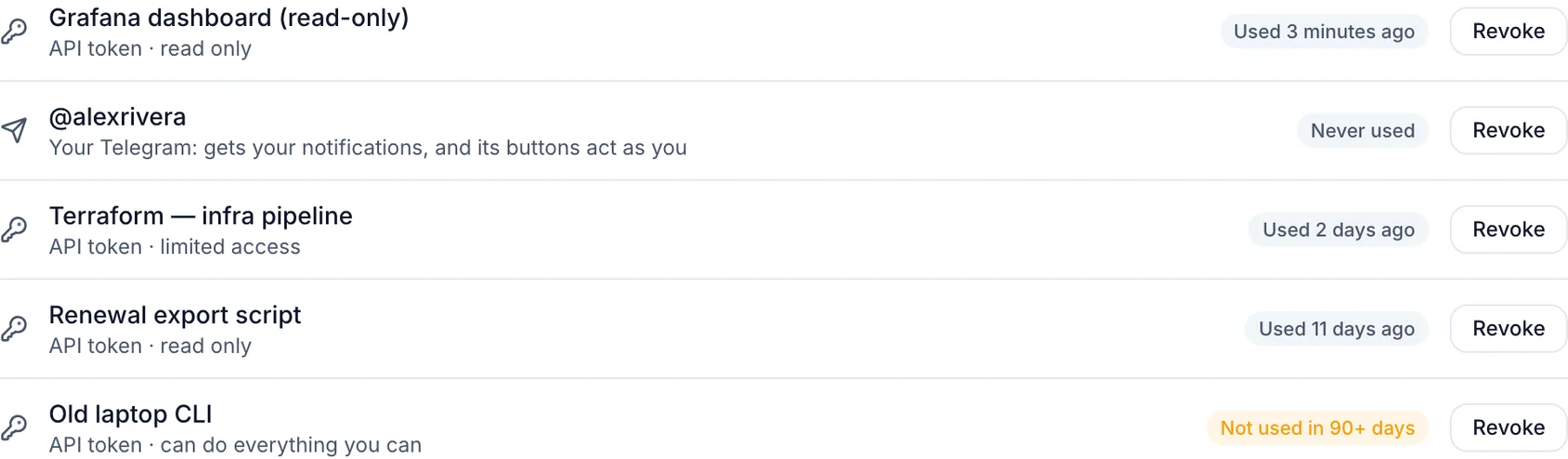
WarningRevoking access to your Telegram stops notifications and buttons immediately and everywhere — do this right away if you've lost your phone.
Blocked the bot by mistake? Nothing arrives while it's blocked, and InfraNest says so in the Telegram dialog. Open the bot and press Start to unblock it.
Troubleshooting
Nothing arrives
- Check your Telegram's column on the Where tab isn't Off for that kind, and that the problem was urgent if it's set to Urgent only.
- Check you're not in quiet hours, do not disturb or away.
- Use ⋯ → Send a test in the column. If the test doesn't arrive, check Telegram's own notification settings for the bot, and that you didn't block it.
"These buttons only work for the person this was sent to" Someone forwarded you their alert. Buttons only act for the person whose Telegram it is. Link your own Telegram to get your own.
"This link has expired or was already used" Start links work once, for 15 minutes. In InfraNest, add Telegram again, or open the bot and send /start for a new link.
"Link your Telegram to InfraNest first" You tapped a button in a team group before linking your own Telegram. Link it once, and the group's buttons work for you too.
"Link your Telegram first — we've sent you a link in this chat" Your Telegram was added to InfraNest before accounts could be linked, so the buttons under its alerts don't yet know it's you. Open the link the bot just sent, while signed in to InfraNest, then press the button again. In InfraNest, that Telegram shows it needs linking on the Alerts → Destinations page until it's linked.
Was this article helpful?