

Send InfraNest alerts to an email address, the simplest destination to set up — ideal for anyone who wants alerts without connecting another service.
Overview
- Email is the only destination that needs nothing from another service — no webhook, bot or API key, just an address.
- A shared team inbox works well for general visibility; a personal address that forwards to a phone is better for anything urgent.
- Routing is chosen per object, so different monitors, servers, DNS zones or domains can each alert a different address.
Before you start
Nothing to prepare. Unlike Slack, Microsoft Teams, Discord or Telegram, email needs no Slack webhook URL, Incoming webhook URL, bot token or key — just the address you want alerts to arrive at.
TipUse an address you actually watch. A shared team inbox works well; a personal address that forwards to a phone works better for anything urgent.
Connect email
- Go to Alerts → Destinations.
- Select Add a destination and choose Email.
- Enter the Email format address alerts should go to.
- Select Send test to send a test message and confirm it arrives.
- Select Save & test.
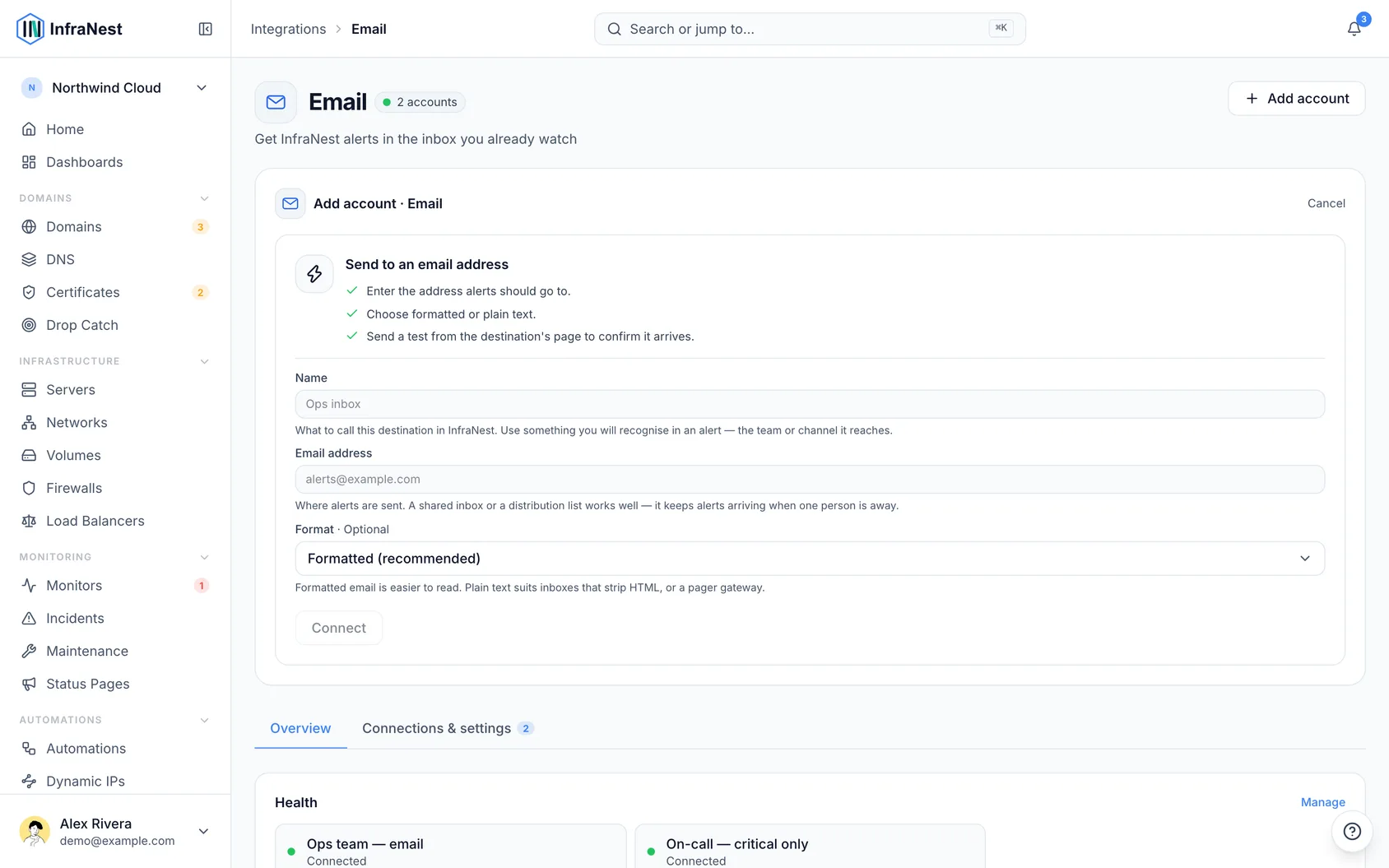
Send alerts to email
- Once the destination is saved, open the alert routing for the monitor, server, DNS zone or domain you want to cover.
- Choose the Email destination you just created under Decide.
- Confirm the subscription under Event subscriptions — pick All events or Critical only depending on how much you want to hear.
Tips
- One destination sends to one address. Add another destination for a second recipient, or point it at a distribution list your mail provider manages.
NoteThis is separate from your personal notification preferences. Changing which emails you receive as a user is done in your account settings — a destination controls where an organisation's alerts go.
Troubleshooting
- If a test never arrives, check your spam folder first, then confirm the address is spelled correctly.
- Mail providers sometimes hold the first message from a new sender, so give it a few minutes before resending Send test.
- If alerts stop arriving later, check the destination for the Alerts are not reaching this destination or Not delivering notice.
Was this article helpful?