

Connect n8n to start workflows automatically from InfraNest events, and let those workflows take action back in InfraNest — useful for anyone who wants domain, monitor or certificate changes to trigger automated steps without manual work.
Overview
- Trigger an n8n workflow when a domain is expiring, a monitor goes down, or a certificate is about to lapse.
- Let an n8n workflow open a maintenance window, pause a monitor or resolve an incident in InfraNest.
- Both directions use a URL you copy between the two tools, and work the same whether your n8n is cloud-hosted or self-hosted.
Before you start
- In n8n, add a Webhook node to a workflow.
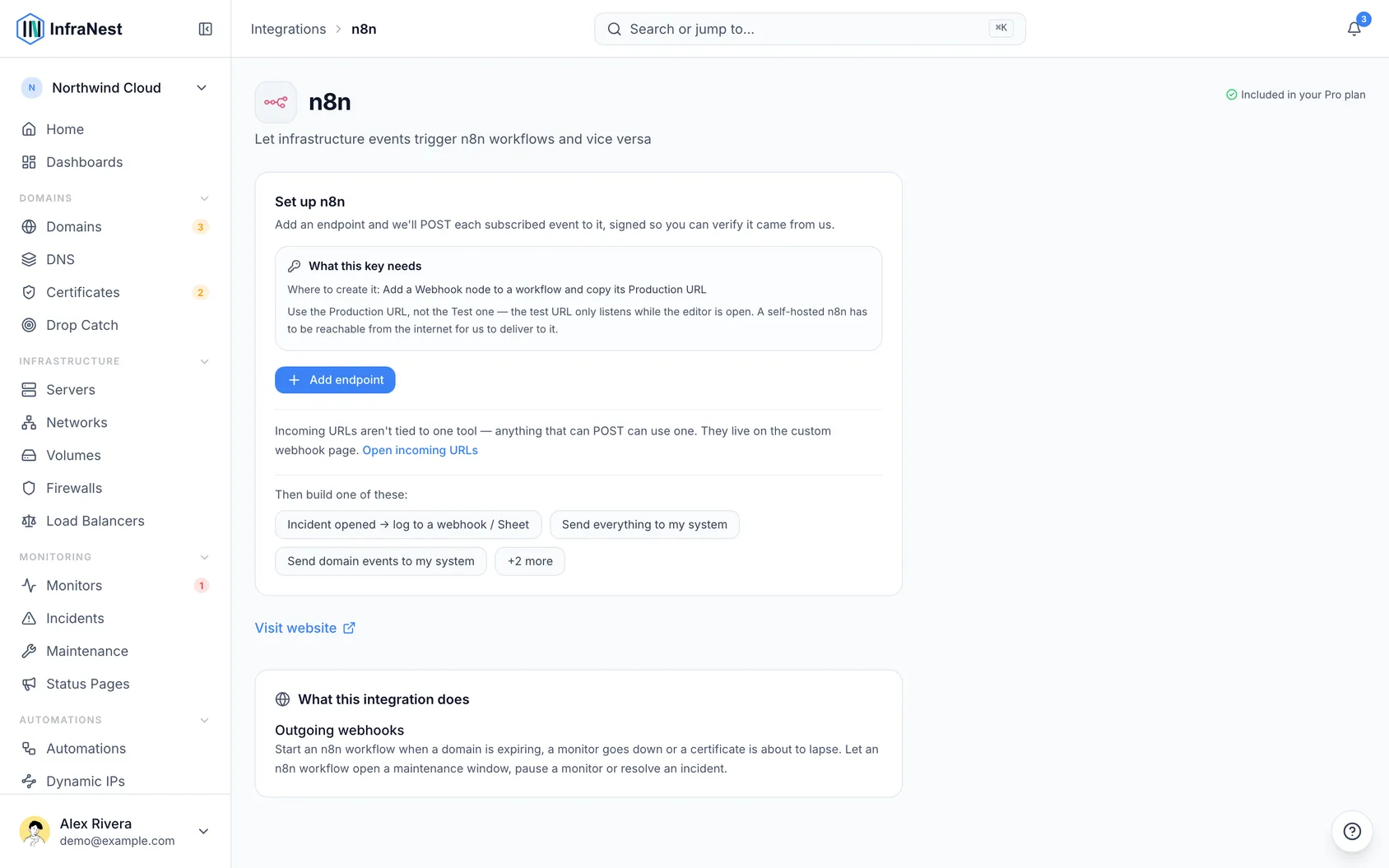
- Copy its Production URL — not the Test URL. The test URL only listens while the editor is open, so deliveries stop the moment you close it.
NoteIf you self-host n8n, that address has to be reachable from the internet for InfraNest to deliver to it.
Send InfraNest events to n8n
- Go to Integrations → n8n.
- Select Add endpoint and paste the Production URL. Leave Send every event here ticked, so every event is sent from the start.
- Copy the signing secret shown once after saving, if you want to verify that deliveries really came from InfraNest.
- Select Send test event and pick the event it should imitate, so your workflow can be built against a real payload.
- Choose what gets sent: the endpoint page lists the Send everything to … automation it started. Open it to narrow it to the events you care about — or, if you unticked the box, pick a starting point under Start an automation that posts to n8n or build your own rule.
Let n8n trigger InfraNest
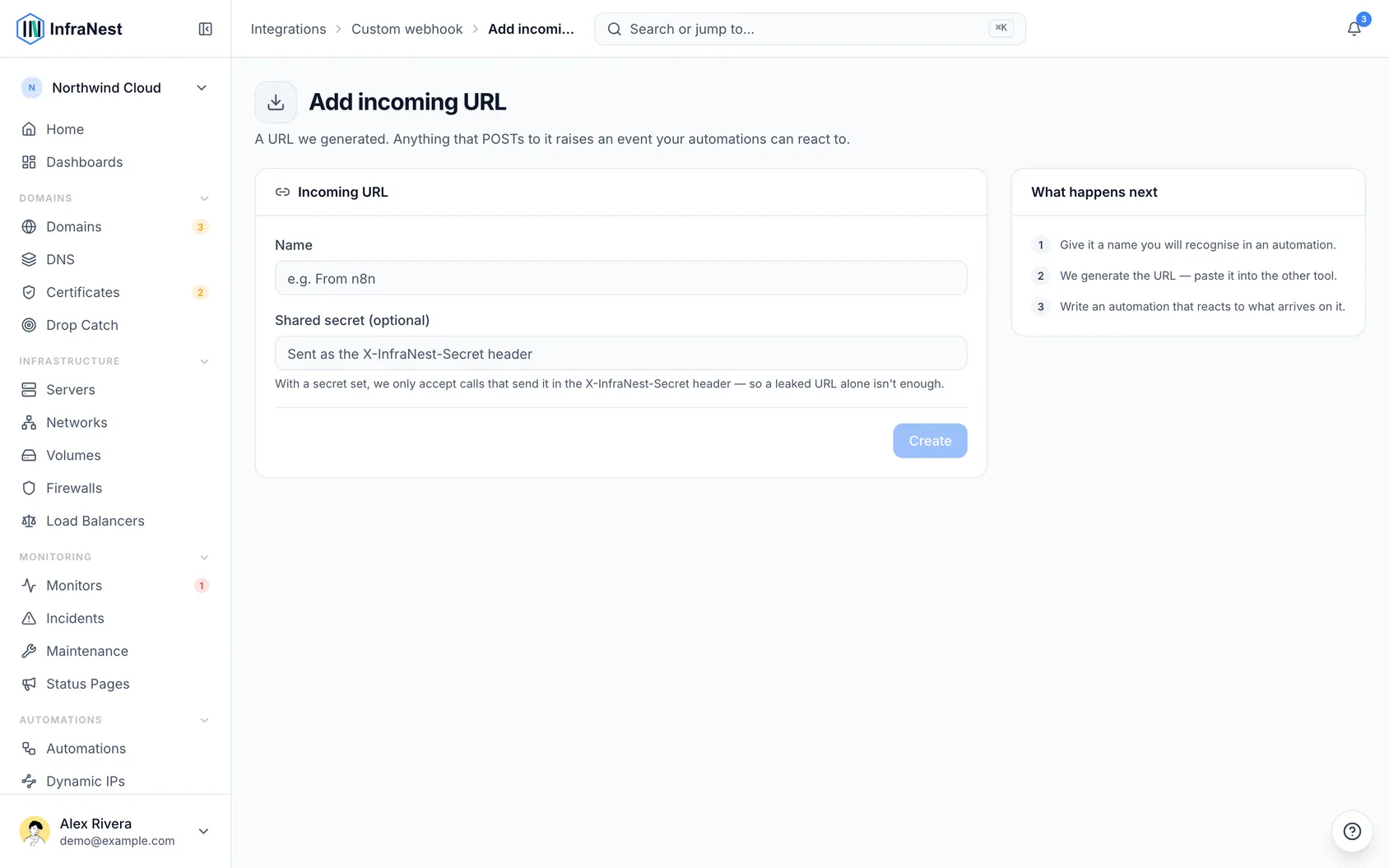
- Go to Integrations → Custom webhook → URLs we give you and select Add incoming URL.
- Give it a name you'll recognise later — you pick it by name when writing the rule.
- Optionally set a shared secret, so a leaked URL on its own isn't enough to trigger anything.
- Copy Your URL into an HTTP Request node in your workflow, set to POST.
- Back in InfraNest, use Start an automation n8n can trigger and add what should happen — open a maintenance window, pause a monitor, resolve an incident.
Tips
- You can add more than one endpoint — for example one workflow for incidents and another for domains.
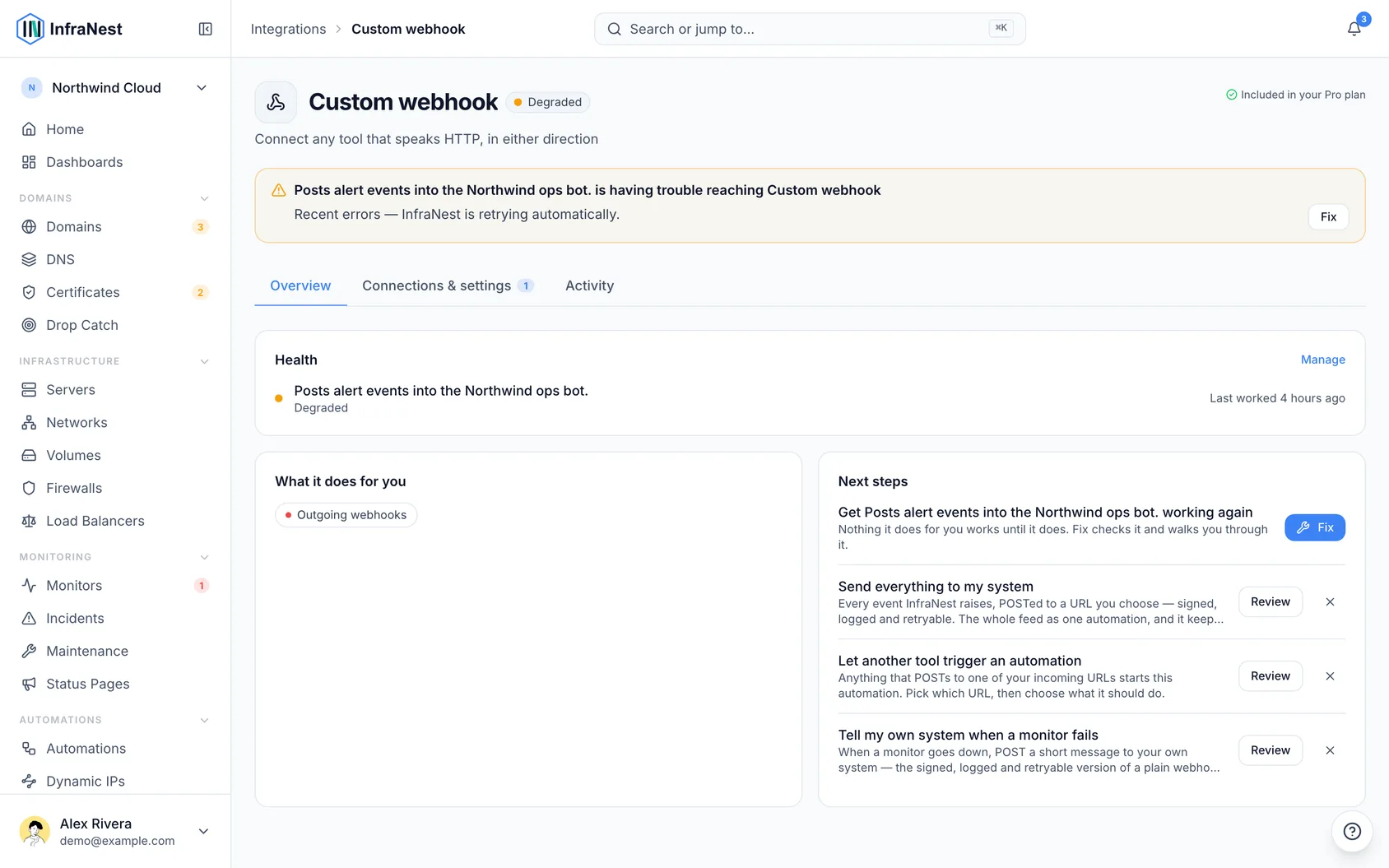
- Both directions keep a delivery log under the integration page's Activity tab, so you can see what went out and what arrived.
WarningThe signing secret is shown once and never again. You can rotate it later; the old one stops working immediately. Your incoming URL works like a password — anyone holding it can trigger your organization's automations, so set a shared secret and regenerate the URL if it leaks.
Troubleshooting
Deliveries stop when you leave the n8n editor. That's the Test URL. Swap the endpoint to the node's Production URL and activate the workflow.
Nothing arrives, and n8n is self-hosted. InfraNest has to be able to reach it from the internet — check that the address resolves publicly and isn't behind a VPN, a local-only firewall rule or an allowlist. The delivery log on the n8n page shows the error received.
Your workflow doesn't trigger InfraNest. Confirm the HTTP Request node posts to the exact incoming URL, and that the shared secret — if you set one — is sent as the X-InfraNest-Secret header.
Was this article helpful?