

Connect Notion so your automations can file tasks for you — a certificate about to expire, a monitor that went down, a domain coming up for renewal — straight into the database your team already works from. Later steps can comment on the task, move it to another status, or remove it.
Overview
- Lets automations create, comment on, and update Notion tasks automatically.
- Works with any database in your Notion workspace, using whatever columns you've already set up.
- Built for anyone setting up automations, even without technical experience.
NoteNotion works differently from most integrations: a connection can only see the pages and databases you explicitly share with it. A connection with nothing shared can reach nothing at all. Skipping this step is the most common reason a Notion automation fails — see Share the database with the connection below.
Connect your workspace
- Open Integrations in the sidebar.
- Find Notion and click Connect with Notion.
- Notion asks you to approve access and to choose which pages and databases to share. Pick the database you want tasks filed in while you're there.
- You'll land back in InfraNest, now connected.
If Connect with Notion is greyed out, your InfraNest administrator hasn't registered a Notion connection yet. Use a token instead — see the next section.
Connect with a token
- In Notion, open the developer portal at
app.notion.com/developers/connections. - Under Internal connections, choose Create a new connection, give it a name, and pick your workspace.
- Open the Configuration tab and copy the Installation access token.
- In InfraNest, open Integrations in the sidebar, then Notion, and paste the token in.
InfraNest checks it right away and shows which workspace it belongs to.
Share the database with the connection
Do this even if the connection says it's working — a token on its own can see nothing.
- In Notion, open the database you want tasks filed in.
- Click the ••• menu at the top right.
- Choose Connections → Add connection, and pick the connection you just made.
- Confirm it can access the page and everything inside it.
If you connected with the one-click button and picked the database on Notion's approval screen, this is already done.
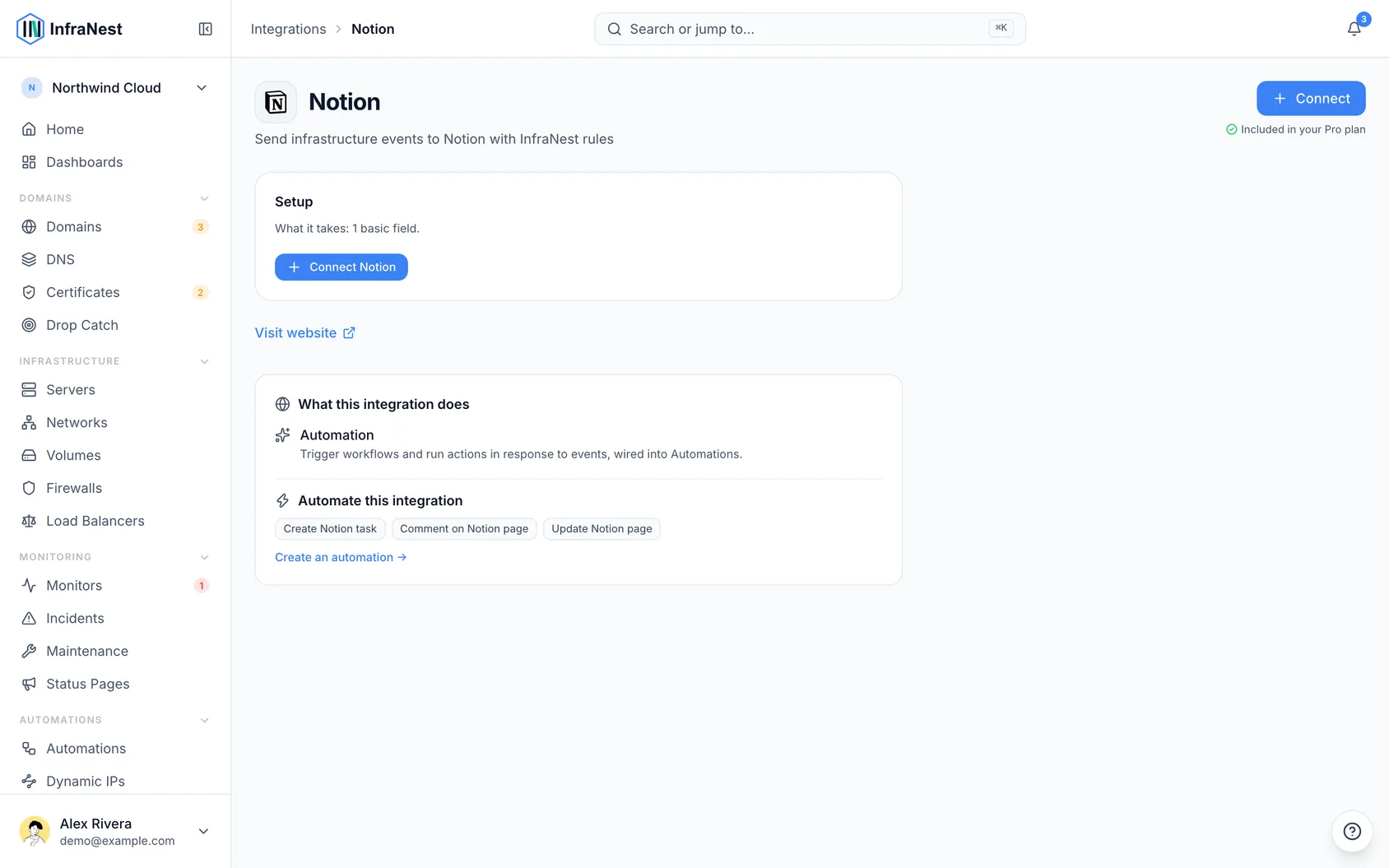
File a task from an automation
- Build a rule as usual.
- Pick Create Notion task as the action.
- Set Notion database — start typing and pick from the databases this connection can see, or paste the link to a database straight out of your browser. If the list is empty, the sharing step above hasn't been done yet.
- Set Title — plain text; you can drop in values from whatever triggered the rule, so the task arrives with the domain name or monitor already in it.
- Set Body (Optional) — becomes the text inside the page.
- Set Properties (Optional) — your database has whatever columns you gave it, so add a row per column you want to fill: pick the column by name, then type or pick the value. The column's type is shown underneath, so you can see whether it wants a date, one of a set of options, a number, and so on.
The task the rule creates is available to later steps in the same rule, so you can post its link to Slack straight after filing it — or comment on it and move it, using the actions below.
Comment on a task, or move it along
- Comment on Notion page — adds a comment. Useful as the other half of a rule that files tasks: the monitor recovers, and the task says so.
- Update Notion page — sets any of the same properties, so a rule that opened work can also finish it: set Status to Done, push a date out, or tick a checkbox. It can also move the page to the trash. You don't have to say which database the page is in — it already knows.
Both ask which page. Paste its link from Notion, or refer to the task an earlier step in the same rule created — the picker of earlier values offers it.
TipChain actions in one rule — file the task, then comment or update it later in the same automation — using the earlier-values picker to point back at the task you just created.
Troubleshooting
"Notion cannot see that page or data source." This is the sharing step. Open the database in Notion, click ••• → Connections → Add connection, and add this connection.
A list says why it has nothing to offer. When Notion couldn't be asked, the list explains why instead of coming up empty:
- Needs to be connected again — the connection's access was revoked or has run out. Connect it again under Integrations in the sidebar.
- Isn't allowed to read this list — the connection works, but its access doesn't cover this list. Give it that access in Notion, or type the value.
- Couldn't load suggestions just now — Notion didn't answer. Try again in a moment, or type the value.
The database list is empty. Pick a connection first, at the top of the action. If it's still empty, nothing has been shared with the connection yet.
The property list is empty. Choose the database first. If the database comes from the trigger rather than being picked, the list stays empty and you can type the column names instead.
"That Notion database has no property called …" — the column name doesn't match. Notion column names are case-sensitive, and renaming a column in Notion doesn't update rules that name the old one. The message lists the columns the database actually has.
"Notion computes … itself." Formula, Rollup, Created time, Last edited by and ID columns are worked out by Notion. Nothing can set them, including you, by hand.
"… is a checkbox — use true or false." Checkbox columns take true or false. An empty value leaves the column alone rather than unticking it, so say false if you mean unticked.
"That Notion database has more than one data source." Newer Notion databases can hold several sets of records. Pick the one you want from the database list instead of pasting the database's link.
"Notion refused this because the connection does not have that capability." Commenting is a separate permission from writing pages, set on the connection in Notion's developer portal. Open the connection there and check its capabilities.
Was this article helpful?