

Removing an integration disconnects a provider account from InfraNest and takes back everything InfraNest imported through it — this guide is for anyone who needs to disconnect a cloud provider account safely.
Overview
- When you connect a provider account, InfraNest imports what it finds there — domains, DNS zones, servers, volumes, firewalls and certificates.
- Those items can only be kept up to date through that account, so removing the integration removes InfraNest's copy of them too.
- Your domains, servers and DNS keep running exactly as before at the provider — only InfraNest's copy goes.
- Servers with the monitoring agent installed can be kept as self-managed servers, so you don't lose their monitoring history.
- If you connect the same account again later, everything comes back, including notes, tags, custom fields and history.
WarningRemoving an integration is destructive to InfraNest's copy of your data. If you only need a new key, or want to pause syncing without losing anything, use Update key or Disable instead — see Tips below.
Remove an integration
- Open Integrations in the sidebar.
- Open the integration you want to remove.
- Go to Connections & settings.
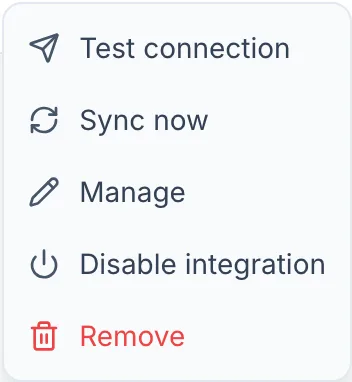
- Open the menu on the account you want to disconnect.
- Choose Remove.
- In the dialog, review the list of what will be removed.
- If any of the account's servers has the monitoring agent installed, you'll see a box ticked by default: Keep servers that have the agent installed, as self-managed servers. Leave it ticked to keep those servers (with their metrics, alerts, tags and agent intact). Untick it to remove them along with everything else.
- Type the account's name to confirm.
- Choose Remove.
NoteIf your organization requires identity confirmation on destructive actions, you'll confirm with your passkey, code or password instead of typing the account's name.
Tips
- Change the key instead of removing. If you only need a new API key, choose Update key in the dialog (or Reconnect for an account connected with "Connect with…"). Nothing is removed.
- Pause instead of removing. Choose Disable. Syncing stops, and everything stays where it is until you turn it back on.
Troubleshooting
- Automations that act on a removed item are switched off. You'll get one notification listing them. Turn them back on after pointing them at something that still exists.
- Kept servers move to Monitoring. A server kept as self-managed leaves the Servers page and appears in Monitoring with your other self-managed servers, marked Self-managed.
- Monitoring agents stop reporting on servers you chose to remove, until you connect the account again.
- A hidden server is not kept. A server you had stopped listing in InfraNest is removed, even with the agent on it.
- Dynamic IP entries on removed firewalls or DNS records stop updating.
- Backorders placed through the account stop.
- Delete protection does not block this. It protects a resource at the provider, and removing an integration does not touch the provider.
- Certificates also seen another way stay. A certificate InfraNest also sees through a monitor, a certificate log or an upload stays in your list.
- Items you added yourself are not affected, such as a server you added without a cloud account.
Was this article helpful?