

Keep renewals, certificate issues, and maintenance windows visible in the calendar app you already check every day, so nothing important gets missed just because InfraNest wasn't open. This is for anyone who wants deadlines to show up automatically, without having to remember to log in and check.
Overview
- Sends key dates from InfraNest into your personal or team calendar.
- Keeps itself current — if a date changes in InfraNest, the calendar event updates on its own.
- You choose how to connect: one-click sign-in, or a calendar feed link.
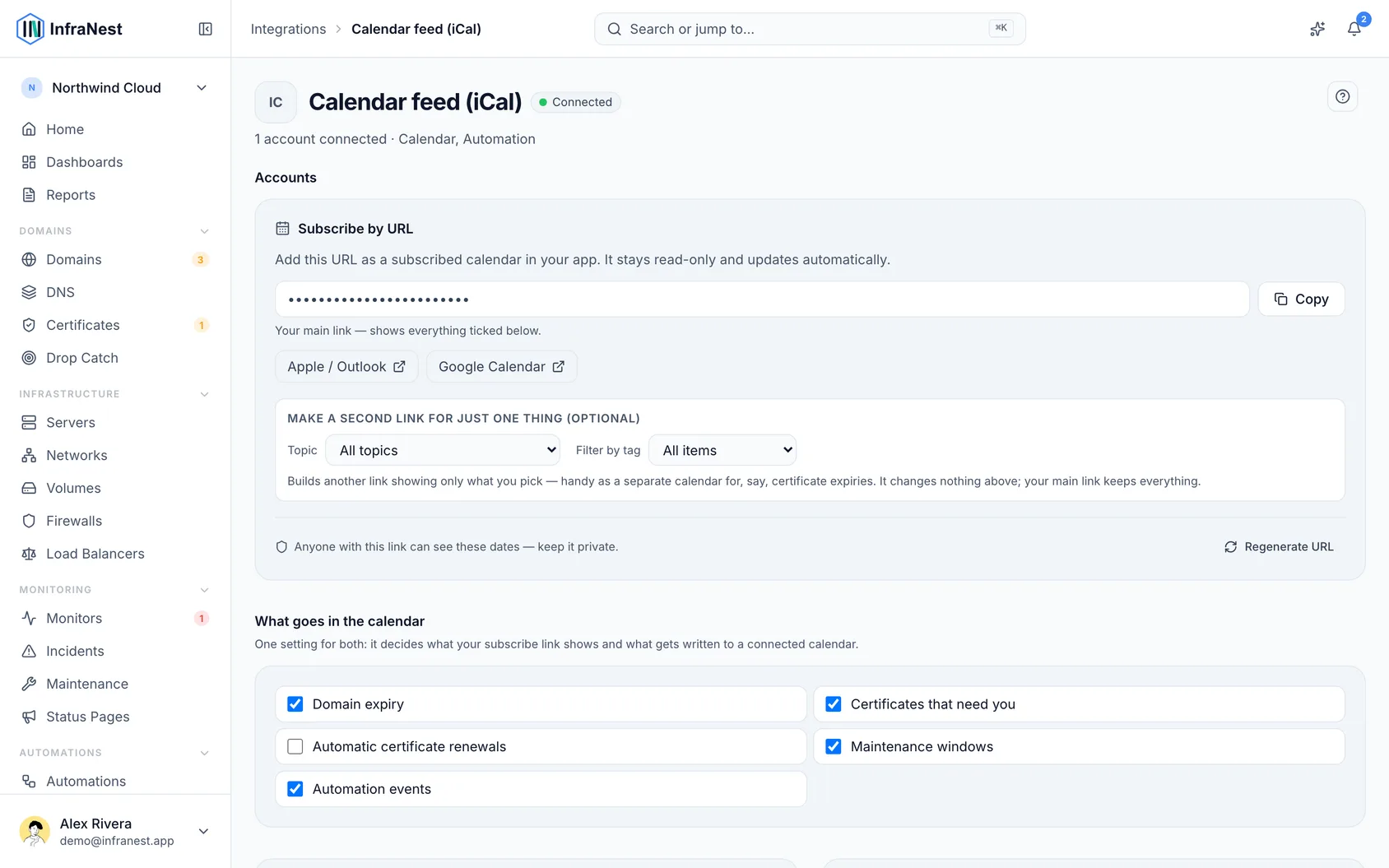
What lands in your calendar
- Domain expiry dates — when each domain is due for renewal.
- Certificates that need you — each certificate problem, shown with the date it would start causing trouble, using the same wording as the Certificates page (for example, The CAA record for example.com will block the renewal of example.com). This also includes the expiry of any certificate that nothing renews automatically. If you've snoozed a problem on Home, it's left out of the calendar.
- Automatic certificate renewals — off by default. These are the expiry dates of certificates that renew themselves, so there's nothing for you to do — which is why they're not shown unless you turn this on.
- Maintenance windows — the ones you've scheduled.
- Automation events — anything an automation has added to your calendar.
Connect your calendar
There are two ways to connect, and the difference matters.
- Go to Integrations → Calendar.
- Choose one of the two options:
- Connect your calendar (recommended) — one-click sign-in with Google Calendar or Outlook Calendar. Events appear in a dedicated InfraNest calendar and stay up to date automatically, with nothing to copy or paste.
- Calendar feed (iCal) — a private link you subscribe to from any calendar app, including Google Calendar, Outlook, or Apple Calendar. This is the best option if you use a different calendar app, or if one-click connecting hasn't been set up for your workspace.
- Follow the steps for the option you picked — see Connect Google Calendar, Connect Outlook Calendar, or Subscribe with a calendar feed (iCal) for the full walkthrough.
NoteOne-click connecting only appears if an administrator has set it up for your workspace. If you see "One-click Google Calendar isn't set up on this workspace yet", use the calendar feed instead — it works just as well for you.
Where to find it
Go to Integrations → Calendar to connect, manage, or disconnect calendar sync.
Tips
TipIf you want to see automatic certificate renewals in your calendar too, turn that setting on from the Calendar page — it's off by default since there's usually nothing you need to do about them.
Good to know
- The calendar connection is read-only — adding an event in your calendar app doesn't create anything in InfraNest.
- Removing the connection stops future syncing, but events already added to your calendar stay there until you delete them yourself.
- If a connection stops working, you'll see Reconnect needed. This means the calendar provider revoked InfraNest's access — nothing will sync again until you reconnect.
Was this article helpful?