

Use this if you'd rather connect DigitalOcean with a token instead of the one-click Connect option. It's for anyone setting up or replacing a DigitalOcean connection in InfraNest.
Overview
- A token does the same job as Connect with DigitalOcean — it just takes a minute of manual setup instead of one click.
- You'll create it on DigitalOcean's site, then paste it into InfraNest.
- It needs specific permissions (scopes) to work properly — getting these wrong is the most common snag.
Create the token
Sign in to DigitalOcean.
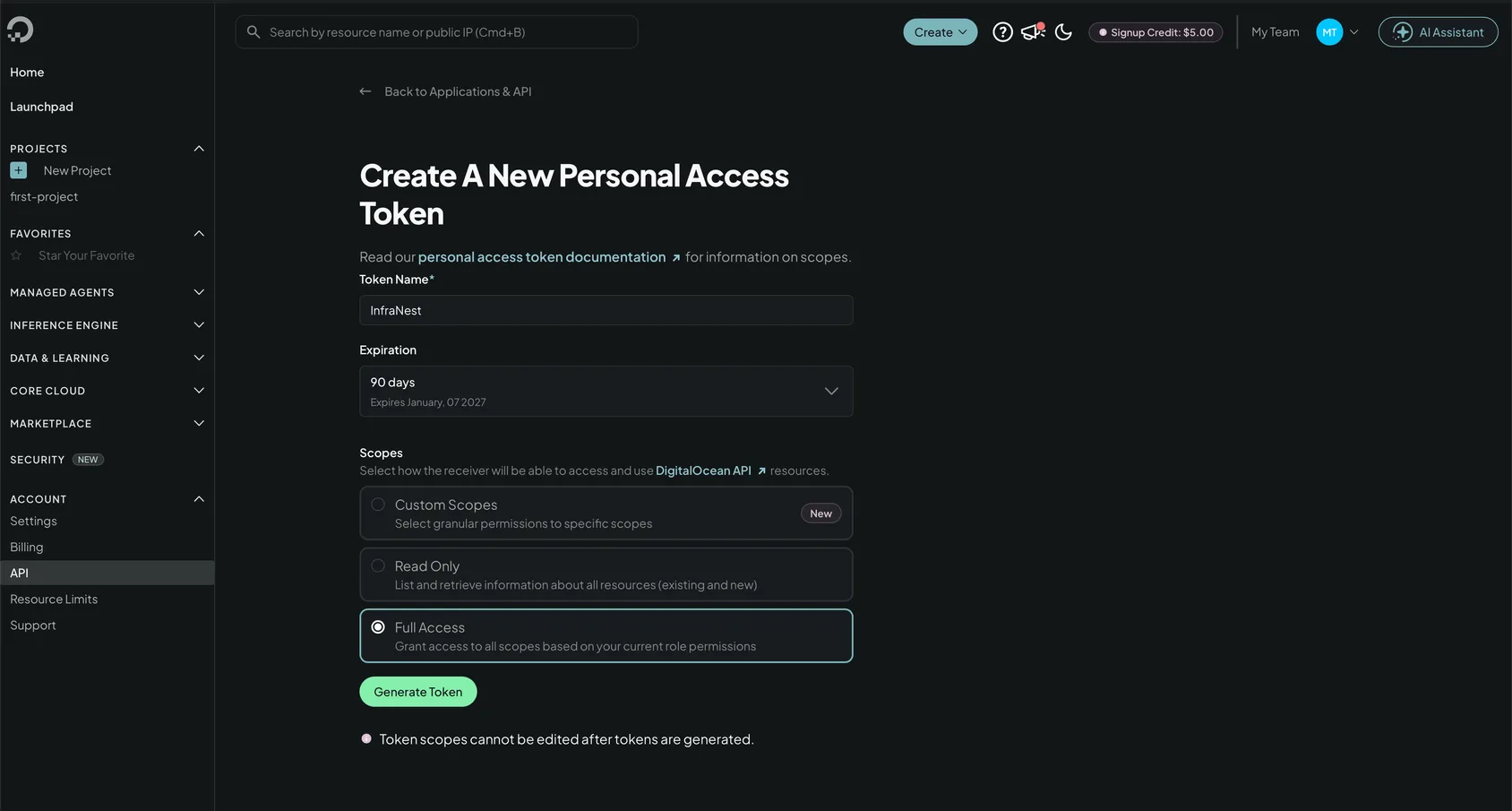
Open the tokens page — the Open token page link on the InfraNest connect screen takes you straight there, or use the left-hand menu: API (right at the bottom), then the Tokens tab.
Select Generate New Token.
Give it a name you'll recognise, such as InfraNest.
Choose an expiry. See the note below before you pick one.
Choose the scopes — Full Access is fine, or see the list below for a narrower token.
Select Generate Token, then copy the value. It starts with
dop_v1_.Paste it into InfraNest — see Connect DigitalOcean.
WarningThe token is shown once. If you navigate away without copying it, generate a new one rather than trying to find it again.
Which scopes it needs
Full Access works and is the quickest choice. If you'd rather give it only what InfraNest uses, pick Custom Scopes and tick:
- domain — read, create, update and delete. This is DNS: reading your zones and records, and saving changes you make in InfraNest.
- certificate — read. This is the certificate list. Read only; InfraNest never changes a certificate at DigitalOcean.
Nothing else is needed. A token without the domain update and delete scopes will show your records perfectly and then refuse every edit, which is a confusing way to find out.
NoteUnlike some providers, DigitalOcean can't pre-tick these for you from a link — the connect screen lists them beside the button so you can copy the selection across.
About the expiry
DigitalOcean asks you to pick how long the token lasts, and the default is not "forever". When it expires, your zones stop syncing and InfraNest emails you that the integration has a problem — it isn't broken, it just needs a new token.
Either choose No expiry, or put the date in your calendar so you can replace it before it lapses.
Replace a token
- Generate the new token first, following the steps above.
- Open Integrations → DigitalOcean.
- Select Reconnect and paste in the new token.
- Delete the old token at DigitalOcean afterwards.
Nothing you've set up in InfraNest is affected — the connection keeps its zones, its history and its settings.
Was this article helpful?