

Connect GitHub to InfraNest so your automations can react to what happens in your repositories, and take action back on GitHub for you. This article is for anyone setting up or managing that connection.
Overview
- Once connected, InfraNest can watch GitHub activity — pushes, pull requests, issues, workflow runs, deployments, releases and checks — and act on GitHub as part of an automation (open an issue, run a workflow, merge a pull request, update a deployment's status, and more).
- Everything runs through the GitHub connection you set up here.
- The easiest and most secure way to connect is by installing the InfraNest Automations app on your GitHub account or organisation.
Connect GitHub
- Go to Integrations and open GitHub.
- Select Connect (or Add account if you've already connected one).
- Under Install app, select Connect. A GitHub window opens. Choose the account or organisation to install on, pick All repositories or just the ones you want InfraNest to see, and confirm.
- GitHub may ask you to confirm that InfraNest can check which installations your account can use. This is how InfraNest makes sure the installation really is yours before connecting it.
- You're returned to InfraNest and the connection appears under Accounts.
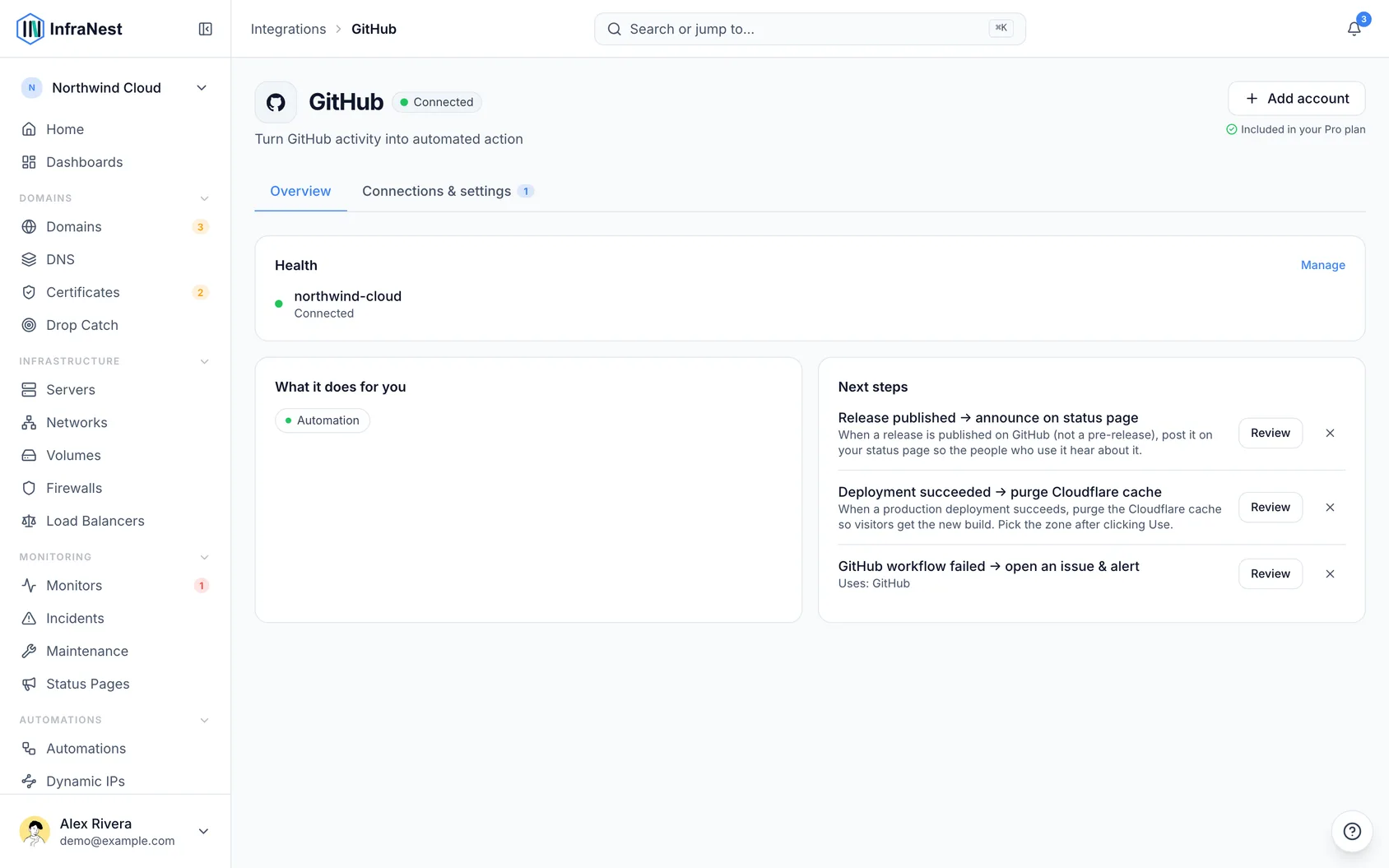
You can connect more than one account — for example your personal account and an organisation. Each shows up as its own connection.
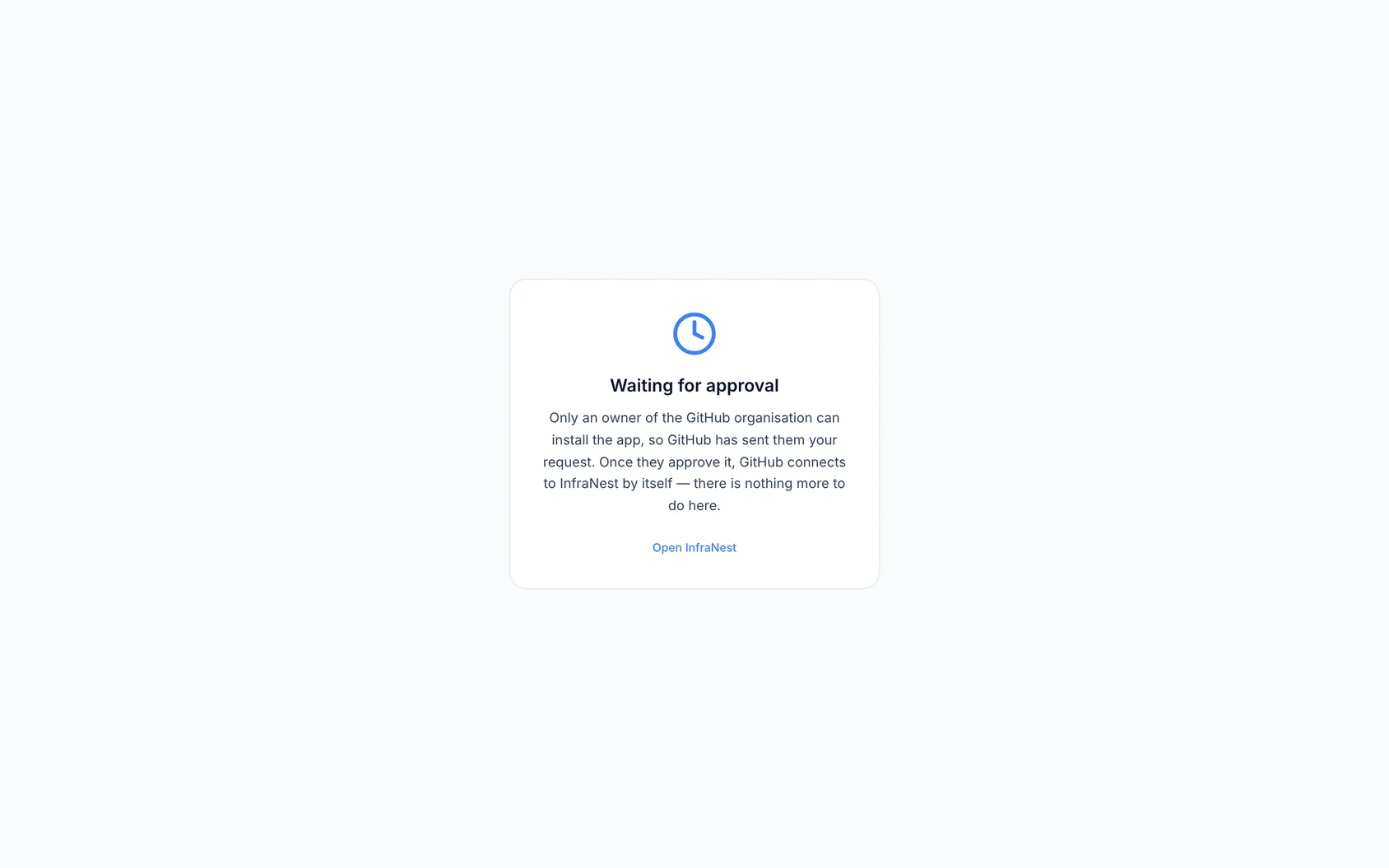
NoteOnly an owner of a GitHub organisation can install apps on it. If you're a member, GitHub sends your request to the organisation's owners instead, and InfraNest shows Waiting for approval. As soon as an owner approves the request on GitHub, the connection appears in the workspace you started from. If it hasn't appeared after approval, connect again from InfraNest.
If you installed InfraNest Automations from GitHub itself (for example from the GitHub Marketplace), InfraNest asks you to sign in, or create an account, and choose the workspace the installation belongs to. The link to finish this is valid for 30 minutes; after that, connect GitHub from InfraNest instead.
If you're not allowed to install apps on your GitHub account or organisation, you can connect with a personal access token instead: choose API token rather than Install app. A token lets automations act on GitHub, but it can't start them — GitHub triggers only work with the app.
InfraNest works with GitHub.com. GitHub Enterprise Server (self-hosted GitHub) isn't supported.
Choose what InfraNest can see
- While installing the app, decide which repositories InfraNest has access to.
- To change this later, open the app on GitHub, under your account or organisation Settings → GitHub Apps → InfraNest Automations.
- Adjust the selected repositories there.
Disconnect GitHub
- Open GitHub in the Integrations hub.
- Go to Connections & settings.
- Select Disconnect.
This also uninstalls the app on GitHub, so InfraNest no longer has access. If the same installation is shared with another workspace, it's left in place there. A connection made with Connect with GitHub has its access withdrawn on GitHub in the same way.
Any automation that used the connection is switched off, and you get a notification listing which ones, so none of them fails quietly later.
If someone uninstalls or suspends the app on GitHub itself, InfraNest notices: the connection shows as failing, with Removed on the provider's side or Suspended on the provider's side under its name, it's listed under Needs attention, you get a notification, and automations that use it stop with a message saying why. To bring it back, connect GitHub again with the same account (or unsuspend the app on GitHub). Your automations keep their settings and start working again straight away. If repositories are taken away from the app on GitHub, the connection lists which ones it can no longer reach.
If GitHub asks InfraNest to slow down because of its rate limit, the connection is listed under Needs attention as waiting until a given time. There's nothing to fix: it clears by itself, steps set to retry try again on their own, and the notice disappears once the limit resets.
What InfraNest keeps
InfraNest receives an event from GitHub for every push, issue, comment, pull request and so on in the repositories you chose — whether or not an automation uses it.
- Event history — used to show how often a draft automation would have run. It keeps which repository, which issue or pull request number, who did it and what happened, for 45 days. It does not keep the text people write: issue and pull request titles, comments, release names and descriptions are left out.
- Run history — when an automation actually runs, its run keeps the full event it ran on, comment text included, for 90 days. Only members whose role can edit automations can see it. Everyone else sees that a run happened and whether it worked.
Disconnecting stops new events from arriving. What InfraNest already holds is removed when those 45 and 90 days run out.
Tips
- Team-based features (like requesting a review from a team) only work when you connect an organisation, not a personal account.
TipIf you can't install apps on GitHub, connecting with a personal access token still lets automations act on GitHub — just remember GitHub triggers won't work without the app.
Troubleshooting
- We couldn't confirm your access — you were signed in to GitHub with an account that can't use that installation. Sign in to GitHub with the account that installed the app and connect again.
- Took too long — start again from InfraNest.
- Your credentials are stored securely and never shown again.
Was this article helpful?