

Send alerts to a Telegram group your whole team shares, so everyone sees a problem at the same moment and can respond right from the message. This is for team or on-call groups — if you just want alerts on your own phone, that's a different setup (see below).
NoteLooking for your own personal alerts instead of a team group? That's covered separately — the Get alerts on my phone option takes you there.
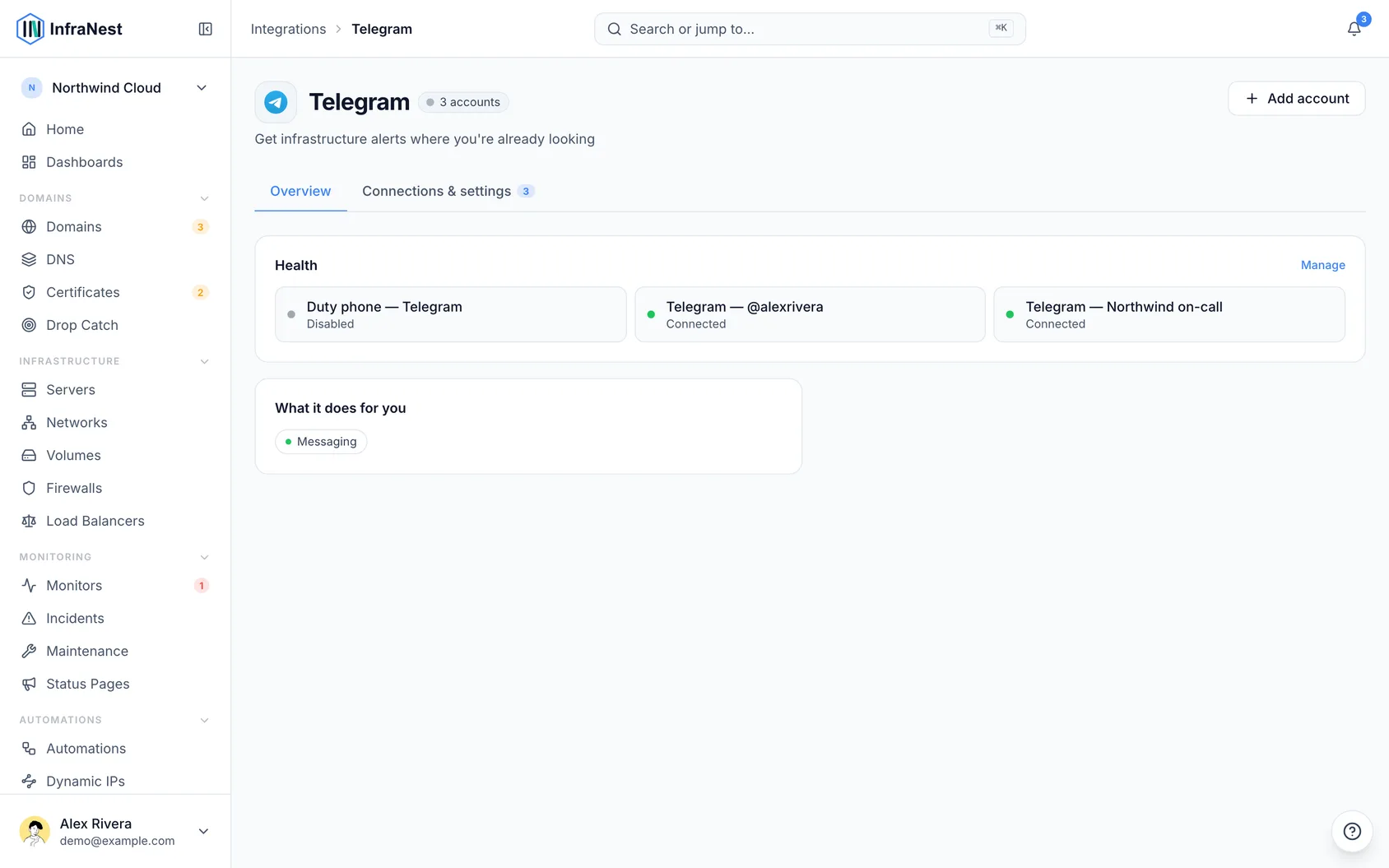
Overview
- Everyone in the group sees a monitor go down at the same time.
- Anyone in the group can acknowledge the alert, and the message shows who's on it.
- There's nothing to copy or configure manually — you just pick the group in Telegram.
- Telegram counts as a chat destination on your plan.
Connect your team's group
Go to Integrations, open Telegram, and click Connect (or Add account if Telegram is already set up). You'll see a few options, including Add a Telegram group, Get alerts on my phone, and an advanced option for a chat ID or your own bot.
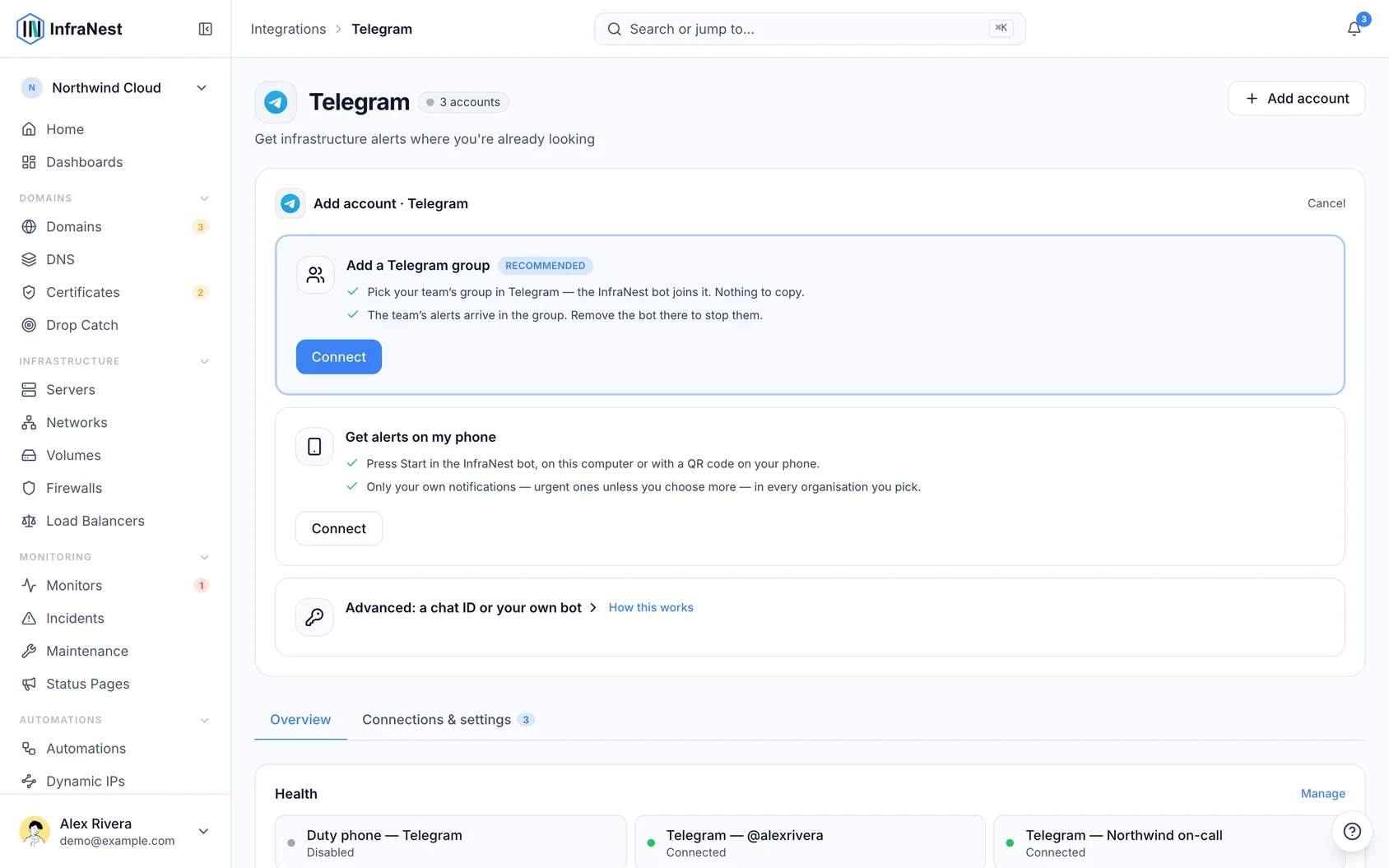
Before you start: you need permission to add destinations in your organisation, and the ability to add members to the Telegram group.
Under Add a Telegram group, click Connect.
Open Telegram and pick your team's group:
- On a computer, click Open in Telegram.
- On your phone, scan the QR code.
The link works once, for 15 minutes. The dialog shows Waiting for you to pick a group… until you do.
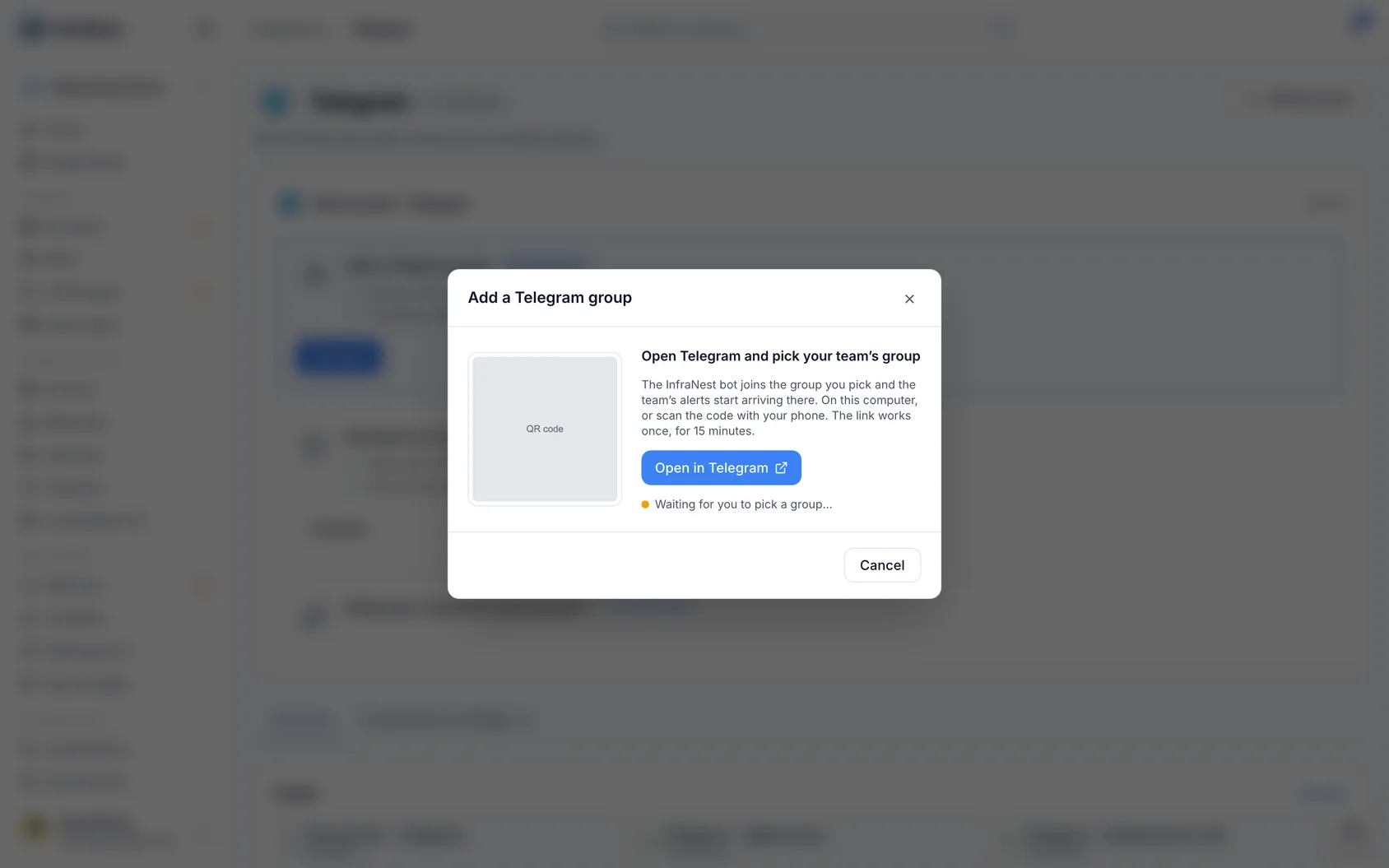
Telegram asks which group to add the InfraNest bot to. Pick it and confirm.
The bot posts a message in the group confirming it's linked, and the dialog in InfraNest shows it's connected.
Click Done. The group appears as a destination, named after the group — for example Telegram — Northwind on-call.
Then choose which alerts go there, as described below.
If the bot says the group can't be added, the person who started it may no longer add destinations, or your plan has no room for another chat. If the link has expired, start again from Add a Telegram group.
Choose which alerts go to the group
A group only receives what you send it. In Alerts, choose the Telegram group as a destination for the alert rules you want there — for example Monitor down and its recovery alert.
Use the buttons in the group
Each alert arrives with buttons the whole team can use:
- Acknowledge: says you're on it. The message updates for everyone, so nobody else chases it. It also stops repeat alerts, and acknowledges the incident in PagerDuty if you use it.
- Silence 1 h: stops alerts about this monitor for an hour. The message shows who silenced it and until when.
- 📝 Add a note (once someone is on it): tap it, or just reply to the alert, to tell the team what you're doing. Your reply becomes a note on the incident.
- Open in InfraNest.
Who can use the buttons? Anyone in the group who has linked their own Telegram to InfraNest and is a member of the organisation. Each tap acts as that person, with their own permissions. Someone who hasn't linked their Telegram is shown how.
TipIf you're in the group and also have your own Telegram linked, your personal alert about the same problem arrives silently — so your phone doesn't ring twice.
When the problem is over, the alert message updates to say so. InfraNest also reacts to its own alerts: 👀 means someone is on it, 👌 means it's resolved.
Long error details are folded into a short quote — tap it to read the rest.
Work with topics and pinned outages
If your group uses topics, alerts go to the topic where you added InfraNest. To move them, send /here in the topic you want; sending /here in General moves them back.
To keep a critical outage pinned while it's open, send /pin on in the group. It's automatically unpinned once the problem is resolved. This needs InfraNest to be a group admin with the right to pin messages — if it isn't, it will tell you. Send /pin off to stop this.
Both commands work for anyone in the group who has linked their own Telegram and may change monitoring in InfraNest.
Post a status update from Telegram
- In your own chat with the bot, send
/update, then pick the incident and its status. - Reply with the message for your status page.
- Review the preview, then choose Publish and notify subscribers, Publish without notifying, or Cancel.
You can only post updates on open incidents that are on one of your status pages, and only if your role in InfraNest may change monitoring.
Look something up from Telegram
Send /status with a name to check on something — for example /status api, /status api.example.com, or /status db-1. You'll get its current state, since when, and who's on it, with a button to open it.
To share it in any chat, type @InfraNestBot plus a name in the message box, then pick it from the list. You'll only find things in organisations your role may see.
Stop alerts to the group
Remove the InfraNest bot from the group in Telegram, and the destination is removed with it. You can also switch the destination off or delete it under Integrations → Telegram or Alerts → Destinations.
If the group later becomes a supergroup, InfraNest follows it automatically.
Advanced: use a chat ID or your own bot
Use this for a chat you can't pick from a link, or to send alerts from a bot of your own — for example one with your company's name and picture.
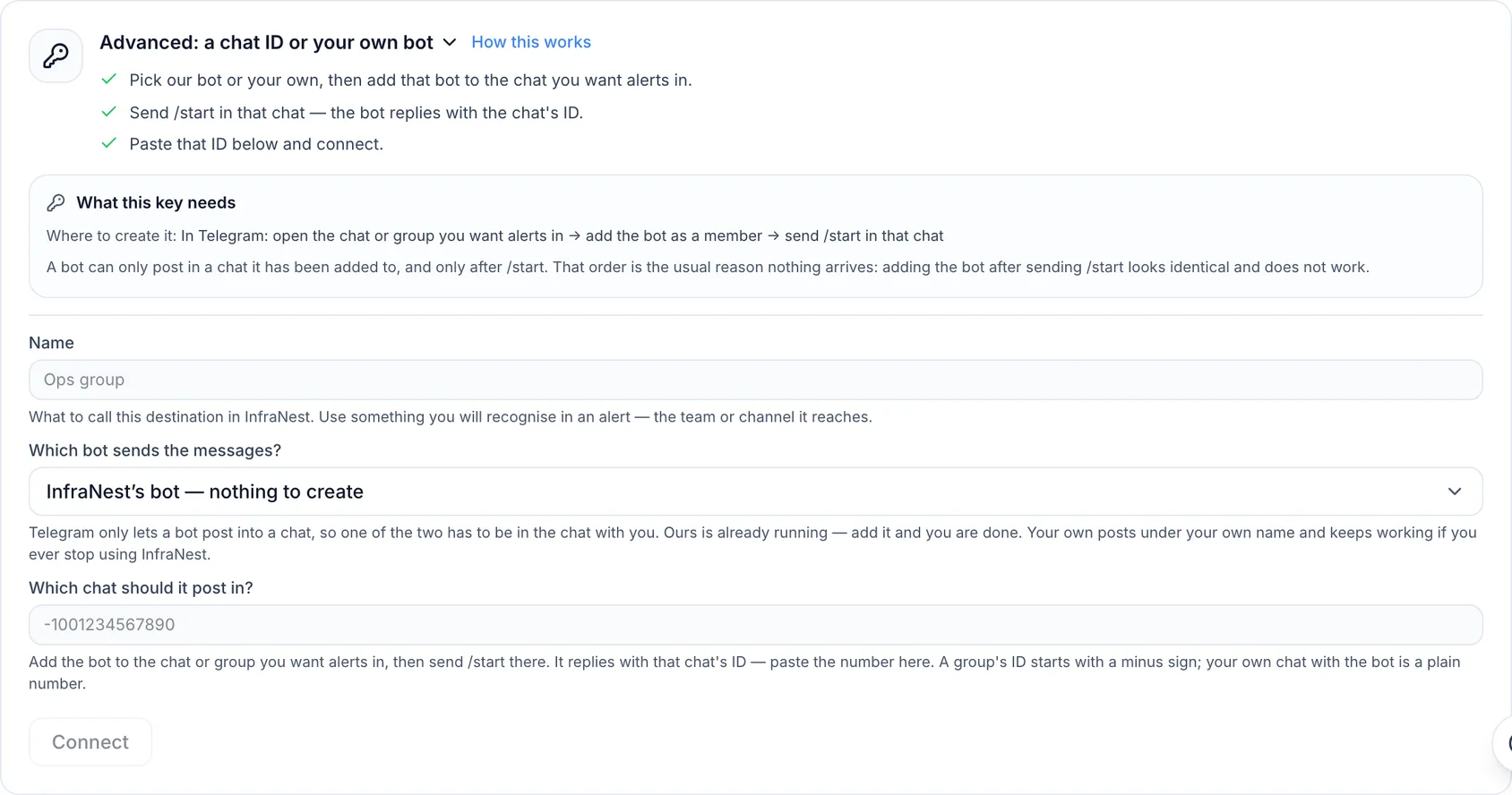
WarningOrder matters: a bot can only post in a chat it has been added to, and only after
/starthas been sent there. Adding the bot after sending/startlooks the same but doesn't work — this is the most common reason alerts don't arrive.
With the InfraNest bot and a chat ID
- In Telegram, open the chat or group you want alerts in and add the InfraNest bot as a member.
- Send
/startin that chat. The bot replies with the chat's ID, for example-1001234567890. - In InfraNest, under the advanced option, give it a Destination name (for example Ops group), leave the sending bot set to InfraNest's own, and paste the ID into the Chat ID field.
- Click Connect.
A group added this way behaves like one added from the link: removing the InfraNest bot removes the destination, and InfraNest follows it if it becomes a supergroup.
With your own bot
- In Telegram, message @BotFather, send
/newbot, and follow its prompts. It gives you a Telegram bot token like123456789:ABCdef.... - Add your own bot to the chat or group, then send
/startthere. - Get the chat's ID — one way is to briefly add the InfraNest bot to the same chat and send
/start; it replies with the ID. - In InfraNest, under the advanced option, choose Use your own Telegram bot, paste Your bot's token and the Chat ID, then click Connect.
Buttons under alerts only work with the InfraNest bot — taps on your own bot go to your bot, not to InfraNest. Alerts sent from your own bot arrive without buttons.
Tips
- Your bot token is stored securely and never shown again after saving.
- A group only gets the team's alerts, not anyone's personal notifications — those go only to each person's own linked Telegram.
Troubleshooting
- The bot says the group can't be added: the person who started the connection may no longer have permission to add destinations, or your plan has no room for another chat destination.
- The link has expired: start again from Add a Telegram group — links only work once, for 15 minutes.
- Buttons don't appear, or alerts don't arrive from your own bot: this usually means the bot was added to the chat after
/startwas sent, rather than before.
Was this article helpful?