

Automate paging and incident reactions with PagerDuty, built for anyone setting up on-call automation in InfraNest — no coding needed.
Overview
- Page your on-call team for anything, not just a monitor going down.
- React inside InfraNest whenever a responder acts in PagerDuty — acknowledges, resolves, escalates, reassigns and more.
- Works alongside (but separately from) monitor-driven paging, which needs no automation at all.
NoteAutomations use a PagerDuty account connected under Integrations → PagerDuty. Paging from a monitor needs no automation — connecting the account sets that up automatically.
Before you start
- Go to Integrations, then PagerDuty, and connect your account. See Connect PagerDuty for the full steps.
- Know what each connection type gives you:
- Actions (paging, acknowledging, resolving) work with any connected account.
- Triggers need PagerDuty to report back — one-click connect sets this up for you automatically. If you connected with a pasted integration key, you'll need to create the webhook yourself first.
- Incident actions like adding a note, escalating or reassigning, plus the on-call placeholders, need an account connected with one click.
- If you ever disconnect the account, any automations using it are switched off (not deleted), and you'll get a notification listing them.
React to PagerDuty (triggers)
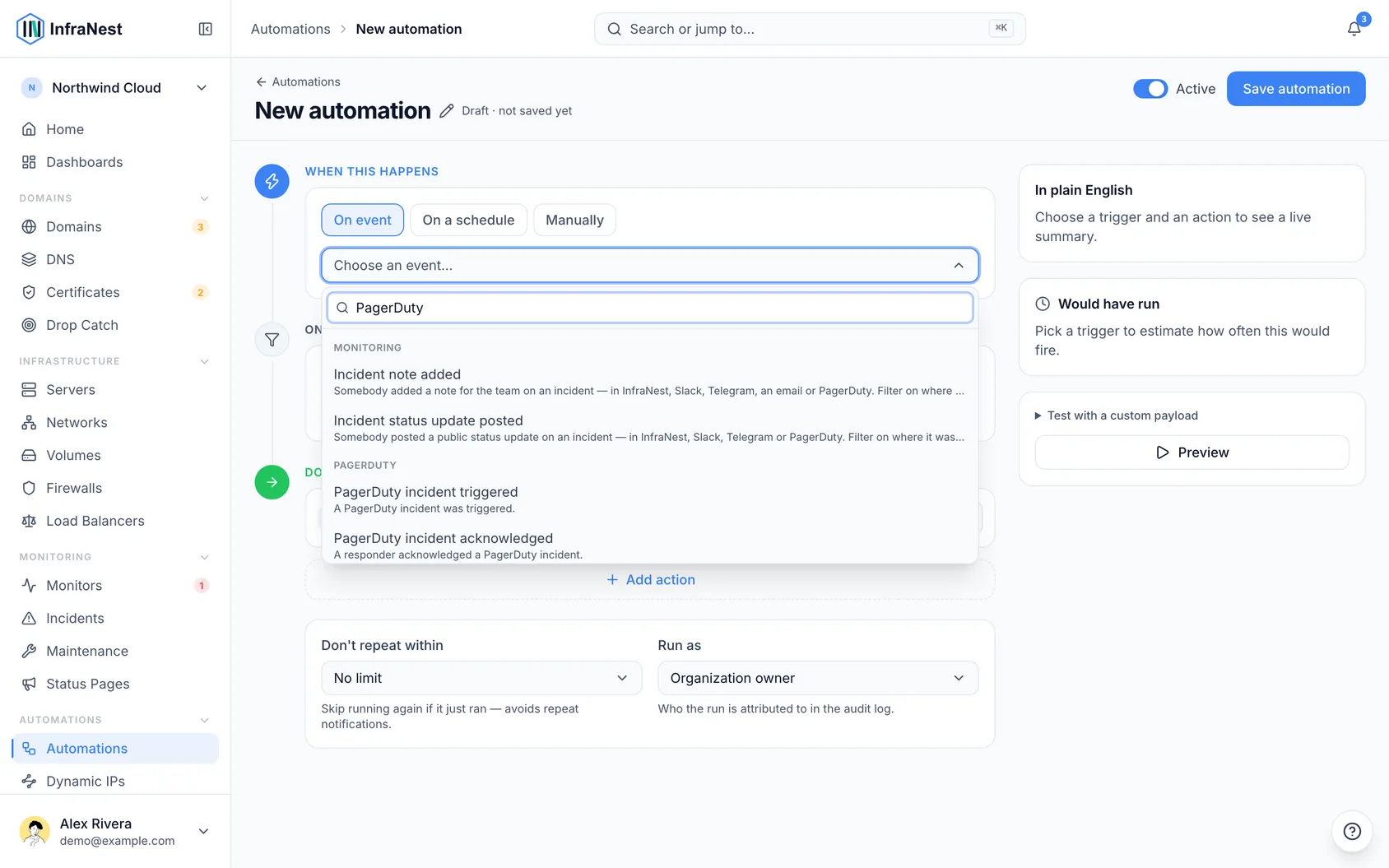
- Start a rule and choose When this happens.
- Pick a PagerDuty trigger, such as:
- PagerDuty incident triggered
- PagerDuty incident acknowledged
- PagerDuty incident unacknowledged
- PagerDuty incident resolved
- PagerDuty incident escalated
- PagerDuty incident reopened
- PagerDuty incident reassigned
- PagerDuty incident delegated
- PagerDuty incident priority changed
- PagerDuty responder requested
- PagerDuty responder replied
- PagerDuty incident note added
- PagerDuty incident type changed
- PagerDuty custom fields changed
- Use the information each trigger hands your rule — most give you the incident's title, a link to the incident, its PagerDuty incident ID, the service, urgency, priority, assignees and escalation policy. Some add extras: responder triggers include the responder, their answer and the request's message; the note trigger includes the note; the incident-type trigger includes the new type; the custom-fields trigger includes every field and which ones changed.
- Remember that only acknowledging and resolving in PagerDuty changes an incident back in InfraNest. The rest simply start your rules without touching your InfraNest incidents.
NoteThese triggers arrive over the same connection used for two-way sync, so they need that one-time setup. If you connected with Connect PagerDuty, turn on inbound synchronization and InfraNest wires up the webhook for you — if it's missing newer events, run Check setup to add them without losing your existing address or signing secret. If you connected with an integration key, you'll need to create and subscribe the webhook yourself to the listed event types.
Page PagerDuty (actions)
- Under Do this, select Add action.
- Choose one of the PagerDuty actions:
- Trigger PagerDuty incident — set a summary, a severity (critical, error, warning or info), an optional grouping key, and any routing fields.
- Acknowledge PagerDuty incident — by its grouping key.
- Resolve PagerDuty incident — by its grouping key.
- Optionally choose a Service for the action. Leave it empty to use the account's default service (the first one you added).
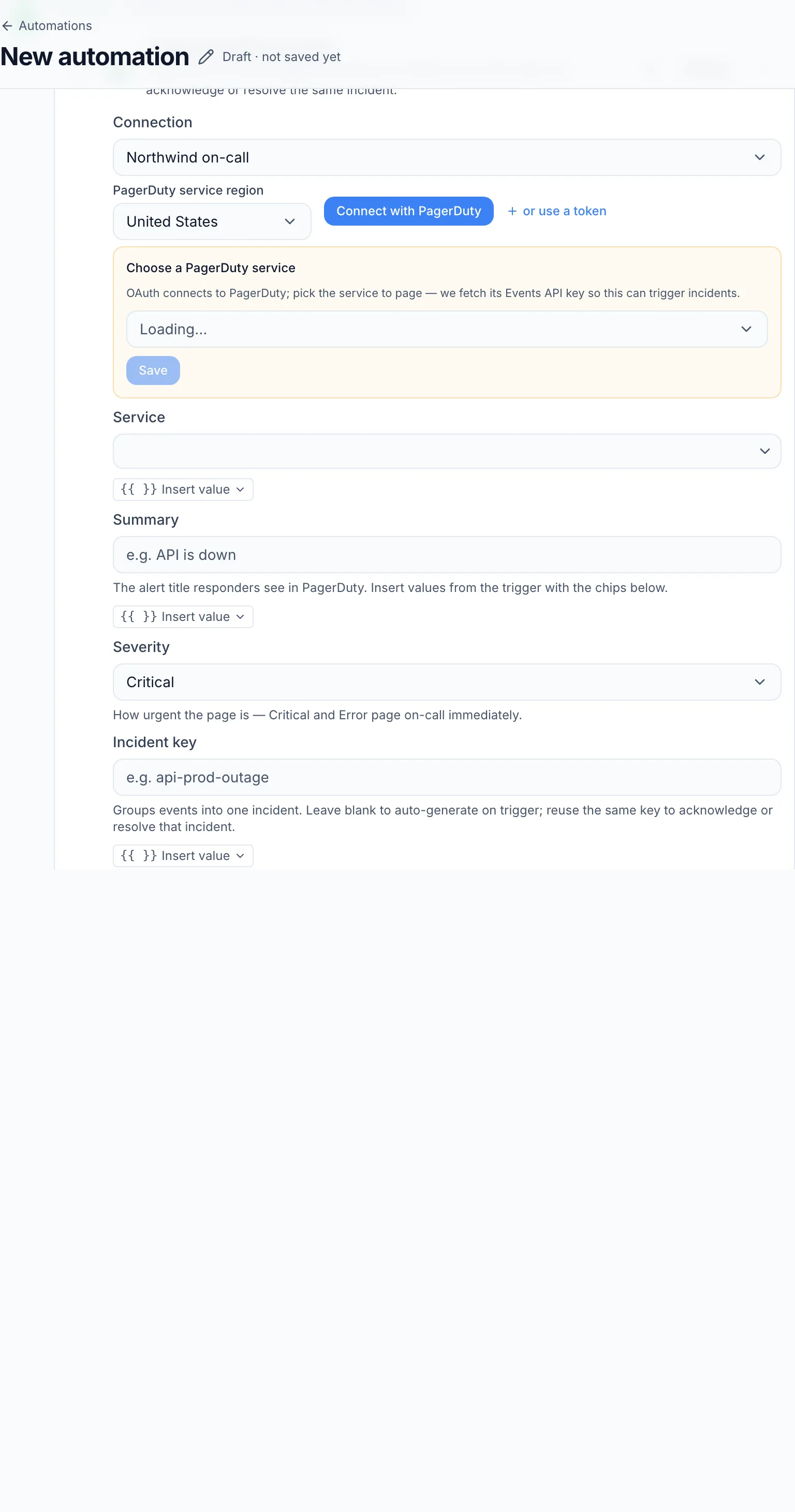
- Fill in the routing fields if you want PagerDuty to send the incident to the right people:
- Component — the part of your system affected, such as
checkout-db. - Group — a wider grouping like a team or product area, such as
database. - Class — the kind of problem, such as
high latency. - Link — a web address (must start with
https://orhttp://) shown next to View in InfraNest, such as a runbook.
- Component — the part of your system affected, such as
- Decide how to use the grouping key:
- Leave it blank when triggering and InfraNest generates one, so later steps in the same rule can acknowledge or resolve that exact incident.
- Set it yourself (a placeholder works well) when a separate, later rule needs to resolve an incident an earlier rule opened.
TipTrigger the same grouping key twice and PagerDuty updates the existing open incident instead of paging again.
- To mention who's on call, use the placeholders
{{pagerduty.oncall_name}}and{{pagerduty.oncall_email}}in a Send notification message, available on incident triggers. Test shows the real names. These are empty when no service pages the monitor, the incident has no first level, or PagerDuty won't say.
Examples
- A certificate expires in 3 days → Trigger PagerDuty incident at warning severity, keyed to the domain.
- A backup job failed → page on-call, then Resolve PagerDuty incident with the same key once the next run succeeds.
- A PagerDuty incident was acknowledged → Post status-page announcement saying someone is on it.
- A PagerDuty incident escalated → Send notification to your team channel.
- A PagerDuty incident's priority changed to P1 → Post status-page announcement and notify your incident channel.
- A note was added to a PagerDuty incident → send it to Slack so people outside PagerDuty see the update.
- A domain is about to expire and auto-renew is off → page on-call rather than sending another email nobody opens.
Tips
- A cooldown on a PagerDuty rule applies per incident — while one incident is inside its wait time, a different incident still runs the rule normally.
- Severity is yours to choose per action; monitor-driven paging maps severity from the monitor's state instead.
- Some actions may require a higher plan — these show a Pro badge in the builder.
Troubleshooting
- If a PagerDuty trigger never fires, check that the webhook in PagerDuty is subscribed to that event type.
- If routing fields like Link don't appear on the incident, check the address starts with
https://orhttp://— anything else is left off, though the incident is still created.
Was this article helpful?