

Integrations connect your provider accounts — like Hetzner, Cloudflare or AWS — to InfraNest, so your servers, domains, DNS and certificates all appear in one place. This article is for anyone setting up or managing those connections.
Overview
- Integrations bring in what you already have with a provider and keep it in sync automatically.
- A single connection can cover several areas at once: Cloud, DNS, Domains and Certificates.
- You'll only see actions a provider actually supports — anything it can't do is greyed out.
What an integration does
When you connect a provider, InfraNest brings in the things you have there and keeps them in sync. Each provider can cover one or more areas:
- Cloud — your servers, firewalls, volumes, networks and load balancers.
- DNS — your DNS zones and records.
- Domains — your registered domains and actions like renew, transfer and nameservers.
- Certificates — your SSL certificates, added to your certificate list.
One connection can cover several of these at once. You only see the actions a provider actually supports — anything it can't do is greyed out.
Connect a provider
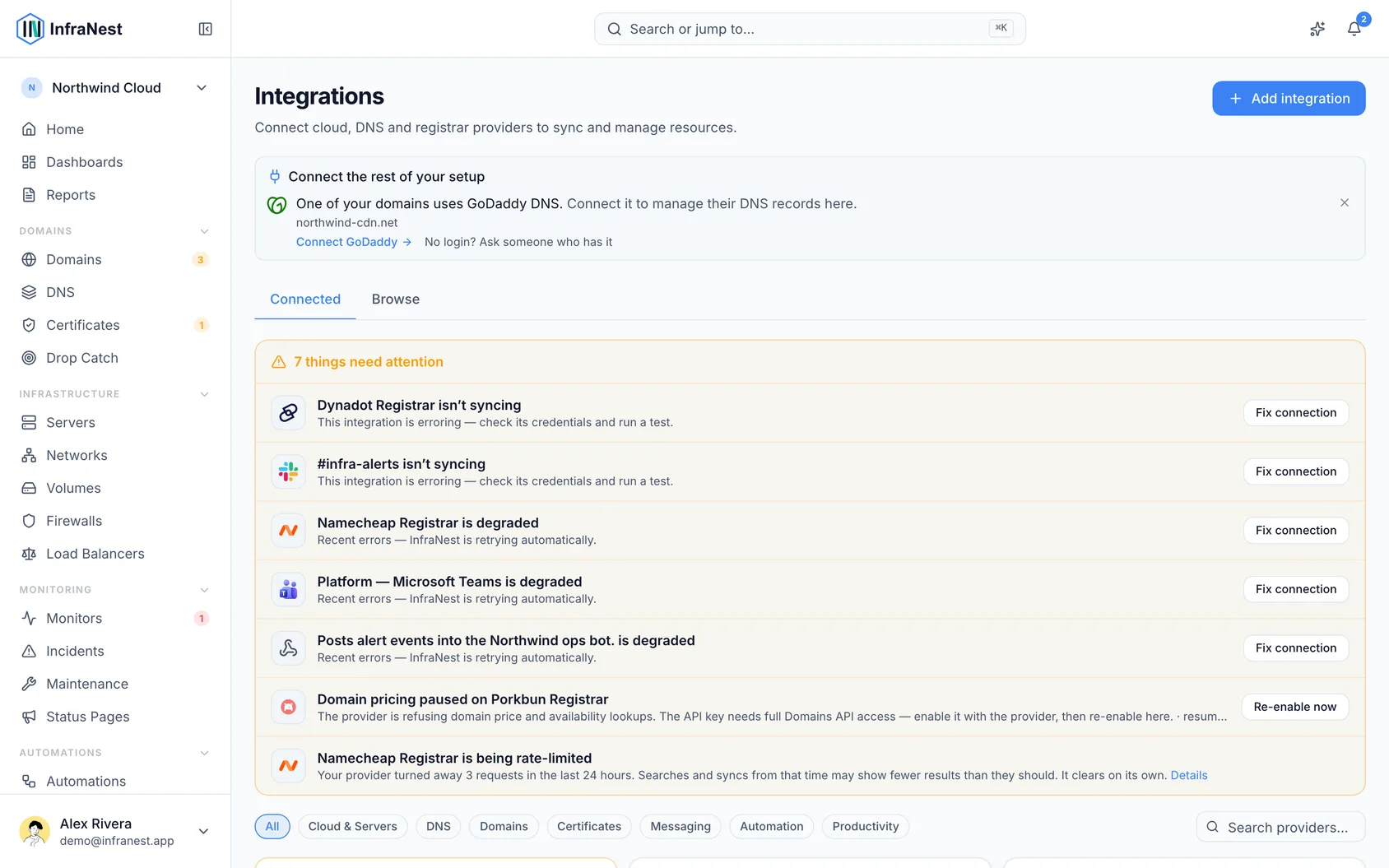
- Open Integrations and pick a provider to see what it does and connect it. Each provider tells you exactly which details it needs.
- Choose the features you want the connection to cover, and give it a label so you can recognise it later.
- Press Connect. InfraNest checks your key straight away — if something's missing, such as a permission, you'll see what the provider said and a link to fix it.
- If the provider doesn't answer right away because it's busy or briefly down, InfraNest saves the key anyway and checks it again during the first import, so you don't have to make a new one.
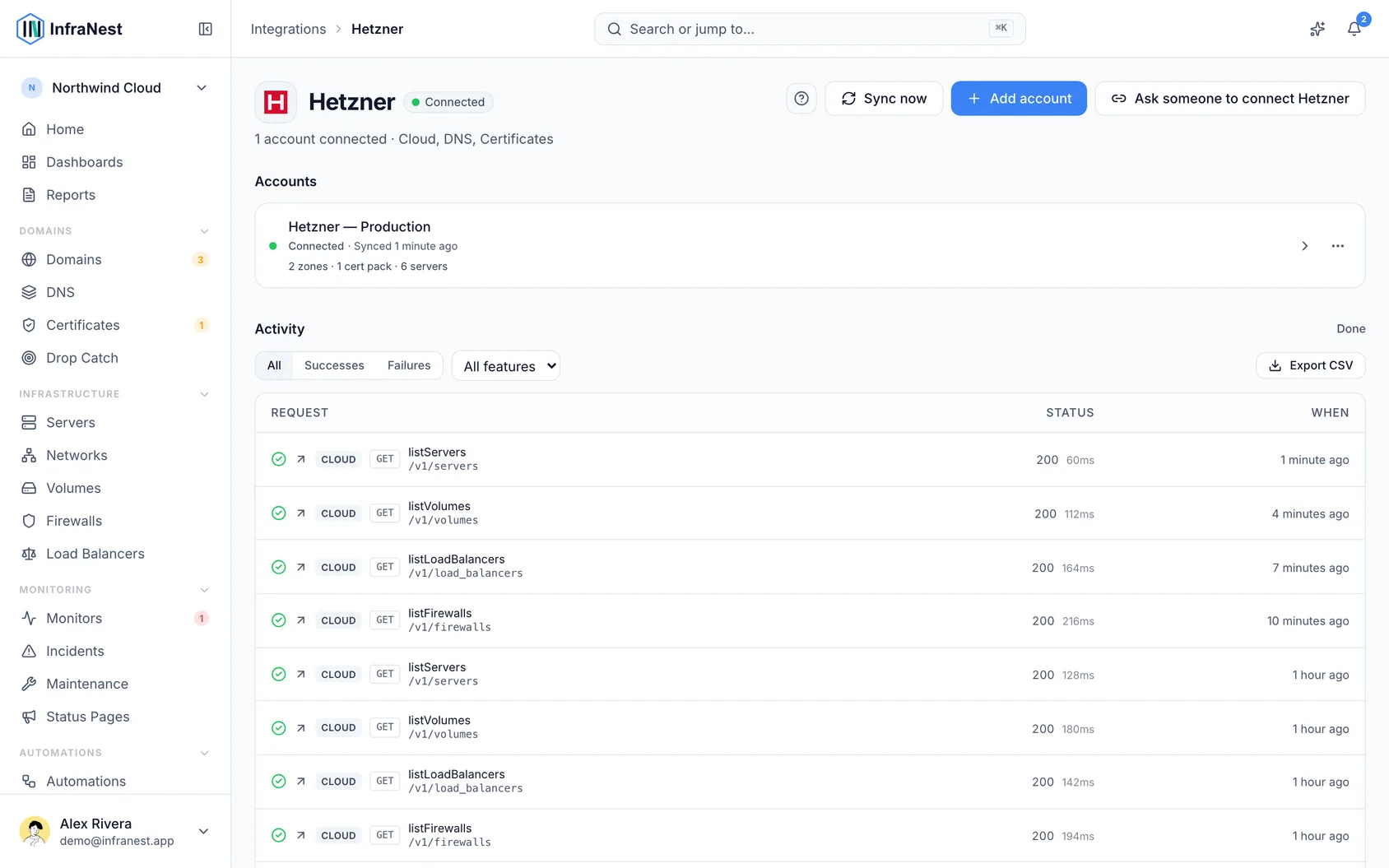
You can connect more than one account of the same provider — for example two Hetzner projects. Every connection has a health indicator, syncs on a schedule, and can be refreshed on demand with Sync now. If a sync fails, you'll be alerted.
NoteYour credentials are stored encrypted and are never shown again after you save them.
Make the API key
- Open the connect form for your provider — it walks you through numbered steps.
- Follow the link straight to the page where the key is made on the provider's site.
- Tick the exact permissions listed. If the provider's keys have no permissions to choose, the form says so.
- Paste the key in and press Connect to have it checked immediately. Nothing is saved until the key works.
Act on a suggestion
At the top of Browse, InfraNest suggests up to three next steps, each based on something already in your workspace — never advertising — with an explanation such as "23 of your domains use Cloudflare DNS." Under each suggestion you'll see a few of the domains it's based on.
- If you see Turn on, your account with that provider can already do the job but the feature is switched off — one click switches it on for the account named in the suggestion. No new key needed.
- If you see Connect, this opens the connect page for a provider your domains use that you haven't connected yet.
- If you see See plans, connecting that provider needs a different plan.
- If you can't change integrations yourself, the suggestion opens the provider's page so you can see what it involves.
- Close a suggestion with the × if you don't want to see it again — this applies across your whole team, and also on the Domains list and the setup page.
Featured is different: it's the InfraNest team's own picks and has nothing to do with your account. InfraNest only ever suggests providers you can connect.
Turn on more from what you've connected
- Scroll to Connected under your cards.
- Review the features your connected accounts already support but have switched off — for example, certificates on a Cloudflare account that only does DNS.
- Check any automations listed that work with what you've already connected.
- Turn one on the same way as a suggestion. This section is hidden while you search or filter.
Explore an integration's page
- Click an integration to open its page.
- Check Overview for what the integration does and what you can automate with it. Once connected, it shows four cards: Health, What it does for you, Next steps and Recent activity. If an account has stopped working, the first next step is to fix it.
- Open Connections & settings to see your accounts, channels or endpoints. Each one has its own settings behind Manage — an account's page has three tabs: Status, Access & features and Account.
- Open Activity to see what happened: requests InfraNest made, alerts it sent, or deliveries to your endpoints.
Right after you connect a provider, the page shows what's being imported and how far it's got, for example "DNS: importing — 8 zones so far." You can leave the page while it runs. A tab only shows up when there's something in it — for example, a calendar feed has no Activity tab, because nothing is sent anywhere.
Ask someone else to connect it
If someone else holds the account, like your IT team or an agency, you don't need their password.
- Open the provider under Integrations and choose Don't have the login? Ask someone who does, next to Connect. You'll also find this on the connect form next to a suggested connection, and on parts of Your stack on Home.
- Read what the dialog says before making the link: it allows connecting this one provider for your workspace, once, until a date three days away. They won't see your monitors, domains or anything else, and they don't need an InfraNest account.
- Choose Copy link to send it yourself — through Teams, WhatsApp or your ticket system — or type their address and choose Email it. The email names you and your address, says what the link can and cannot do, and how to check it's genuine.
- Wait for them to connect it. You'll get a notification and an email. The audit log shows who asked and who connected it.
WarningThe link works once and expires after three days. You can Revoke it from the same place until it's used.
If your plan can't take another connection, you'll see that when you create the link, before anyone is sent anywhere.
Available integrations
- Cloud, DNS, domains and certificates: Hetzner, Cloudflare, Amazon Web Services, TransIP, GoDaddy, IONOS, Namecheap, SSL.com.
- Alert destinations: Slack, Microsoft Teams, Telegram, Discord.
- Automation tools: Zapier, Make, n8n, Power Automate, or any system of your own with a custom webhook.
Each integration has its own Connect guide with the exact steps.
Tips
TipLook under Connected first before setting up a new provider — you might already have a feature switched off that you can turn on in one click.
Was this article helpful?