

Connect your Dynadot account to InfraNest so you can manage your Dynadot-registered domains — renewals, nameservers, transfer lock, WHOIS privacy and contacts — all from one place, and use Dynadot as a registrar when catching a dropping domain.
Overview
- View and manage every domain registered in your Dynadot account, right from InfraNest.
- Handle renewals, auto-renew, nameservers, transfer lock and WHOIS privacy without switching tools.
- Use Dynadot as a target registrar in Drop Catch.
- Manage DNS zones and records for domains that use Dynadot's nameservers.
NoteYou'll need a Dynadot API key and secret (API v2) before you start. See Create a Dynadot API key for the steps.
Connect Dynadot
- Go to Integrations and open Dynadot.
- Give the connection an Account label so you can recognise it later. This is optional.
- Paste your API key and API secret.
- Optionally paste the Webhook key and Webhook secret so Dynadot can tell InfraNest about changes as they happen — see Create a Dynadot API key.
- Select Connect.
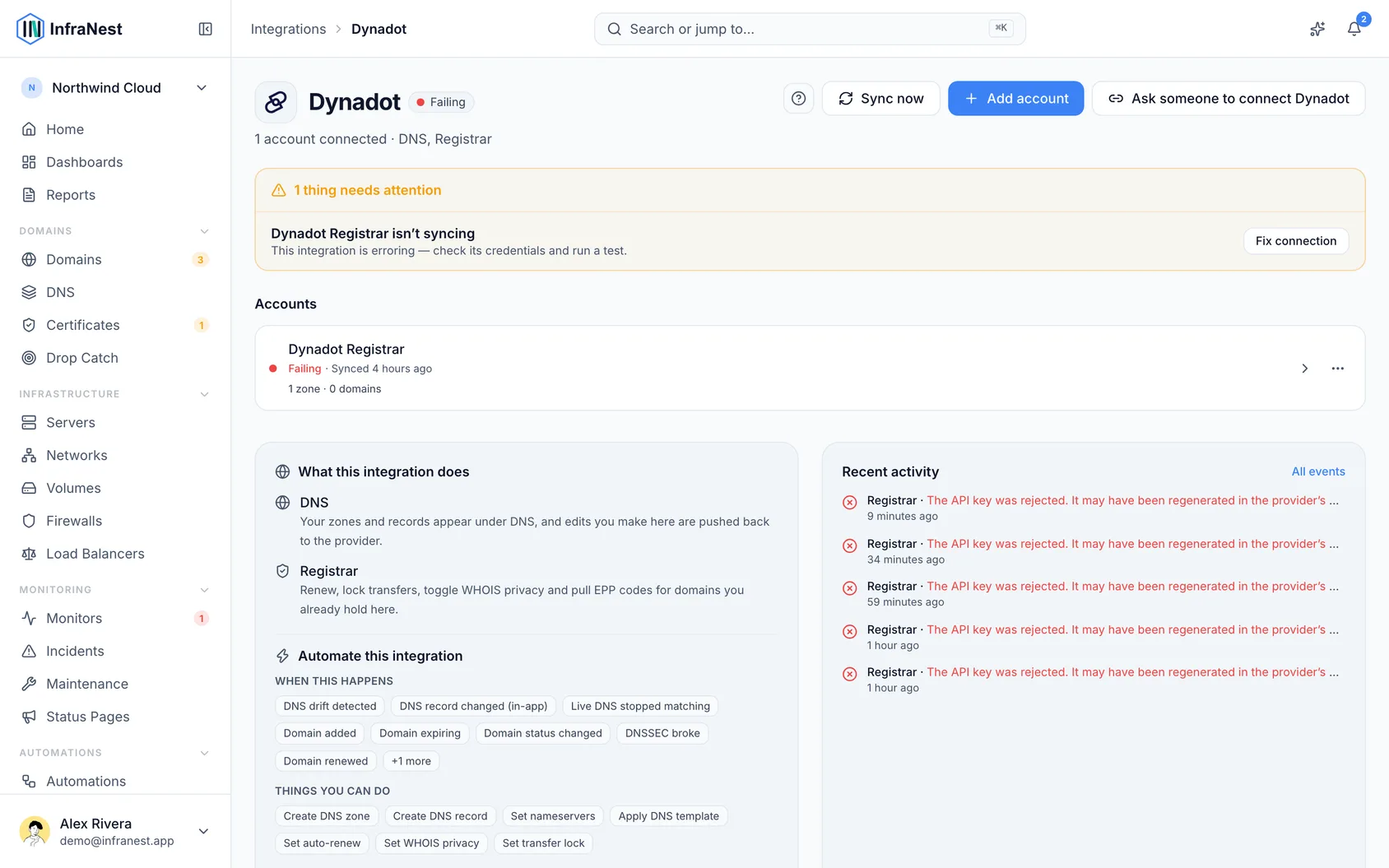
InfraNest checks the credentials and starts importing your domains.
What you can do once it's connected
- See every Dynadot domain with its expiry, status and nameservers.
- Renew a domain, and switch auto-renew on or off.
- Change nameservers, transfer lock and WHOIS privacy.
- Register a domain, and use Dynadot as a target registrar in Drop Catch.
- Manage DNS zones and records for domains registered at Dynadot and using its nameservers.
Tips
- Which actions are available depends on the domain's extension — anything Dynadot doesn't support for that TLD is greyed out with the reason.
WarningDynadot has no way to change a single DNS record: saving one rewrites the whole zone. If you edit the same zone here and in the Dynadot panel at the same time, the last save wins — so pick one place to make changes at a time.
Troubleshooting
- "Authentication failed" — the key or secret is wrong, or the key was removed. Create a new one in Dynadot and reconnect.
- A domain is missing — it may be in another Dynadot account; connect that account too.
- Dynadot is a registrar — if your DNS is hosted elsewhere, connect that provider separately.
Was this article helpful?