

Use this if you can't install the InfraNest Automations app on GitHub — a personal access token lets your automations act on GitHub as a fallback. This article is for anyone connecting GitHub without app access.
Overview
- A token lets InfraNest automations act on GitHub (open issues, run workflows, merge pull requests, set statuses, and more).
- Installing the app is still the recommended way — see Connect GitHub. A token is a fallback for when your GitHub account or organisation doesn't allow installing apps.
- With a token, GitHub events (pushes, pull requests, workflow runs, releases) can't start your automations — only the app can hear about those.
- A token reaches every repository you can access, rather than just the ones you pick, and it expires and needs replacing.
NoteIf you choose a GitHub trigger while only a token is connected, the automation builder will warn you, since tokens can't start automations.
Create the token on GitHub
- On the GitHub connect screen in InfraNest, under API token, select Open the token page. GitHub opens a new classic token named InfraNest, with the repo scope already ticked. To do it by hand instead: on GitHub, open Settings → Developer settings → Personal access tokens → Tokens (classic), select Generate new token (classic), name it and tick repo.
- Choose an expiry date.
- Select Generate token and copy it. GitHub shows it only once.
WarningIf your organisation uses single sign-on (SAML) on GitHub, next to the token select Configure SSO and Authorize it for that organisation. Without this step, GitHub refuses the token for the organisation's repositories.
Connect it in InfraNest
- Go to Integrations and open GitHub.
- Select Connect (or Add account if you've already connected one).
- Under API token, paste the token into Personal access token and select Connect.
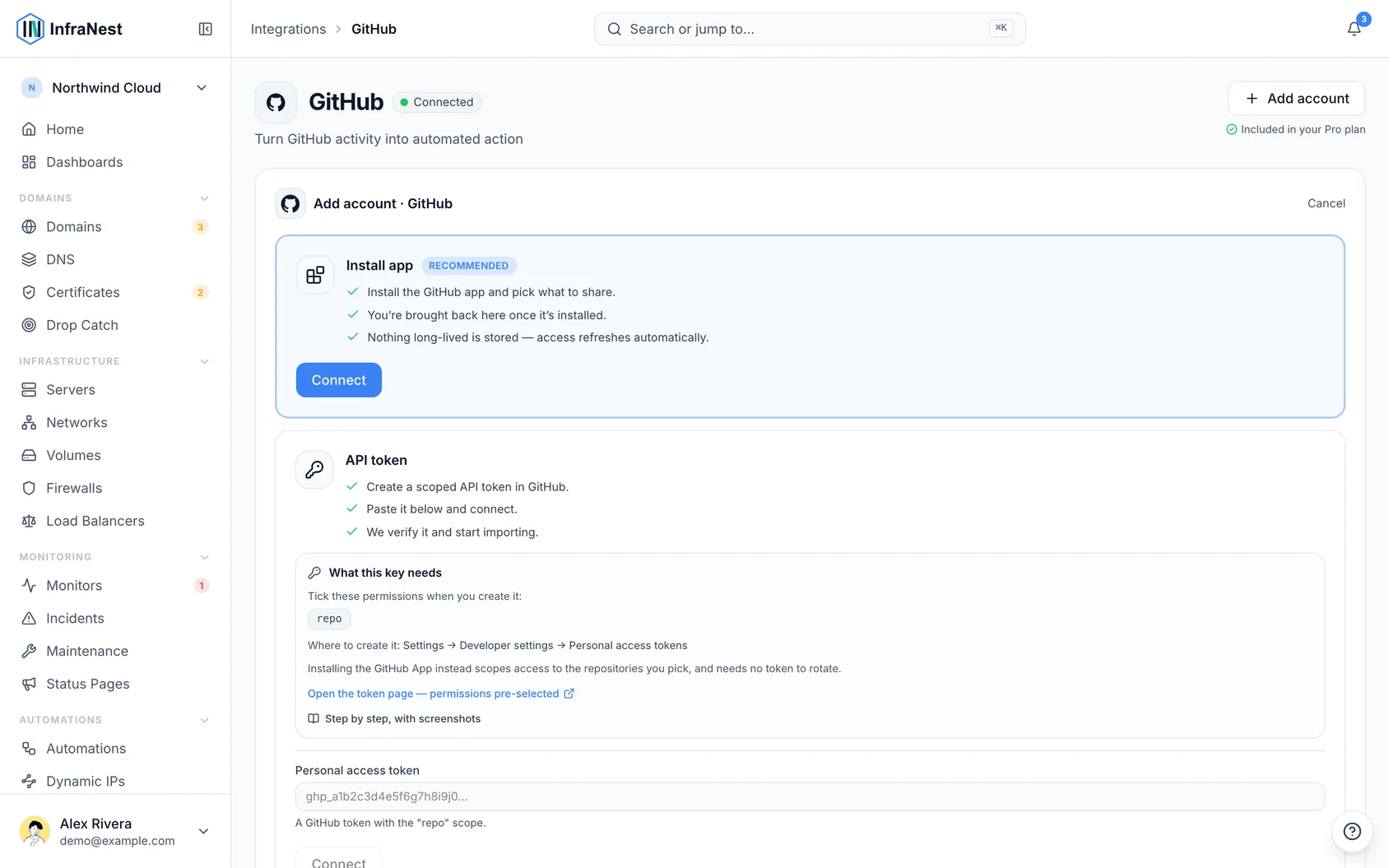
InfraNest checks the token with GitHub before saving it. The connection then appears under Accounts with your GitHub username.
Use it in an automation
- In the automation builder, add any GitHub action under Do this.
- Choose this connection.
- Fill in the repository fields — they'll suggest the repositories your token can reach.
With a token, the team picker can't list your organisation's teams, so requesting a review from a team is easiest with the app installed on the organisation. Requesting reviews from people works either way.
Replace an expiring token
GitHub emails you before a token expires. After the expiry date, the GitHub steps in your automations fail until you replace it.
- Create a new token on GitHub, as described above.
- Connect it in InfraNest. It shows up as a second account.
- In each automation that uses GitHub, choose the new connection in its GitHub steps and save.
- Disconnect the old one.
Disconnect
- Open GitHub in Integrations.
- Go to Accounts.
- Select Disconnect next to the token connection.
This removes the token from InfraNest, but it doesn't delete it on GitHub: delete it there yourself under Settings → Developer settings → Personal access tokens.
Tips
- InfraNest works with GitHub.com. GitHub Enterprise Server (self-hosted GitHub) isn't supported.
- Your token is stored securely and never shown again.
- Anything an automation does on GitHub is done as you, so it appears under your name on GitHub.
Was this article helpful?