

Connect PagerDuty so the right person is paged the moment a monitor, domain, certificate or server needs attention — this is for anyone who runs on-call with PagerDuty and wants InfraNest to page it automatically.
Overview
- Pages whoever is on call: an outage pages at Critical only, a slowdown at warning level.
- Closes the PagerDuty incident automatically once the problem recovers — nobody has to resolve it by hand.
- Works in either tool: acknowledge, resolve or add a note in PagerDuty or InfraNest, and the other one follows.
- Shows who's on call right on your monitors and incidents, without opening PagerDuty.
- Carries the monitor's name, tags, impact and your custom fields, so PagerDuty can route it correctly.
- Can trigger automations, such as posting to a status page when an incident escalates.
NoteBoth PagerDuty's United States and European Union regions work with InfraNest.
Requirements
- You need to be an InfraNest Owner or Admin.
- For one-click connect, InfraNest must first be installed on your PagerDuty account by a PagerDuty Admin or Account Owner (a one-time step). After that, anyone who can add integrations to a service can connect.
- No PagerDuty admin available, or running a self-hosted InfraNest? Use Set it up yourself below instead — it works on any PagerDuty plan.
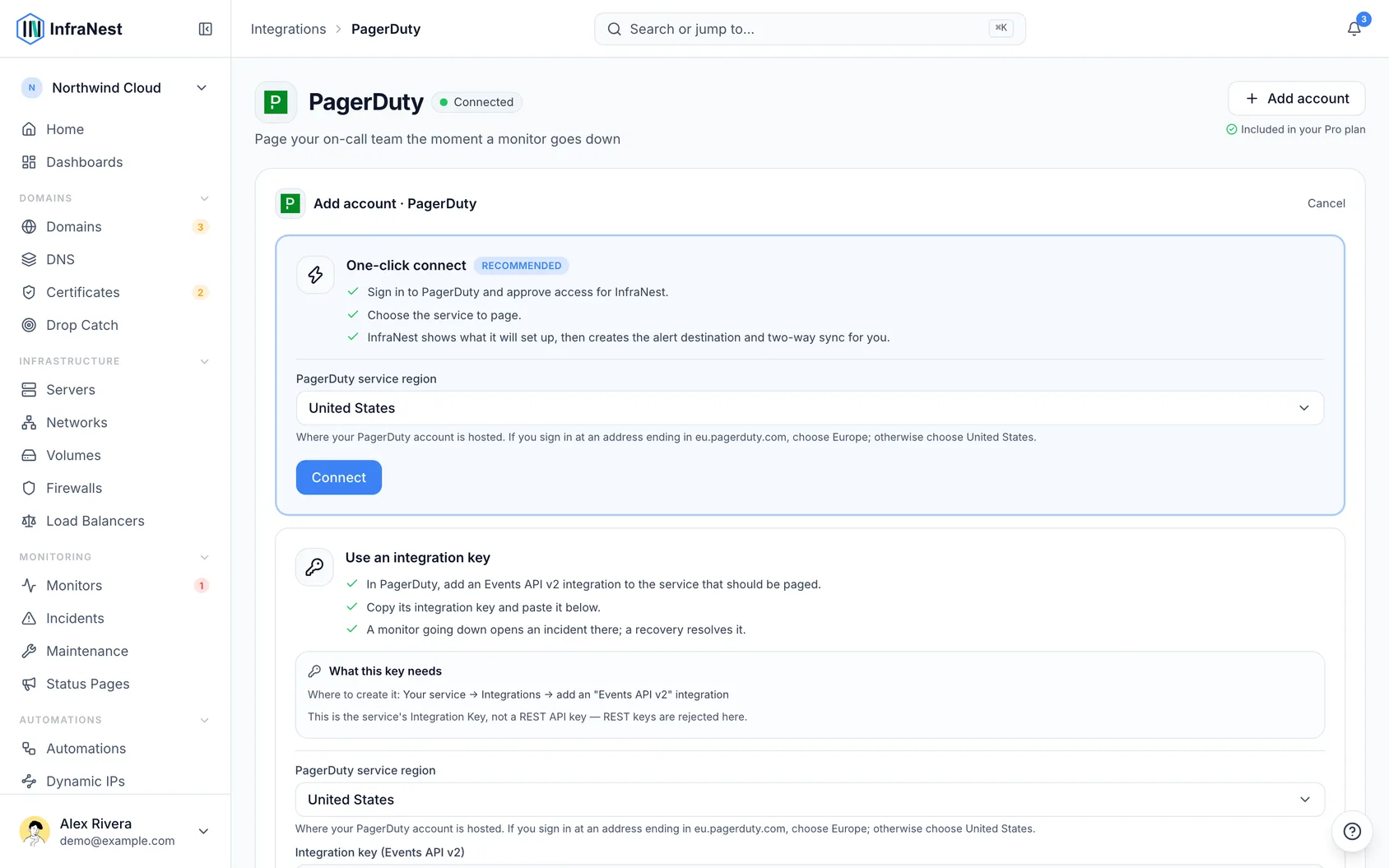
Connect with one click
Step 1 — install InfraNest on your PagerDuty account (once, by a PagerDuty Admin). Skip this if someone already has.
- In InfraNest, go to Integrations and select PagerDuty.
- Under What connecting PagerDuty does, find the line that starts Before the first sign-in. Type your PagerDuty subdomain into the address — for example
acmeforacme.pagerduty.com, oracme.eufor an EU account. - Open that address yourself, or send it to a PagerDuty Admin or the Account Owner.
- In PagerDuty, they review the permissions InfraNest asks for and install it. It takes a minute and needs no InfraNest account.
Step 2 — connect.
- On the same PagerDuty page in InfraNest, set PagerDuty service region to European Union if your account is at
eu.pagerduty.com. Otherwise leave it on United States. - Select Connect. In the PagerDuty window, sign in if asked and select Authorize.
- Back in InfraNest, choose the service to page.
- Read what InfraNest will set up, then select Finish this PagerDuty installation. Each step shows its own progress.
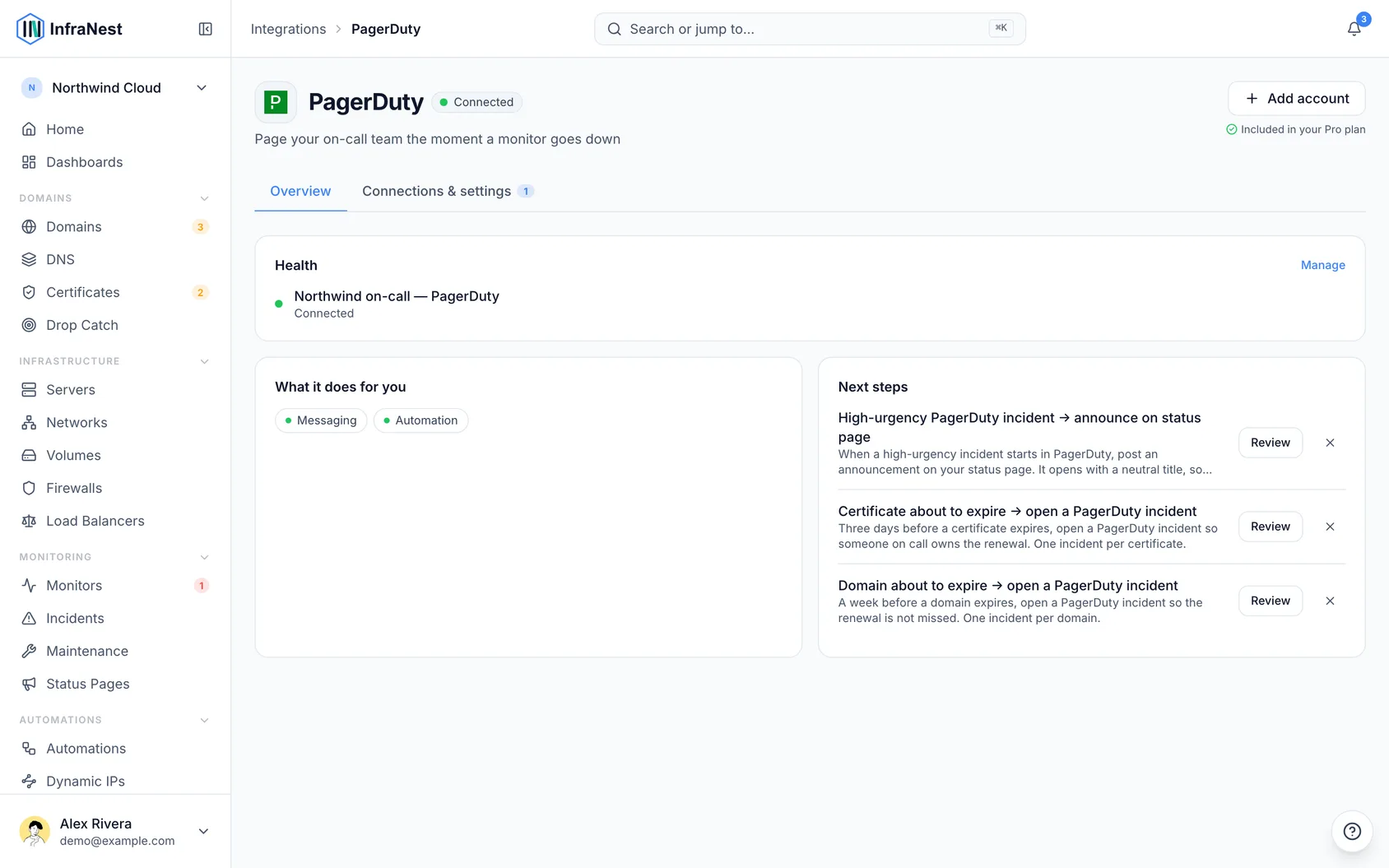
If a step needs a role you don't have (most often the webhook, which needs a PagerDuty Admin), InfraNest tells you before you finish, sets up everything else, and lets you send an admin a link to complete that one step.
When it's done, the account shows its services, each with a Ready · {name} status.
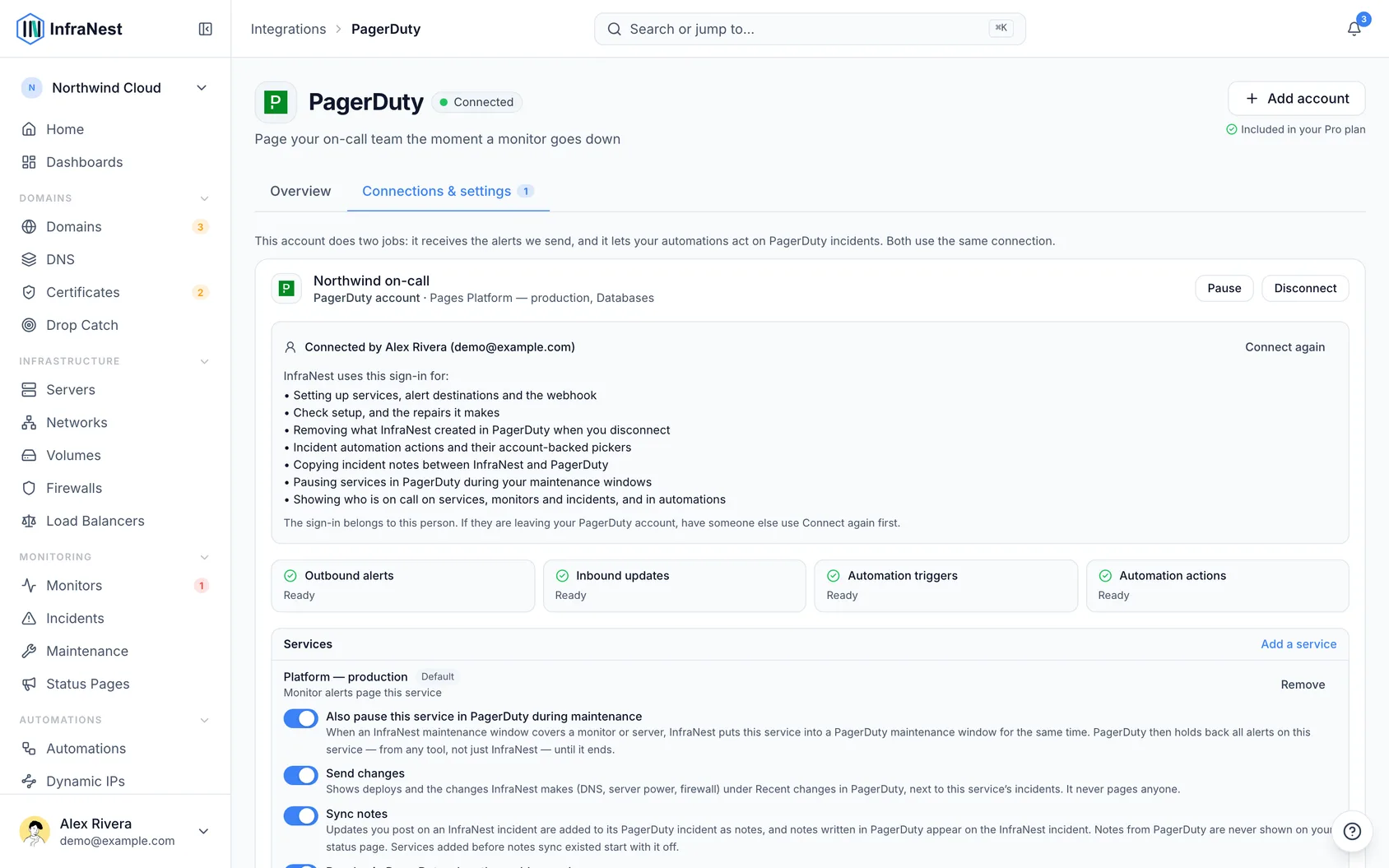
Set it up yourself
In PagerDuty
- Open Services → Service Directory and select the service to page.
- On its Integrations tab, select Add an integration, choose Events API v2, and select Add.
- Expand the new integration and copy its Integration key (Events API v2) — a 32-character string.
In InfraNest
- Go to Integrations and select PagerDuty.
- Choose the PagerDuty service region, paste the Integration key, and select Connect.
- On the new account, select Send monitor alerts here.
To also get acknowledgements back from PagerDuty, see the guide on two-way sync for accounts connected with an integration key.
Check that it works
- On the account, select Send test incident.
- InfraNest opens a real incident on the service — on-call may be notified — and resolves it straight away.
- InfraNest tells you whether PagerDuty accepted it (PagerDuty accepted it) and whether it reported back.
WarningSend test incident creates a real PagerDuty incident and may notify whoever is on call.
Service settings
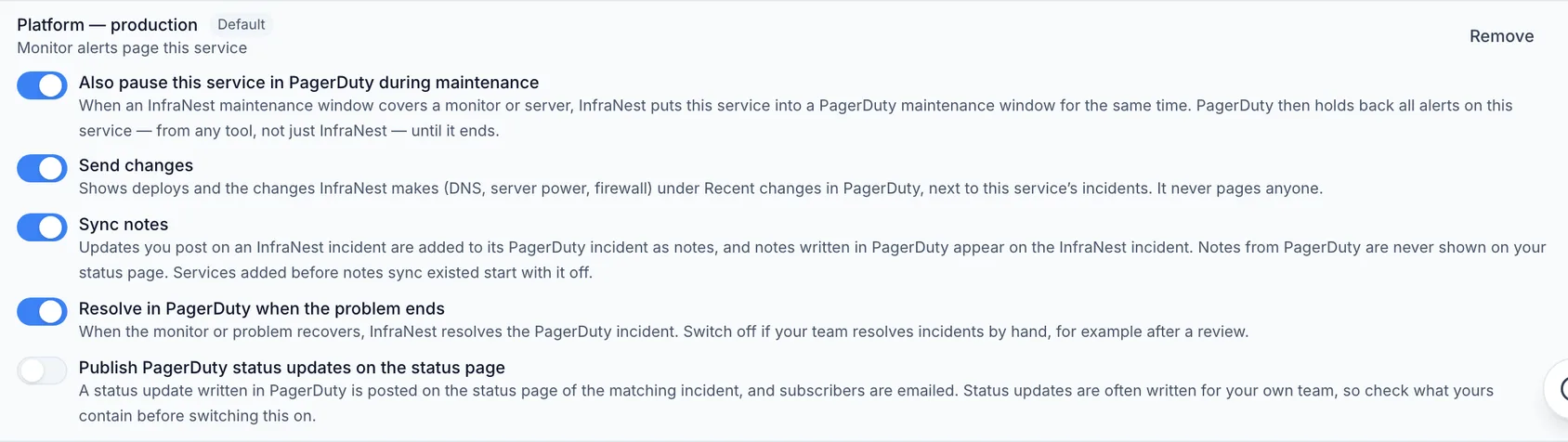
Each service on the account has its own switches, under Integrations → PagerDuty:
- Monitor alerts page this service — turns monitor paging on or off for that service.
- Resolve in PagerDuty when the problem ends — on by default; turn off to resolve incidents by hand.
- Sync notes — copies notes between InfraNest and PagerDuty.
- Send changes — shows InfraNest deploys and changes under Recent changes in PagerDuty; never pages anyone.
- Also pause this service in PagerDuty during maintenance — holds back alerts during an InfraNest maintenance window (needs one-click connect).
- Publish PagerDuty status updates on the status page — posts PagerDuty status updates to your public status page.
What InfraNest creates in your PagerDuty account
- One Events API v2 integration named InfraNest on each service you choose.
- One webhook for the account, so PagerDuty can tell InfraNest what happened.
- Maintenance windows, only on services where you turned pausing on.
InfraNest never changes your escalation policies, schedules, users, teams or other integrations, and only ever removes what it created.
Disconnect PagerDuty
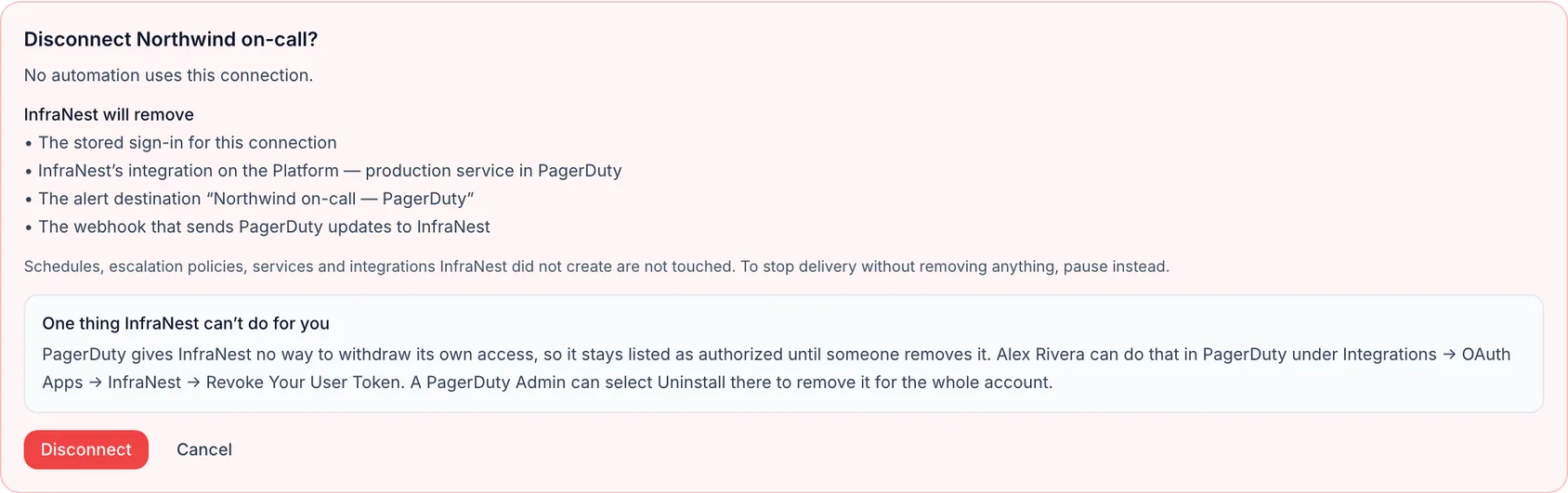
Go to Integrations → PagerDuty and select Disconnect on the account.
Review the list InfraNest shows: automations that will be switched off (not deleted), and everything it will remove from PagerDuty — its integrations, its webhook, and any maintenance windows that haven't started yet. A window already under way runs to its planned end.
Select Disconnect. If PagerDuty can't be reached, nothing is removed and you can try again.
If you connected with one click, also remove InfraNest's access inside PagerDuty — PagerDuty gives apps no way to do this themselves. The person who connected goes to Integrations → OAuth Apps → InfraNest and selects Revoke Your User Token. A PagerDuty Admin can instead select Uninstall there for the whole account.
If you set it up yourself, delete the InfraNest integration from the service's Integrations tab, and your webhook under Generic Webhooks (v3) if you made one.
TipTo stop paging for a while without disconnecting, select Pause. Resume carries on with nothing to set up again.
Troubleshooting
InfraNest won't accept the key. An Integration key is 32 letters and digits. You may have pasted a REST API Access Key instead (shorter, starting u+). Copy the key from the service's Events API v2 integration.
Nothing pages. Check that the account isn't paused and the service shows Monitor alerts page this service turned on, then select Send test incident.
I acknowledged in PagerDuty and InfraNest didn't change. Open the PagerDuty page in InfraNest — its activity lists each update PagerDuty sent and, when one wasn't applied, why. Most often the incident wasn't raised by InfraNest, or the account was connected with a key and two-way sync isn't set up.
Something InfraNest set up was changed or deleted in PagerDuty. Select Check setup. It compares what InfraNest created with what's there now, shows you the result first, and repairs only what InfraNest created — after you confirm.
The account says PagerDuty no longer accepts the sign-in, or that its access changed. The person who connected probably left your PagerDuty account, or their access changed there. Paging and two-way sync keep working. Select Connect again and sign in to the same PagerDuty account.
Was this article helpful?