InfraNestInfraNest

Discord

Connect Discord

Post InfraNest alerts into a Discord channel — handy for communities and teams that live in Discord.

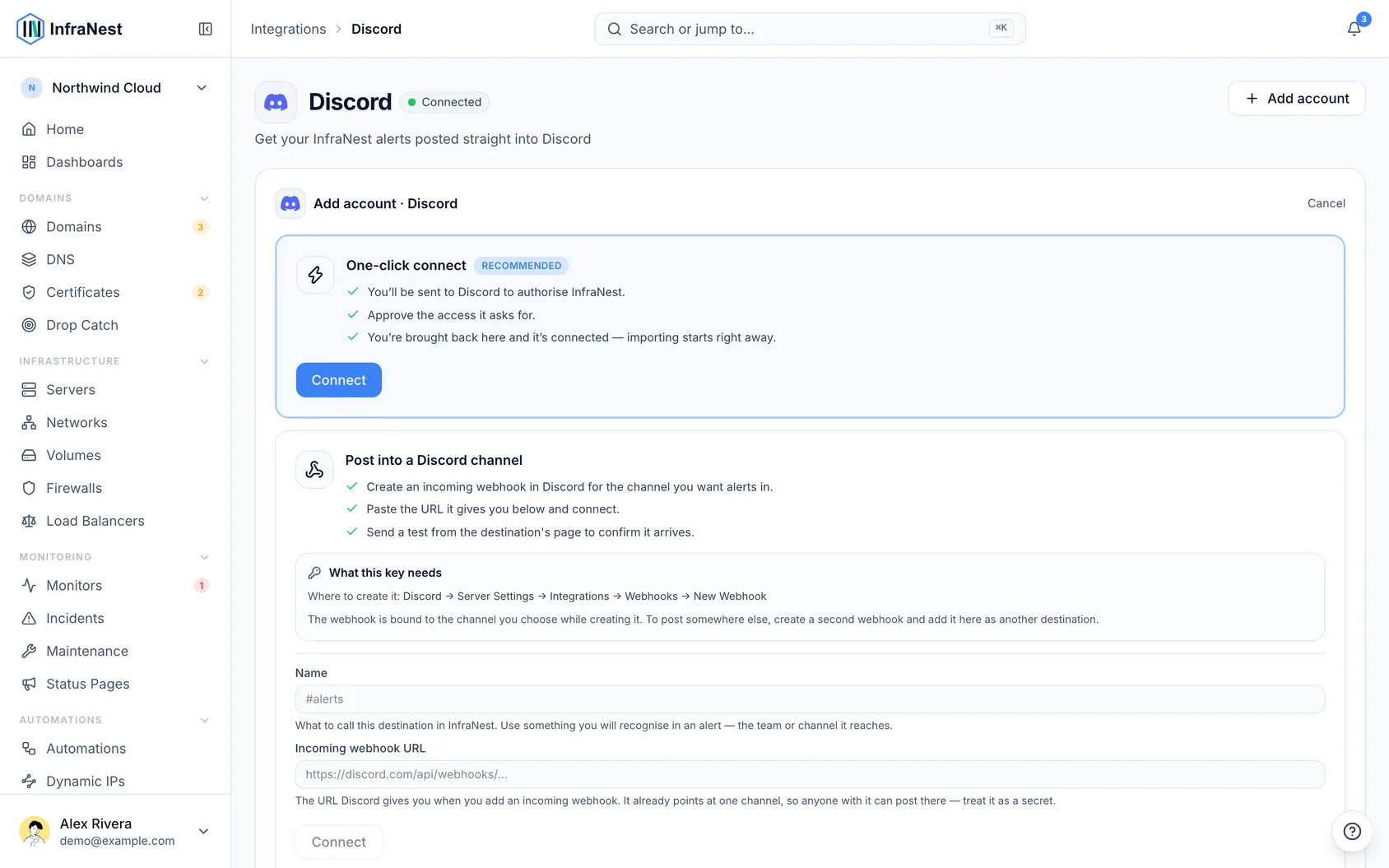
Connect Discord so InfraNest can post your alerts directly into a Discord channel — great for teams and communities that keep track of infrastructure together.

Overview

  • Sends alerts from InfraNest into a channel you choose in Discord.
  • Uses a webhook URL from Discord, so no login or bot setup is needed.
  • Each channel gets its own connection, so you can route alerts to different channels if you like.

Get a webhook URL from Discord

  1. In Discord, open the settings for the channel you want alerts posted to.
  2. Go to Integrations, then Webhooks.
  3. Select New Webhook, give it a name (like "InfraNest"), and pick the channel.
  4. Select Copy Webhook URL.

Connect Discord in InfraNest

  1. Go to Alert Channels.
  2. Select Add channel (or Add your first channel if this is your first one).
  3. Choose Discord.
  4. Paste the webhook URL into the Slack webhook URL field... actually, paste it into the Incoming webhook URL field.
  5. Select Send test to confirm the message posts in Discord.
  6. Once you see Test sent successfully, select Save & test, or select Skip test and save if you'd rather save without testing.

Connect Discord

Send alerts to this channel

  1. Go to Alert Channels and find your Discord channel.
  2. Select Edit alert channel.
  3. Under Event subscriptions, choose which alerts to send — All events or Critical only — or pick individual alerts under Notify me when….
  4. Select Save changes.

NoteThe webhook URL is stored securely and isn't shown again after you save it.

TipEach destination posts to one Discord channel. If you want alerts in more than one channel, select Add channel again and repeat the steps for the other channel.

Troubleshooting

  • If Test failed appears, double-check you copied the full webhook URL from Discord and that the webhook still exists in your channel settings.
  • If alerts stop arriving, open Edit alert channel and confirm the channel shows as Enabled, and check that the right events are selected under Event subscriptions.

Start in seconds

Bring your whole infrastructure into one modern dashboard.

Free plan · No credit card required · Set up in minutes