

Send InfraNest alerts straight into a Slack channel, so your whole team sees incidents, expiries and status changes right where they already work.
Overview
- Alerts update themselves in Slack when a problem is resolved, and the recovery is posted as a reply in the same thread.
- You can acknowledge, silence or act on alerts without leaving Slack.
- You can also get your own alerts as direct messages, or connect with a plain webhook if you'd rather not add the app.
Connect it in InfraNest
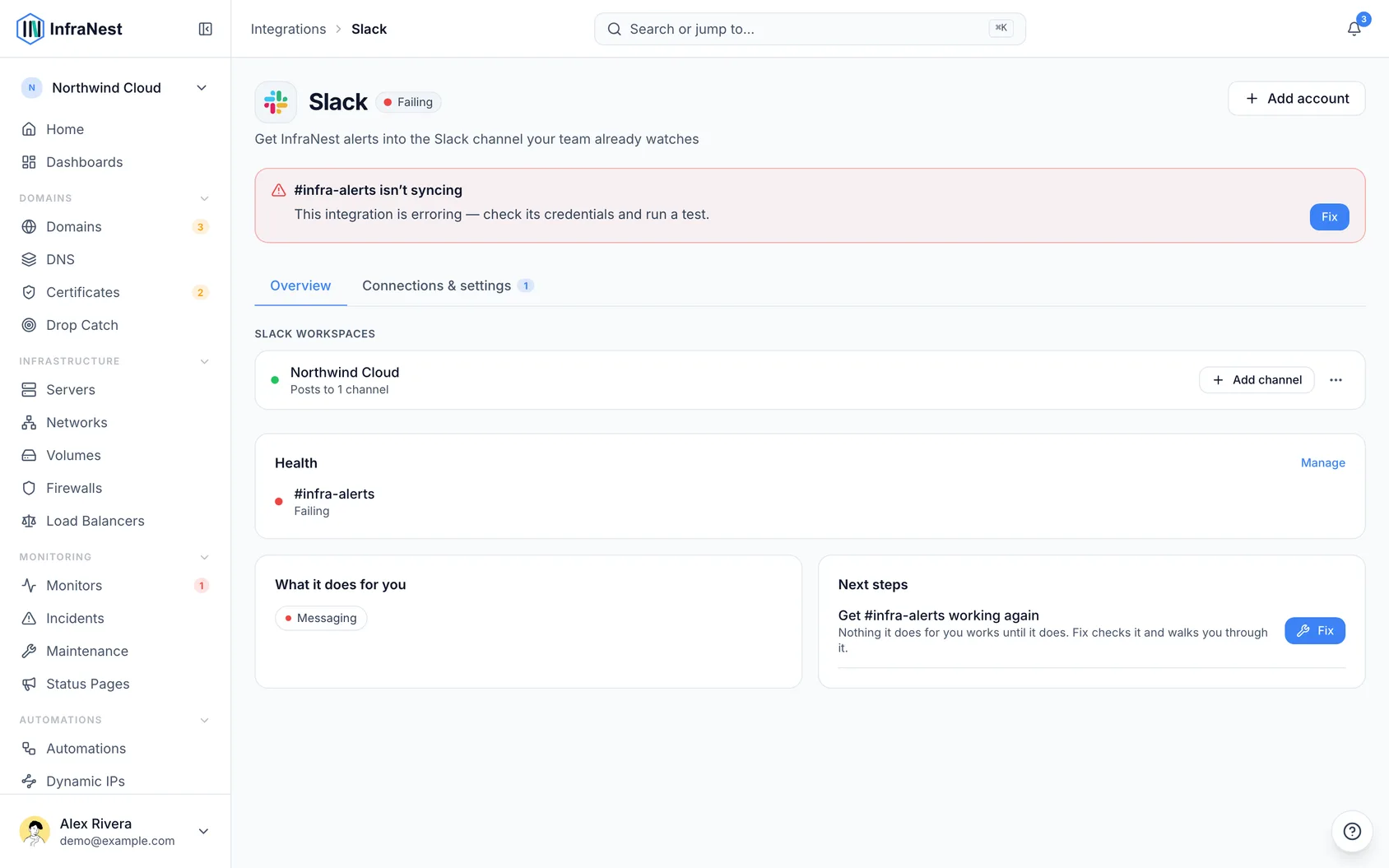
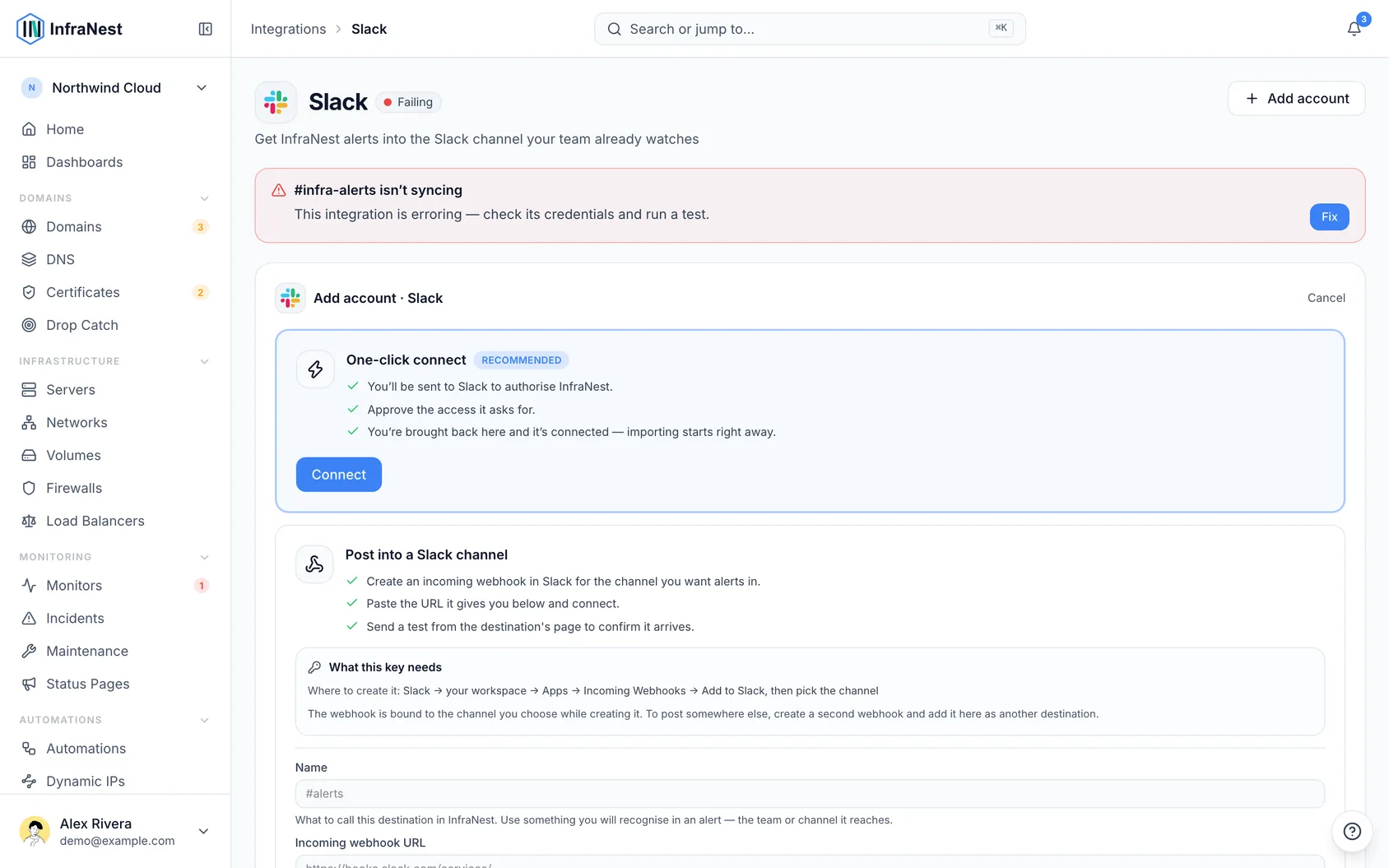
- Go to Integrations → Slack and select Connect.
- Slack asks you to add InfraNest to your workspace. Check the workspace in the top right, then select Allow.
- Back in InfraNest, pick the channel the alerts should go to. You can add more channels to the same workspace later with Add channel.
- Select Send a test next to the new destination to check that an alert arrives in the channel you expect.
After you allow it, InfraNest sends you a welcome message in Slack. You're linked to your InfraNest account straight away, and you can pick the first channel and send a test alert from that message without coming back here. When a channel starts getting alerts, InfraNest introduces itself there once, so your team knows what the messages and buttons are.
TipYou can also type
/invite @InfraNestin any channel. InfraNest then asks you, privately, whether to send your alerts there.
For private channels, InfraNest only shows up in the list once you invite @InfraNest to it in Slack (type /invite @InfraNest in the channel). Public channels work without an invite.
Act on an alert from Slack
Alerts posted through the InfraNest app carry buttons: Acknowledge while nobody is on it, Silence 1 h while the problem is open, and Open in InfraNest. When someone presses one, the alert updates for everyone in the channel, for example Acknowledged by Sam at 02:16.
Once someone is on it, the alert also offers Add a note and, when the monitor is on one of your status pages, Post status update:
- Add a note saves a note on the incident for your team. It's posted in the alert's thread and is never public.
- Post status update lets you pick the status (Investigating, Identified, Monitoring or Resolved), write the message, and choose whether subscribers are told. You always see a review step first, because the update is public: it appears on your status page straight away. It's then announced in the alert's thread.
The buttons act as you, with the role you have in InfraNest. The first time you press one, InfraNest sends you a private message, visible only to you, with a Link my account button. Open it while signed in to InfraNest, then press the button in Slack again. You only do this once per Slack workspace.
When an automation waits for approval and sends its request to a Slack channel, the message carries Approve and Reject. Reject asks you to confirm first.
You can also save a message as a note: pick Add to incident as note in any message's menu (⋯ › More message shortcuts). In an alert's thread it goes on that alert's incident; anywhere else you choose the incident. Only that one message is shared with InfraNest. Post status update is also in Slack's shortcuts menu (the ⚡ or + button next to where you type).
Use /infranest
Type /infranest in any channel or direct message. Only you see the answer.
/infranest statusshows what needs you right now./infranest status api.example.comshows how one monitor, domain or server is doing. You can use a name, a URL or an ID./infranest updatelists the open incidents you can post a public status update on, each with a Post status update button./infranest pausepauses your own alerts for an hour. Use/infranest pause tomorrowuntil the morning, or/infranest pause week./infranest backturns them on again./infranest linklinks your Slack to your InfraNest account, if you haven't yet.
The InfraNest app in Slack also has a Home tab. It shows whether your alerts are paused (with buttons to change that), what is open, who is on call when PagerDuty is connected, and which channel gets which organisation's alerts.
Ping someone when something goes down
On the Slack destination's page, under Mention on an outage, choose who the alert pings: nobody, @here, one of your Slack user groups (such as @oncall), or whoever PagerDuty says is on call for that monitor. The ping is only on the alert that opens an outage, never on updates or when it recovers. The on-call option needs that person to have linked their Slack.
Paste an InfraNest link
Paste a link to a monitor, domain or server from InfraNest into a channel, and Slack shows its name, how it is doing, and who is on it, with an Open button. Everyone in the channel sees the preview, so it only appears for your own organisation's items, in a workspace where InfraNest is installed.
If you added InfraNest to Slack before these two features arrived, add it again once (Integrations › Slack › Add to Slack): Slack asks you to allow reading your user groups and previewing links.
Get your own alerts as Slack direct messages
- Once your Slack is linked, go to My account › Notifications.
- Select Add, then Slack.
Your own alerts then arrive as direct messages from InfraNest, and update themselves when a problem is resolved. Each one has your own buttons under it, such as Acknowledge, Silence 1 h, Remind me later or Approve a join request. They work only for you, and anything that can't be undone asks you to confirm first. There is nothing to paste. If your team hasn't added InfraNest to Slack, you'll be asked for a webhook link instead.
To change the channel, open the destination under Integrations → Slack and select Change channel. Its name, alerts and settings stay the same.
Already using a webhook? Open the destination and select Move to the InfraNest app, then pick the channel. Its name, alerts and settings stay the same, and from then on its alerts update themselves when a problem is resolved.
If you use more than one workspace, connect again and pick the other workspace on Slack's screen. Each workspace is listed separately under Slack workspaces.
Connect with a webhook instead
If you'd rather not add the InfraNest app to your workspace, you can paste an incoming webhook URL instead. Alerts arrive the same way, but they cannot update themselves when a problem is resolved: the recovery is posted as a new message that names the alert it closes.
- In Slack, add an Incoming Webhooks app to your workspace (or open the existing one), choose the channel, and copy the webhook URL. Treat it like a password.
- In InfraNest, go to Integrations → Slack, open Connect and choose the webhook option.
- Paste the webhook URL, then select Send a test.
Send alerts to Slack
Once the destination is saved, choose Slack when you decide which alerts go where — for example a monitor going down, a domain about to expire, or a certificate warning.
Tips
- Right after you add Slack, select Send a test to check that an alert arrives in the channel you expect. A destination that hasn't received anything yet keeps offering the test under Alerts → Destinations.
- While your alerts only go to email, each alert email ends with Get this in Slack next time. It opens Slack in InfraNest, ready to connect.
- Every monitor and server page shows Who hears about this?: the destinations and people its alerts reach, with Add Slack next to them.
Troubleshooting
WarningIf InfraNest is removed from your workspace, or a channel it posts to is archived, the destination is marked as needing attention straight away and you're told by email. Add InfraNest to Slack again, or pick another channel.
- InfraNest only posts to the channels you pick. It never reads your messages.
- Each channel you pick is one destination. Add another channel for a different team.
- To remove a workspace, first remove the Slack destinations that use it, then choose Remove workspace.
- A webhook URL is stored securely and never shown again after saving.
Was this article helpful?