

Connect your Cloudflare account to InfraNest to manage DNS, domains and SSL certificates in one place, without leaving InfraNest.
Overview
- Once connected, your Cloudflare zones and records appear automatically in InfraNest.
- You can manage DNS, domains and certificates depending on which features you turn on for the connection.
- No separate login is needed afterwards — InfraNest uses your API token to talk to Cloudflare.
Before you start
You'll need a Cloudflare API token. See Create a Cloudflare API token for the steps and the exact permissions to give it.
NoteYour Account ID is optional — InfraNest detects it from the token. Only enter it if you use the domains feature and it can't be detected automatically.
Connect Cloudflare
- Go to Integrations and open Cloudflare.
- Give the connection an Account label (optional). Leave it blank and it takes the provider's name — a second connection to the same provider becomes "… (1)", so they stay tellable apart.
- Choose which features to use it for: DNS, Domains and Certificates.
- Paste your API token (and your Account ID if needed).
- Leave Email me when this integration has problems ticked if you'd like email warnings.
- Select Connect.
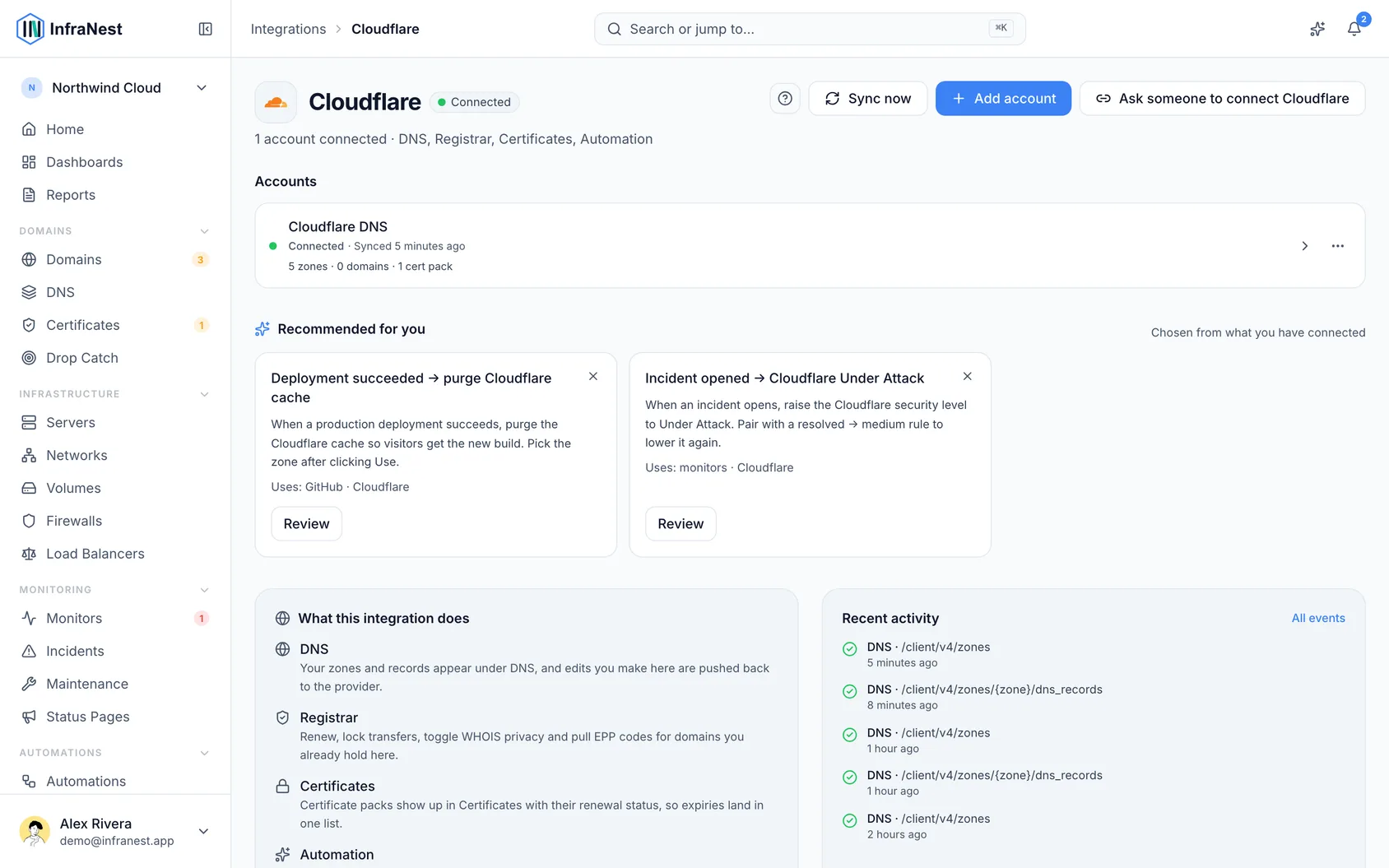
What you get once it's connected
- DNS — view and edit your zones and records (including the proxied setting), and create or delete zones.
- Domains — for domains registered at Cloudflare: renew, lock transfers, turn WHOIS privacy and auto-renew on or off, and get the transfer (EPP) code.
- SSL certificates — your Cloudflare certificates show up in your certificate list.
Good to know
- Registering a new domain works only for domains already on Cloudflare. Brand-new registrations and transfers in are done in the Cloudflare dashboard.
- Nameservers are managed through the Cloudflare zone, so they aren't edited here.
Troubleshooting
- "Authentication failed" — check the token includes Zone:Read and DNS:Edit (plus Domain Registrar:Edit for domains), and that it hasn't been revoked.
- "Cloudflare could not be reached" when connecting — that message means exactly what it says: the connection was not refused, Cloudflare simply did not answer while we were checking it. Nothing is wrong with your account or your approval. Wait a minute and select Connect again.
- Domain actions are greyed out — add the Account → Domain Registrar → Edit permission to your token, and make sure your Account ID is set.
- Hostnames served by a Worker aren't listed — these aren't DNS records, so InfraNest reads them separately, and that needs Account → Workers Scripts → Read on your token. Without it the zone page shows a short note and nothing else changes; add the permission (or reconnect with Cloudflare, which asks for it), then select Re-enable on the note. On the Cloudflare integration page, the account's warning has one Fix button: it opens a check of the account that lists what is paused, with Reconnect and Re-enable now in one place.
TipIf you manage several Cloudflare accounts, give each connection a clear Account label so you can tell them apart at a glance.
Was this article helpful?