

Connect Jira so your automations can raise tickets, comment on them, move them to a new status, and link them back to the certificate, monitor or domain they're about — all without anyone copying details across by hand. This is for anyone setting up or managing InfraNest's Jira integration.
Overview
- Automations can open Jira tickets for things like an expiring certificate, a monitor that went down, or a domain coming up for renewal.
- Automations can also comment on an existing ticket, change its status, or link it to the thing it concerns.
- Works with Jira Cloud (your
something.atlassian.netaddress). Jira Data Center and Server are not supported.
Connect your site
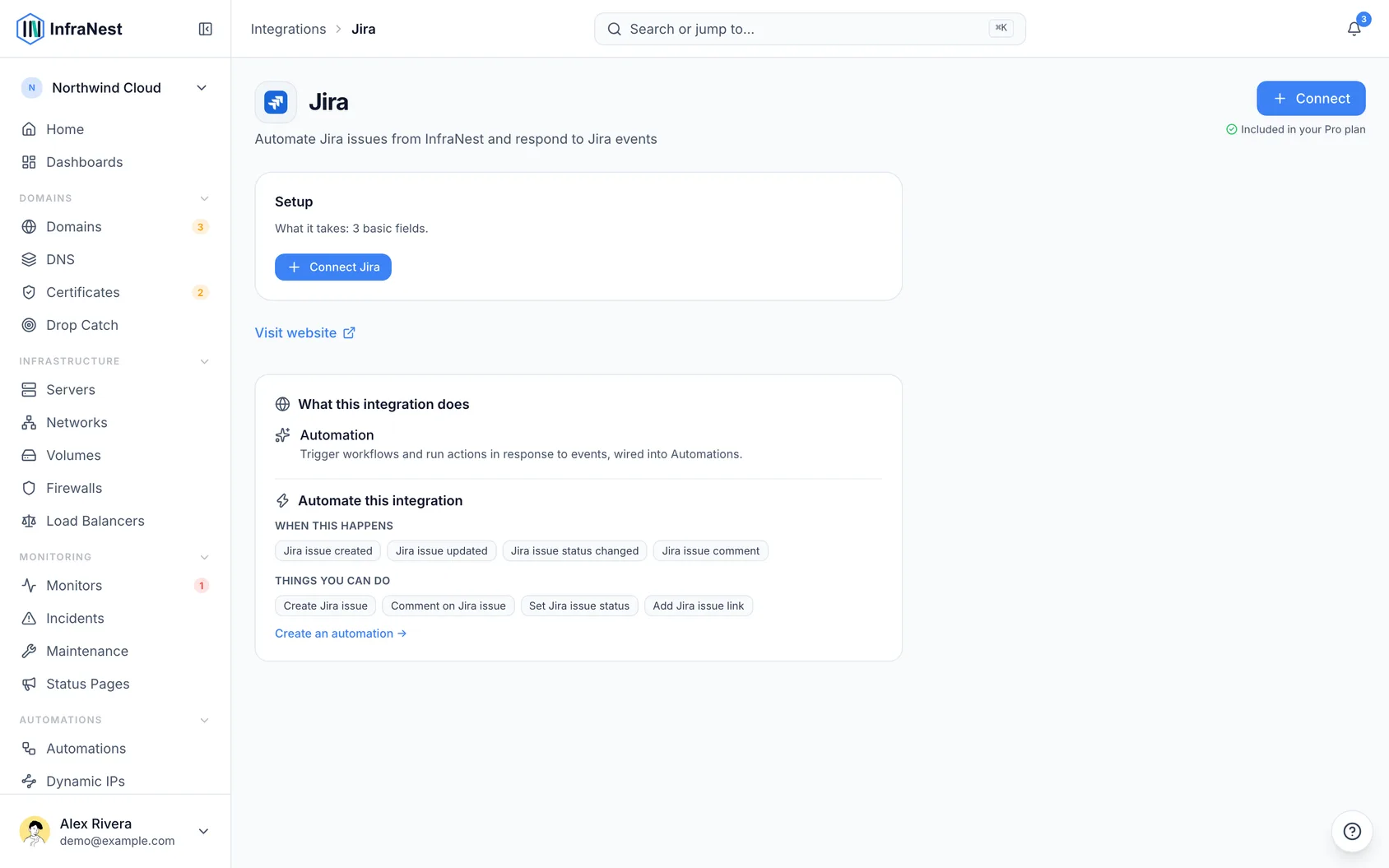
- Open Integrations in the sidebar and find Jira.
- Click Connect with Jira.
- Approve access when Atlassian asks. You'll land back in InfraNest already connected — nothing to copy.
- If you have more than one Atlassian site, you're asked which one to use. With exactly one, InfraNest picks it for you.
NoteIf Connect with Jira is greyed out, your InfraNest administrator hasn't registered a Jira app yet. Use an API token instead — it works the same way once connected.
Connect with an API token
- In Atlassian, open Account settings → Security → API tokens and create a token.
- Copy it — Atlassian only shows it once.
- In InfraNest, open Integrations in the sidebar, then Jira, and fill in three fields:
- Jira URL — e.g.
acme.atlassian.net. Pasting the full address of any Jira page also works. - Atlassian account email — the address you sign in with.
- API token — the one you just copied.
- Jira URL — e.g.
- InfraNest checks it right away and shows whose account it belongs to, so you can confirm you connected the right one.
WarningUse the email you sign in with. A different address on the same site is refused, and the error looks like a bad token rather than a wrong email.
The token acts as you, so it can only raise tickets in projects you can already see. It's also tied to you personally — if you leave, it stops working. For a connection the whole team relies on, an admin's token or the one-click Connect with Jira option is the safer choice.
Raise a ticket from an automation
- Build a rule as usual and pick Create Jira issue as the action.
- Set Project — start typing and pick from your projects, or type a project key like
OPS. - Set Issue type — Task, Bug, or whatever else your project uses. Sub-task types aren't offered, since they need a parent ticket.
- Fill in Summary and Description — plain text, and you can drop in values from whatever triggered the rule so the ticket arrives with the domain name or monitor already in it.
- Optionally set Assignee — start typing a name or email; only people who can be assigned in that project are offered.
- Optionally set Priority and Labels — labels can't contain spaces, use a hyphen instead.
The ticket the rule creates is available to later steps in the same rule, so you can post its link to Slack right after raising it, or comment on it, move it, or link it using the actions below.
TipOne ticket per incident. When a rule runs on an incident (say, a monitor going down), InfraNest remembers the ticket it opened and adds a comment instead of opening a new one if the rule runs again while it's still open. A flapping monitor gives you one ticket, not one per flap. To open a new ticket every time anyway, set If this incident already has an open ticket to Open a new ticket anyway.
Comment, change the status, or link back
Three more actions work on a ticket that already exists. All of them ask which ticket: give the key you see in Jira (OPS-14), or refer to the ticket an earlier step in the same rule raised — the picker of earlier values offers it.
- Comment on Jira issue — adds a comment. Useful as the other half of a rule that raises tickets: the monitor recovers, and the ticket says so.
- Set Jira issue status — moves the ticket, so a rule that opened work can also finish it. Type the status you want it to end in ("Done"), or the name your workflow gives the move ("Close Issue") — either works.
- Add Jira issue link — puts a link in the ticket's Links panel pointing back at the certificate, monitor or domain it is about. Running the rule again updates that link rather than adding a second one.
Start an automation from Jira
An automation can also start when something happens in Jira: an issue is created or changed, moves to another status, or gets a comment. For that, Jira has to tell InfraNest, through a webhook you add once.
- Go to Integrations → Jira and select Turn on triggers on the account.
- In Jira, open Settings → System → WebHooks and select Create a WebHook. This needs a Jira admin.
- Paste the URL InfraNest shows, type a secret of your own (at least 8 characters), and tick Issue: created and updated, and Comment: created. Save.
- Back in InfraNest, paste the same secret and select Save.
The account then shows whether events are arriving. Change an issue to try it. In the automation builder, a Jira trigger warns you when no Jira account has its triggers turned on.
Issue a new URL replaces the URL at once — paste the new one into the Jira webhook straight away. Turn off triggers stops them; delete the webhook in Jira too.
Troubleshooting
"Jira rejected the token" — check all three fields, not just the token. The most common cause is an email address that is not the one you sign in to Atlassian with.
"Your Atlassian account cannot use the Jira API" — the token is valid, but the account isn't allowed to use the API on that site. Your Jira administrator can change that.
"This Jira connection has no site selected yet" — you authorized more than one Atlassian site and haven't picked one. Open the connection under Integrations in the sidebar and choose it.
A list says why it has nothing to offer. When Jira couldn't be asked, the list says so instead of coming up empty:
- Needs to be connected again — the connection's access was revoked or has run out, or it has no site picked yet. Connect it again under Integrations in the sidebar. The list fills in on your next try.
- Isn't allowed to read this list — the connection works, but its access doesn't cover this list. Give it that access in Jira, or type the value.
- Couldn't load suggestions just now — Jira didn't answer. Try again in a moment, or type the value.
The project list is empty. Pick a connection first, at the top of the action. If it's still empty, the account may not be able to see any projects.
The issue-type or assignee list is empty. Both belong to a project, so choose the project first. If the project comes from the trigger rather than being picked, the lists stay empty and you can type the values instead — the automation works them out when it runs.
An automation failed saying a field is required. Some projects make extra fields mandatory on their create screen, and InfraNest's Jira action offers a fixed set. The failure names the field Jira wanted — open the run in Automations → History to see it. Either make that field optional in Jira, or raise the ticket in a project that doesn't require it.
"Jira offers no transitions on OPS-14 right now." Jira only allows the moves its workflow permits from the ticket's current status. A ticket already Done cannot be moved to Done. The message lists what the ticket can do — pick one of those.
"No transition named … is available." Your workflow calls the move something else. The message lists the available ones; use whichever gets to the status you want.
What InfraNest keeps
InfraNest receives an event from Jira for every issue and comment you or your team create or change — whether or not an automation uses it.
- Event history — used to show how often a draft automation would have run. It keeps which issue, its status, project and type, who did it and what happened, for 45 days. It does not keep the text people write: issue titles and comment text are left out.
- Run history — when an automation actually runs, its run keeps the full event it ran on, comment text included, for 90 days. Only members whose role can edit automations can see it. Everyone else sees that a run happened and whether it worked.
Disconnecting stops new events from arriving. What InfraNest already holds is removed when those 45 and 90 days run out.
Was this article helpful?